# Query Builder

## Overview

In the Smartico Back Office (BO), user segmentation is managed through the Query Builder.

You will find a Query Builder in tree different contexts

**In the context of the event**

When its connected to specific event, e.g. Realtime automation rule triggered by event, Journey/Realtime Campaign triggered by event, Mission completion triggered by event, and few other.

In such case Query Builder gives you possibility to act on the "Event properties" or what we also call "dynamic properties" and also to limit by "User state propertieis".

For example you could have Automation rule that is triggered by deposit, and you can validate "Event property" deposit method to be for example "PayPal". At the same time you can limit by "User state property" for example only users from Germany.

<figure><img src="https://77049817-files.gitbook.io/~/files/v0/b/gitbook-x-prod.appspot.com/o/spaces%2FfS5hl0PiysHtKAKMsQTe%2Fuploads%2Fgit-blob-5a640c6a3c660acac95f74821ddfa64647cbb570%2Fimage.png?alt=media" alt=""><figcaption></figcaption></figure>

**Out of the context of events**

In non-event related context you are able to segment only by user state properties. This is applicable to the Scheduled Campaigns, Scheduled Automation rules, Visibility rules (e.g. Mini-game is visible to specific segment of users). The difference that this context is not related to the event, so you are able to operate only on the "User state properties", e.g. Jackpot to be visible only to users who had at least one deposit.

<figure><img src="https://77049817-files.gitbook.io/~/files/v0/b/gitbook-x-prod.appspot.com/o/spaces%2FfS5hl0PiysHtKAKMsQTe%2Fuploads%2Fgit-blob-e4dd5480364592feae3334ff8246626d9d01cd14%2Fimage.png?alt=media" alt=""><figcaption></figcaption></figure>

**Behavioral segmentation & Dynamic rewards**

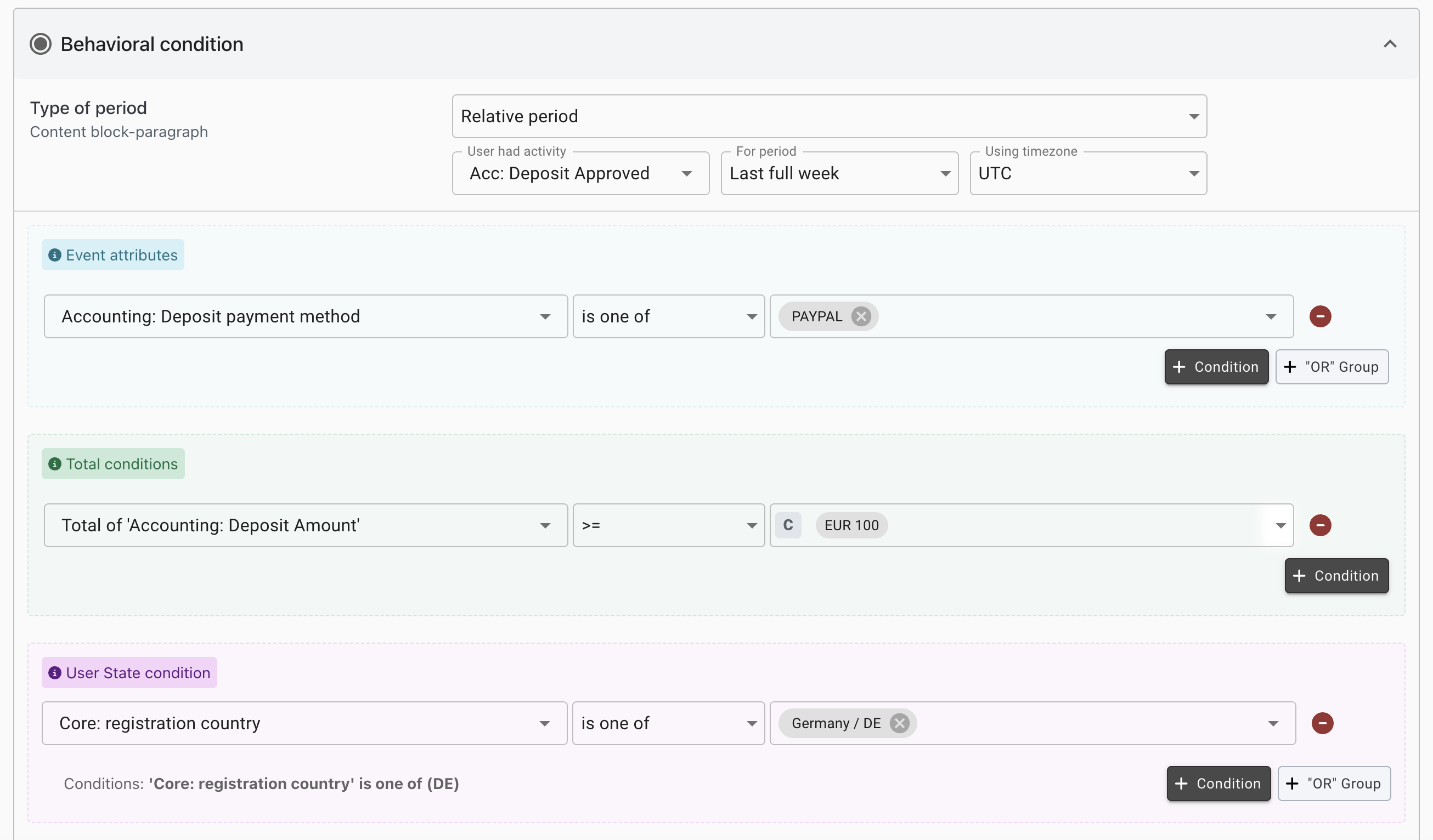
In the [Behavioral segmentation](https://help.smartico.ai/welcome/products/crm-automation/segmentation/behavioral-segments) and [Dynamic Rewards](https://help.smartico.ai/welcome/products/general-concepts/dynamic-rewards) you are working with histortical transactions, e.g. all the deposits.

In such case you can define:

* Timewindow to search for transactions, e.g. Last full week
* Per-transaction conditions, .e.g. payment method to be PayPal
* Total conditions, e.g. total deposit amount > 100 EUR

<figure><img src="https://77049817-files.gitbook.io/~/files/v0/b/gitbook-x-prod.appspot.com/o/spaces%2FfS5hl0PiysHtKAKMsQTe%2Fuploads%2Fgit-blob-d8ececf4d16310f1a5a2894e7d404294b15f061e%2Fimage.png?alt=media" alt=""><figcaption></figcaption></figure>

#### **Query Builder Properties tooltips**

Tooltips in the Query Builders display detailed information about the Property. If the property is Dynamic, it will show the following Tooltip:

<figure><img src="https://77049817-files.gitbook.io/~/files/v0/b/gitbook-x-prod.appspot.com/o/spaces%2FfS5hl0PiysHtKAKMsQTe%2Fuploads%2Fgit-blob-4a01ecfe2079e6198f3e23eef8964bd54a12f97e%2Funknown.png?alt=media" alt=""><figcaption></figcaption></figure>

In Addition, the tooltip will provide details about the Property itself:

<figure><img src="https://77049817-files.gitbook.io/~/files/v0/b/gitbook-x-prod.appspot.com/o/spaces%2FfS5hl0PiysHtKAKMsQTe%2Fuploads%2Fgit-blob-f72f42510dbab463d4f05edab667eee0c469b654%2Funknown.png?alt=media" alt=""><figcaption></figcaption></figure>

In case the Property is Connected to specific event, the tooltip will indicate that:

<figure><img src="https://77049817-files.gitbook.io/~/files/v0/b/gitbook-x-prod.appspot.com/o/spaces%2FfS5hl0PiysHtKAKMsQTe%2Fuploads%2Fgit-blob-440bb91697cf7359578e72d613d08a1bd46a9914%2Funknown.png?alt=media" alt=""><figcaption></figcaption></figure>

## Operations on the properties

When adding a condition, available operations vary depending on the selected property. Each property has its own data type.

### Date properties

For example, `Accounting: Last deposit date` is considered a date type property and it supports the following operations:

<figure><img src="https://77049817-files.gitbook.io/~/files/v0/b/gitbook-x-prod.appspot.com/o/spaces%2FfS5hl0PiysHtKAKMsQTe%2Fuploads%2Fgit-blob-c05dae333e2bffe2e47500f3f183a0be1623a11b%2FScreenshot_7.png?alt=media" alt=""><figcaption><p>BO: Operations for 'Accounting: Last Deposit Date'</p></figcaption></figure>

**General Date Operations**

* **Is not defined** - The last deposit date is not available.
* **Is defined** - A last deposit date exists.
* **Is** - The last deposit date equals a specific date (10.10.2025).
* **Is before** - The last deposit date is before a specific date.
  * **Example:** If the condition is set to `Accounting: Last deposit date` → **Is before** 10.10.2025, the date 10.10.2025 itself will not be included in the calculation. Only deposits made before 10.10.2025 00:00 UTC will be considered.
* **Is after** - The last deposit date is after a specific date.
  * **Example:** If the condition is set to `Accounting: Last deposit date` → **Is after** 10.10.2025, the date 10.10.2025 itself will be included in the calculation. All deposits made on or after 10.10.2025 00:00 UTC will be considered.<br>

**Hour-Based Operations**

* **Hours passed is** - The number of hours that have passed since the last deposit (e.g., 6 hours).
  * Uses a sliding 24-hour window.
  * To segment users who deposited within the last hour, set the value to 0.
* **Hours passed is less or equal** - The time since the last deposit is less than or equal to X hours.
* **Hours passed is more or equal -** The time since the last deposit is more than or equal to X hours.
* **Hours passed is one of** - The hours passed since the last deposit match one of several values (e.g., 1h, 5h, 10h).<br>

**Day-Based Operations**

* **Days passed is** - The number of days since the last deposit (e.g., 1 day, 3 days).
  * Calculated using a 24-hour sliding window in UTC.
  * **Example:** if the player deposited at 22:00 UTC, one day is counted at 22:00 UTC the following day.
  * If you want to segment users who have deposited in the last 24h you can use the `Accounting: Last deposit date` **Days passed is** 0.
* **Days passed is more or equal -** The days since the last deposit are greater than or equal to X days.
* **Days passed is less or equal** - The days since the last deposit are less than or equal to X days.
* **Days passed is one of** - The days since the last deposit match one of several values (e.g., 1, 3, or 5 days).<br>

**Days Left (Future Events)**

Applicable only to events that have a future date. Keep in mind that this will not work with the `user_birthday` property.

* **Days left is** - The number of days remaining until the event.
* **Days left is more or equal** - The remaining days are greater than or equal to X.
* **Days left is less or equal** - The remaining days are less than or equal to X.
* **Days left is one of** - The remaining days match one of several specific values (e.g., 3 days, 5 days).<br>

**Days to Date of Birth (DOB)**

Applicable only to the `user_birthday` property. If you want to segment users who have birthday in the next 24h you can use the `user_birthday` **Days to DOB is** 0.

* **Days to DOB is** - The number of days until the user’s next birthday.
* **Days to DOB is more or equal** - The days until the user’s birthday are greater than or equal to X.
* **Days to DOB is less or equal** - The days until the user’s birthday are less than or equal to X.<br>

**Calendar Day-Based Operations**

* **Cal. days passed is** - The number of calendar days since the user’s last deposit.
  * Calculated based on full calendar days.
  * A new day starts after 23:59 UTC.
* **Cal. days passed is more or equal** - The number of calendar days since the last deposit is greater than or equal to X.
* **Cal. days passed is less or equal** - The number of calendar days since the last deposit is less than or equal to X.

### Boolean properties

A Boolean is a data type that can have one of two possible values - true or false. In Smartico, Boolean properties are typically used to indicate whether a user belongs to or is excluded from a specific group or condition. Here are some examples of Boolean properties:

* User is in the Control Group
* User has opted out of Emails or SMS
* User is marked as a Test Account

Such properties support the following operations::

* **Is equal (=)** - The property value equals to True or False
* **Is not equal (!=)** - the property value is not equal to True or False

### Numeric properties

A numeric property represents data that can be expressed only in numbers. Examples of numeric properties include:

* Deposit Count
* Point Balances
* Minigame: Number of issued spins

Such properties support the following operations:

| Operation                                         | Description                                                 | Example                                                                                                   |
| ------------------------------------------------- | ----------------------------------------------------------- | --------------------------------------------------------------------------------------------------------- |
| Equals (=)                                        | The property equals a specific number.                      | Deposit Count = 1 → Includes users who have deposited exactly once.                                       |
| Not Equals (!=)                                   | The property does not equal a specific number.              | Deposit Count != 0 → Includes users who have deposited at least once.                                     |
| Is More Than (>)                                  | The property is greater than a specific number.             | Deposit Count > 1 → Includes users who have deposited more than once.                                     |
| Is Less Than (<)                                  | The property is smaller than a specific number.             | Deposit Count < 5 → Includes users who have deposited fewer than 5 times.                                 |
| Is More or Equal (≥)                              | The property is greater than or equal to a specific number. | Deposit Count ≥ 5 → Includes users who have deposited 5 or more times.                                    |
| Is Less or Equal (≤)                              | The property is less than or equal to a specific number.    | Deposit Count ≤ 5 → Includes users who have deposited 5 or fewer times.                                   |
| Is One Of <mark style="color:red;">\*</mark>      | The property matches any of the specified numbers.          | Deposit Count is one of 1, 3, 5 → Includes users who have deposited once, three times, or five times.     |
| Is Not One Of <mark style="color:red;">\*</mark>  | The property does not match any of the specified numbers.   | Deposit Count is not one of 1, 3, 5 → Excludes users who have deposited once, three times, or five times. |
| Is Defined <mark style="color:red;">\*</mark>     | The property has been defined at least once.                | Deposit Count is defined → Includes users who have made at least one deposit.                             |
| Is Not Defined <mark style="color:red;">\*</mark> | The property has not been defined.                          | Deposit Count is not defined → Includes users who haven’t made any deposits yet.                          |

{% hint style="success" %} <mark style="color:red;">**\***</mark> The last four operations apply only to pure numeric properties (e.g., Total Deposit Count). They do not apply to multi-currency numeric properties such as Last Bet Amount.
{% endhint %}

### Multi-Currency properties

Multi-currency properties differ from regular numeric properties in that they always include a Default field, plus a separate field for each currency used on your label. For example, if your label’s base currency is EUR and some users have BRL and KRW as wallet currencies, each multi-currency property will have fields for Default, EUR, BRL, and KRW.

{% hint style="success" %}
If a campaign’s entry trigger requires a bet of 5 EUR, only bets placed in EUR will qualify. Equivalent bets in other currencies will not be accepted.
{% endhint %}

Examples of multi-currency properties:

* Bonus Amount
* Last Bet Amount
* Last Deposit Amount

Such properties support the following operations:

| Operation            | Description                                                 | Example                                                       |
| -------------------- | ----------------------------------------------------------- | ------------------------------------------------------------- |
| Equals (=)           | Property equals a specific number                           | Last Bet Amount = 5 → Users whose last bet was exactly 5      |
| Not Equals (!=)      | The property does not equal a specific number.              | Last Bet Amount != 5 → Users whose last bet was not 5         |
| Is More Than (>)     | The property is greater than a specific number.             | Last Bet Amount > 5 → Users whose last bet was greater than 5 |
| Is Less Than (<)     | The property is smaller than a specific number.             | Last Bet Amount < 5 → Users whose last bet was less than 5    |
| Is More or Equal (≥) | The property is greater than or equal to a specific number. | Last Bet Amount ≥ 5 → Users whose last bet was 5 or more      |
| Is Less or Equal (≤) | The property is less than or equal to a specific number.    | Last Bet Amount ≤ 5 → Users whose last bet was 5 or less      |

### Enumeration properties

An enumeration property consists of a set of predefined named values. A key characteristic of enumeration properties is that an event can carry only one value at a time. For instance, a user can register from DE or IT, but not both.

Examples of enumeration properties:

* Current level name
* Last bet game provider
* Last deposit payment provider

Such properties support the following operations:

| Operation       | Description                                         | Example                                                                                                                                    |
| --------------- | --------------------------------------------------- | ------------------------------------------------------------------------------------------------------------------------------------------ |
| Is defined      | Property has a value                                | Last Bet Game Provider is defined → Includes users who have played any game, regardless of provider                                        |
| Is not defined  | Property has no value                               | Last Bet Game Provider is not defined → Includes users who haven’t played any games                                                        |
| Equals (=)      | Property equals a specific named value              | Last Bet Game Provider = NetEnt → Includes users who played a game with NetEnt provider                                                    |
| Not Equals (!=) | Property does not equal a specific named value      | Last Bet Game Provider != NetEnt → Includes users who played games, but not with NetEnt provider                                           |
| Is One Of       | Property matches any of the specified values        | Last Bet Game Provider is one of NetEnt, Spribe → Includes users who played with NetEnt or Spribe providers                                |
| Is Not One Of   | Property does not match any of the specified values | Last Bet Game Provider is not one of NetEnt, Spribe → Includes users who played games with providers other than NetEnt or Spribe providers |

### Array properties

Arrays are similar to enumerations but have an important distinction: while both draw values from a predefined set, an array property can hold multiple values for a single event, whereas an enumeration can hold only one. For example, Casino games have types such as Slots, Video Poker, Live Games, Baccarat, etc.:

* If the property is enumeration-type, a game can only belong to one type at a time — e.g., a game cannot be both a Slot and a Baccarat simultaneously
* If the property is an array, a game can belong to multiple types at once. For example, a popular new live baccarat game could have the following types simultaneously: New Game, Live Game, Table Game, Baccarat, Most Played.

This illustrates how array properties allow events to carry multiple values from the predefined set, providing more flexibility than enumerations.

Example of array properties:

* User markers
* Missions user completed ever

Such properties support the following operations:

| Operation              | Description                                               | Example                                                                                                               |
| ---------------------- | --------------------------------------------------------- | --------------------------------------------------------------------------------------------------------------------- |
| Is Empty               | The property does not contain any values                  | User Markers is empty → Includes users who do not have any markers                                                    |
| Is Not Empty           | The property contains one or more values                  | User Markers is not empty → Includes users who have at least one marker                                               |
| Has Any Of             | The property contains any of the specified values         | User Markers has any of VIP, Casino → Includes users who have at least one of these markers                           |
| Doesn’t Have Any Of    | The property does not contain any of the specified values | User Markers doesn’t have any of VIP, Casino → Includes users who have none of these markers                          |
| Doesn't Have All Of    | The property does not contain all of the specified values | Missions User Completed Ever -> The user does not have the complete set of missions. They may have some, but not all. |
| Has All Of             | The property contains all of the specified values         | User Markers has all of VIP, Casino → Includes users who have both VIP and Casino markers                             |
| Has X Elements         | The property contains exactly X values                    | Missions User Completed Ever has X elements = 3 → Includes users who have completed exactly 3 missions                |
| Has X or More Elements | The property contains X or more values                    | Missions User Completed Ever has X or more elements = 5 → Includes users with at least 5 completed missions           |
| Has X or Less Elements | The property contains X or fewer values                   | Missions User Completed Ever has X or less elements = 10 → Includes users with a maximum of 10 completed missions     |

### Text properties

The text values are the ones where you can type any text. They’re mostly used for names, usernames, all sorts of UTMs and strings.

Example of text properties:

* Username
* First name
* Last name
* UTM value

Such properties support the following operations:

| Operation           | Description                                           | Example                                                                                            |
| ------------------- | ----------------------------------------------------- | -------------------------------------------------------------------------------------------------- |
| Is Defined          | The property has a value                              | Last Name is defined → Includes users who have provided a last name                                |
| Is Not Defined      | The property does not have a value                    | Last Name is not defined → Includes users who have not provided a last name                        |
| Equals (=)          | The property matches the specified value exactly      | Last Name = Smith → Includes users whose last name is Smith                                        |
| Not Equals (!=)     | The property does not match the specified value       | Last Name != Smith → Includes users whose last name is not Smith                                   |
| Contains            | The property includes the specified substring         | Username contains “big” → Includes users whose username contains big                               |
| Doesn’t Contain     | The property does not include the specified substring | Username doesn’t contain “big” → Includes users whose username does not contain big                |
| Starts With         | The property begins with the specified value          | Username starts with “test” → Includes users whose username starts with test                       |
| Doesn’t Start With  | The property does not begin with the specified value  | Username doesn’t start with “test” → Includes users whose username does not start with test        |
| =(case insensitive) | Ignores uppercase and lowercase differences           | Username =(case insensitive) 'TesT AccounT' -> will ignore the uppercase and lowercase differences |

## Value Before the Event ("was" operator)

When the Query Builder is used in the context of the event, you can validate the previous values of the properties that are changed by the event.

For example you can build a Realtime campaign (Journey) triggered by "User went online" event, checking for "Last device used" to be DESKTOP, while before that it was "MOBILE"

<figure><img src="https://77049817-files.gitbook.io/~/files/v0/b/gitbook-x-prod.appspot.com/o/spaces%2FfS5hl0PiysHtKAKMsQTe%2Fuploads%2Fgit-blob-ea5b523c25a5f9cf9df08e4557af3fdf53bae563%2Fimage.png?alt=media" alt=""><figcaption></figcaption></figure>

Here is the list of operations that you can use when comparing previous state of property

* **Was less or equal** - The property was less than or equal to a specific value.
* **Was changed** - The selected property value was modified.
  * **Example:** `Gamification: Points current balance` changed.
* **Was defined** - The property has been defined (e.g., `Accounting: FTD Date` - the first deposit has been made).
* **Was not defined** - The property has not been defined before the event (e.g., `Accounting: FTD Date` - the first deposit has not been made).
* **Was equal** - The property was equal to a specific value (e.g., points balance = 50).
* **Was not equal** - The property was not equal to a specific value.
* **Was more -** The property was greater than a specific value.
* **Was less** - The property was less than a specific value.
* **Was more or equal** - The property was greater than or equal to a specific value.

{% hint style="warning" %}
Important: when using a 'was' operations, ensure the chosen property corresponds to the selected event. Otherwise you will get wrong triggers of your activity. See the example below
{% endhint %}

For example, if your trigger event is `Core: profile ready` and one of the selected conditions uses the property `Core: CSV & Common case segment` with operation **'didn’t have any of'** will <mark style="color:red;">**not work**</mark> - because the `Core: CSV & Common case segment` property is not updated by the `Core: profile ready` event.

<figure><img src="https://77049817-files.gitbook.io/~/files/v0/b/gitbook-x-prod.appspot.com/o/spaces%2FfS5hl0PiysHtKAKMsQTe%2Fuploads%2Fgit-blob-c1d3433910df818cae5c015612989b30b21d9a5f%2FScreenshot_9.png?alt=media" alt=""><figcaption><p>BO: Wrong example of using a 'was' operation in Query Builder</p></figcaption></figure>

To make the condition work correctly, use a property that is updated by the same event - for instance, `Core: account status`, which is updated by `Core: profile ready` event.

<figure><img src="https://77049817-files.gitbook.io/~/files/v0/b/gitbook-x-prod.appspot.com/o/spaces%2FfS5hl0PiysHtKAKMsQTe%2Fuploads%2Fgit-blob-6afe100160043a83fb96ffbf633fbd56ecdd1a0f%2FScreenshot_10.png?alt=media" alt=""><figcaption><p>BO: Correct example of using a 'was' operation in Query Builder</p></figcaption></figure>

## Comparison between 2 Properties

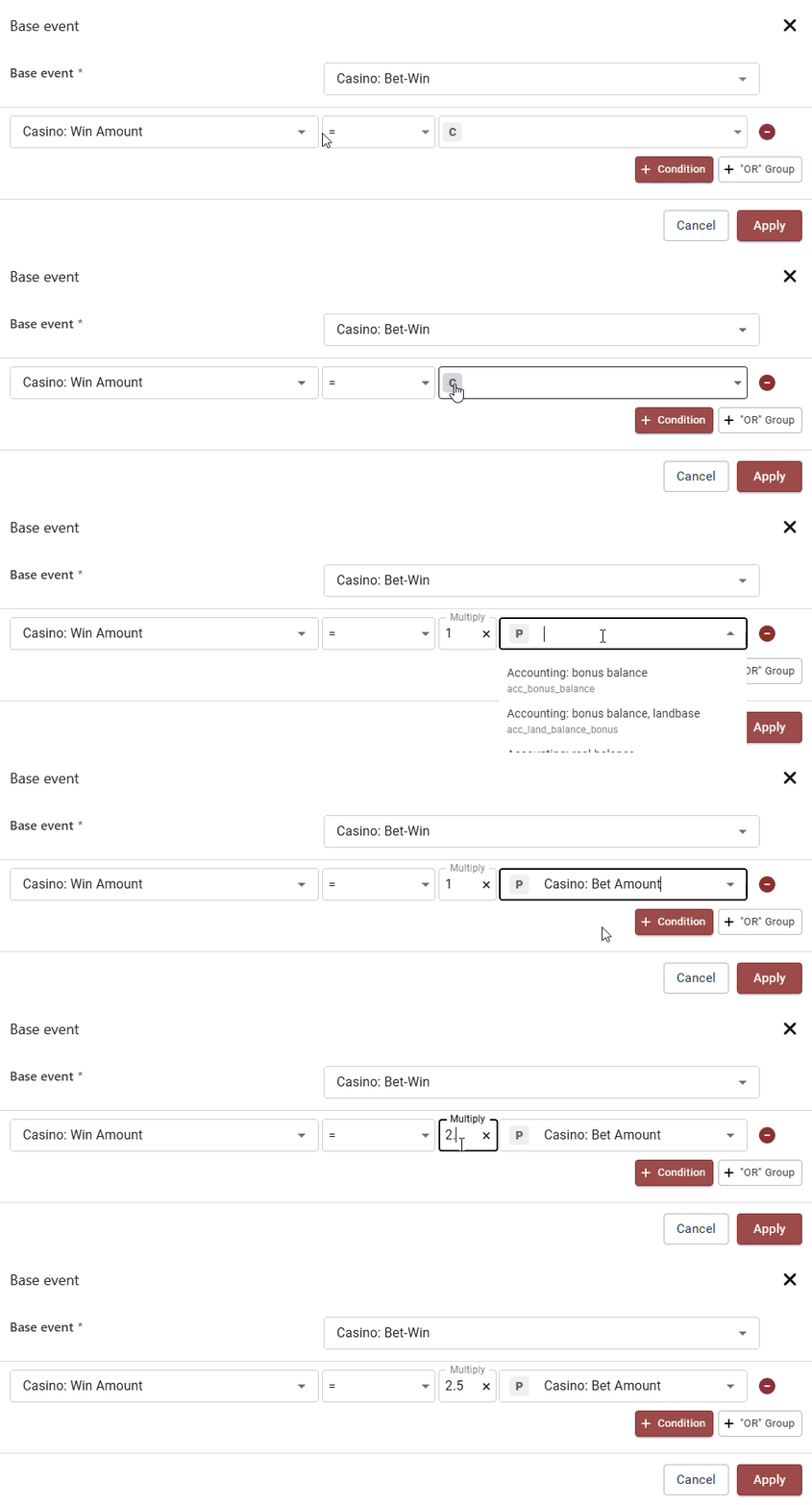
The Query Builder supports direct comparisons between properties when working with numeric and multi-currency fields. This allows for advanced conditions, such as evaluating whether the Casino Win amount is greater than the Casino Bet amount.

To enhance precision, a multiplier option is available - custom factors like 1.5×, 2×, etc... can be applied to scale values during comparison.

This feature is integrated across real-time evaluations, segment validations, and both campaign and segment builders, offering greater flexibility and control in targeting logic and automation workflows.

Whenever you select a numeric property in the Query builder you will notice an additional button appearing that will allow you to switch between the default **(C) Constant** and the **(P) Comparison between 2 properties.**

{% hint style="warning" %}
Some sections are in the process of migration (e.g. campaign) and the new comparison between 2 properties will not be available.
{% endhint %}

<figure><img src="https://77049817-files.gitbook.io/~/files/v0/b/gitbook-x-prod.appspot.com/o/spaces%2FfS5hl0PiysHtKAKMsQTe%2Fuploads%2Fgit-blob-18a4a76b873f739e87d4fbe92a6742d423b521c2%2FRecording%202025-09-15%20165010.gif?alt=media" alt=""><figcaption><p>BO: Example of property to property comparison in Query Builder</p></figcaption></figure>

#### Use case with User State condition

Let’s say you want to segment users who are profitable to your operation at a certain level. Traditionally, you might apply rigid conditions - like targeting users with a lifetime deposit amount above a fixed threshold. But this approach misses nuance.

For example:

* A user who deposited **1,000 EUR** and withdrew **990 EUR** isn’t highly profitable.
* A user who deposited **1,000 EUR** and withdrew only **150 EUR** is clearly more valuable.

Capturing this distinction with static filters would require creating dozens of segments based on deposit and withdrawal ranges which is a time-consuming process.

**So the solution is to use comparison between 2 propoerties** and apply a dynamic condition like:

Total Deposit Amount > 2 × Total Withdrawal Amount

<figure><img src="https://77049817-files.gitbook.io/~/files/v0/b/gitbook-x-prod.appspot.com/o/spaces%2FfS5hl0PiysHtKAKMsQTe%2Fuploads%2Fgit-blob-797500ed737f521f07f3e68611f70c62a6fd1e24%2Fimage.png?alt=media" alt=""><figcaption><p>BO: Example of prop to prop for user state condition</p></figcaption></figure>

This instantly identifies users whose lifetime deposits are at least twice their withdrawals - regardless of the actual amounts. Examples:

* 500 EUR deposited vs. 200 EUR withdrawn
* 200 EUR deposited vs. 0 EUR withdrawn

All of these users would qualify under this rule, making your segmentation smarter, faster, and more meaningful.

#### Use case with Behavioral condition

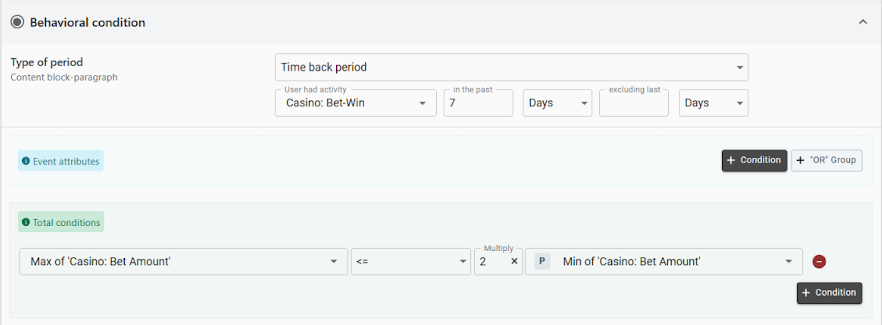
Property to property comparison integrates smoothly with behavioral segmentation, allowing you to apply it to metrics such as minimum, maximum, and average values within those segments.

For example you can set a condition such as: **Maximum Bet Amount ≤ 2 × Minimum Bet Amount**

<figure><img src="https://77049817-files.gitbook.io/~/files/v0/b/gitbook-x-prod.appspot.com/o/spaces%2FfS5hl0PiysHtKAKMsQTe%2Fuploads%2Fgit-blob-743d37ea11640100f8be78c2ff716f58834710ba%2Fimage.png?alt=media" alt=""><figcaption><p>BO: Example of prop to prop for behavioral condition</p></figcaption></figure>

This identifies users whose betting behavior shows little variation - where their highest bet is only twice (or less) their lowest. Such patterns may suggest low engagement or hesitation to place larger bets.

These users might not have discovered a game they truly enjoy. To boost engagement, consider offering targeted bonuses across a variety of games to encourage exploration and higher activity.

## Event evaluation in Query Builder

The **Event Evaluation** feature in the **Query Builder** enables execution of various operations that rely on **custom event properties** — even when such properties are not predefined or directly available in the system. These **custom event properties** are created by the Operator.

For example, you are sending to Smartico an event "client\_action" that looks like this:

```json
{
        "action": "give_promo_package",
        "event_type": "client_action",
        "package_name": "package1"
}
```

While you can build a campaign targeting a specific action as `give_promo_package`, you also have the possibility to validate any other details in the payload of the event, as on the screenshot below, you can see how to validate only the event with `package_name` equal to `package1`

<figure><img src="https://77049817-files.gitbook.io/~/files/v0/b/gitbook-x-prod.appspot.com/o/spaces%2FfS5hl0PiysHtKAKMsQTe%2Fuploads%2Fgit-blob-2ecff0d11dd1e4e8a9cc4cbc59030608c130156e%2Funknown.png?alt=media" alt=""><figcaption></figcaption></figure>

#### Supported Event Property Types

Query Builder in the **Back Office** supports the following **event property types**:

* **String**
* **Number**
* **Boolean**

Each property type can be used to define and evaluate conditions within automation rules, journeys, and mission tasks — ensuring complete logical coverage for any custom event scenario.

**Event evaluation** is available on:

* Journeys > Entry conditions
* Journeys and Scheduled campaigns > Flow > Wait for event
* Realtime Automation Rules
* Missions > Tasks

<figure><img src="https://77049817-files.gitbook.io/~/files/v0/b/gitbook-x-prod.appspot.com/o/spaces%2FfS5hl0PiysHtKAKMsQTe%2Fuploads%2Fgit-blob-547988c4c2bc0817d4d143f410d0a3d82ad10290%2Funknown.png?alt=media" alt=""><figcaption></figcaption></figure>

\
\-

#### Use Case: Automation Rule with Event Evaluation

Follow the steps below to create an **Automation Rule** that triggers based on custom event properties.

**Step 1: Create a New Automation Rule**

Navigate to:\
Automation Rules → Realtime → **Create New Rule**

**Step 2: Define the Event/Trigger and Segment**

Within the rule setup:

1. Open **Event/Trigger & Segment of Users**
2. Choose **Event/Trigger: Core → Client Action**
3. Select the desired **User Segment**

<figure><img src="https://77049817-files.gitbook.io/~/files/v0/b/gitbook-x-prod.appspot.com/o/spaces%2FfS5hl0PiysHtKAKMsQTe%2Fuploads%2Fgit-blob-e154969fc068986d8f19532510ed6e10978aa3e3%2Funknown.png?alt=media" alt=""><figcaption></figcaption></figure>

**Step 3: Add a Condition**\
Add a new Condition to evaluate a specific event property.

Example setup:

* **Event/Trigger:** `Core → Client Action`
* **Operator:** `=`
* **Value:** `some client action name`

Then, define one or more **Event Properties** depending on your use case:

**String Property**

* **Title:** `give_promo_package`
* **Operator:** `=`
* **Value:** `package1`

**Step 4: Add Activity**

Once your condition is set, add the desired Activity — for example:

* Add Points: 10,000

***

#### Result

When the specified **event condition** is met, the **Automation Rule** will trigger, and the selected activity (e.g., adding points) will be executed in real time. ✅

Note that events like "Client action" can be triggered over the server-to-server [REST API](https://help.smartico.ai/welcome/technical-guides/data-integration) or from the front-end, using [Smartico front-end library](https://help.smartico.ai/welcome/technical-guides/front-end-integration/extended-integration#custom-actions).

<br>