> For the complete documentation index, see [llms.txt](https://help.smartico.ai/welcome/llms.txt). Markdown versions of documentation pages are available by appending `.md` to page URLs; this page is available as [Markdown](https://help.smartico.ai/welcome/products/bi-and-reporting/campaigns-dashboard.md).
# Campaigns Dashboard
## 📘 Overview
The Campaigns Dashboard provides a detailed overview and analysis of your campaign usage, allowing you to track performance, costs, and player engagement. This dashboard is divided into ten tabs:
* Summary
* Alerts
* Before-During
* General Stats
* Communications
* Operational Data
* Analytical Data
* Control VS Test
* A/B Testing
* Report Legend
**🔍 How to Access the Campaigns Dashboard**
1. Navigate to Reports → Marketing → Campaigns overview
2. Select all the relevant filters
3. Explore the Dashboard for detailed insights.
### Tab 1: Summary
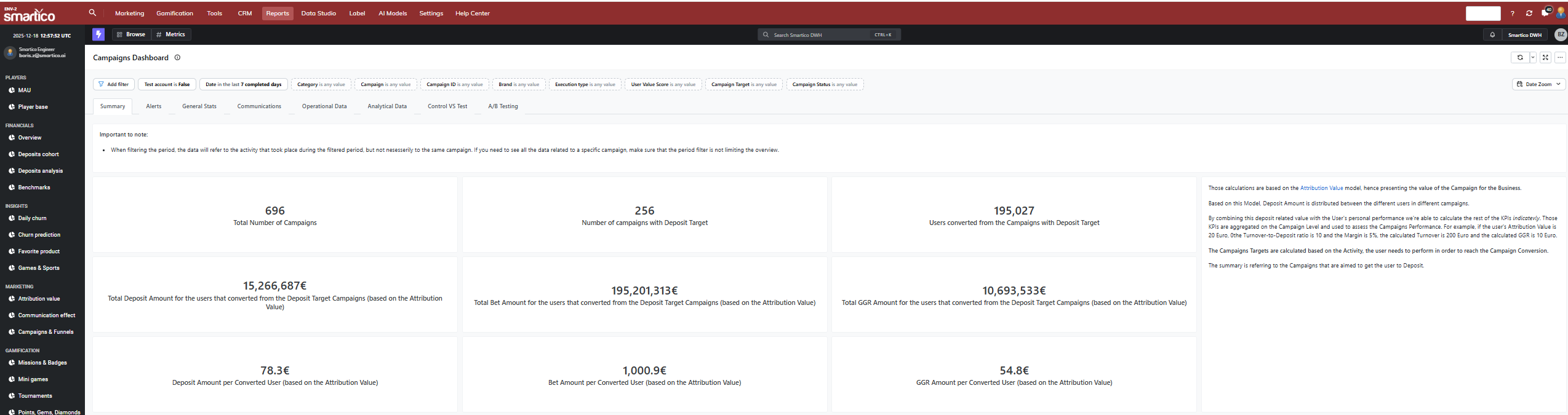
We’ve introduced management view that summarizes the Campaigns performance. This section allows you to get a good overview of the feature performance and value.
**Key Metrics Included:**
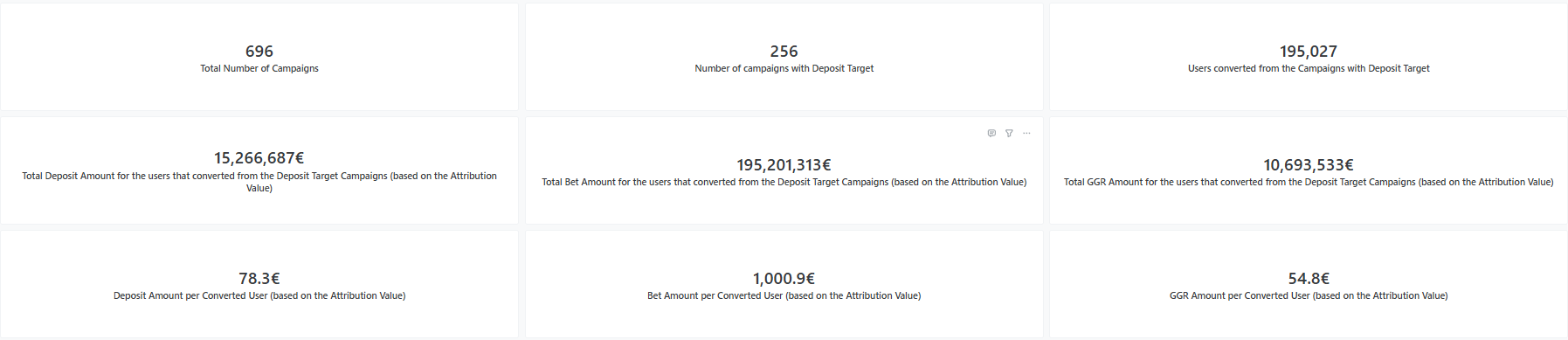
* Total Number of Campaigns - count of Campaigns that started during the filtered period.
* Number of campaigns with Deposit Target - count of Campaigns that set user's Deposit as their Target. The Campaigns Targets are calculated based on the Activity, the user needs to perform in order to reach the Campaign Conversion.
* Users converted from the Campaigns with Deposit Target - unique count of users that entered the campaign and reached the Conversion step on the Campaigns with Deposit as their Target, during the filtered period.
* Total Deposit Amount for the users that converted from the Deposit Target Campaigns (based on the Attribution Value) - the Deposit Amount, directly associated with the user's activity on the given Campaign. This calculation is based on the [Attribution Value](https://help.smartico.ai/welcome/products/general-concepts/attribution-value) model.
* Total Bet Amount for the users that converted from the Deposit Target Campaigns (based on the Attribution Value) - the Bet Amount, associated with the user's activity on the given Campaign. This value is calculated by multiplying the user's Attribution Value by the user's personal Bet Amount-to-Deposit ratio during the last 30 days. This gives us an indicative value for how the user's deposit will be translated into the gaming activity, based on the user's profile.
* Total GGR Amount for the users that converted from the Deposit Target Campaigns (based on the Attribution Value) - the GGR Amount, associated with the user's activity on the given Campaign. This value is calculated by multiplying the already known Bet Amount by the user's personal margin during the last 30 days. This gives us an indicative value for how the user's bet amount will be translated into the revenue, based on the user's profile.
* Deposit Amount per Converted User (based on the Attribution Value) - the already calculated Total Deposit Amount divided by the number of unique users, converted within the Campaign.
* Bet Amount per Converted User (based on the Attribution Value) - the already calculated Total Bet Amount divided by the number of unique users, converted within the Campaign.
* GGR Amount per Converted User (based on the Attribution Value) - the already calculated GGR Amount divided by the number of unique users, converted within the Campaign. **This can be used as an indication on the revenue, directly associated with the users Campaign activity.**
* Total Bonus Cost - total bonus expenditure distributed to converted participants of the filtered campaigns.
#### Campaign Participants' KPIs Table
This table displays actual aggregate gameplay and financial metrics generated by campaign participants on active campaign days (including Total Deposit Amount, Net Deposit Amount, Bet Amount, Gross Gaming Revenue, Net Gaming Revenue, and Bonus Cost). When a user participates in multiple active campaigns on the same day, their daily KPIs are divided equally across those campaigns to prevent duplicate counting.
#### Campaigns Leaderboard & Efficiency Grade
The Summary tab also includes a Campaigns Leaderboard ranking all filtered campaigns by an Efficiency Grade (0–100). The grade dynamically scores campaigns relative to each other within the current filter view, combining 30% click performance, 35% wagering volume, and 35% net profit margin. Individual heavy wagering is capped to ensure rankings are not skewed by single high-roller accounts.
### Tab 2: Alerts
This tab allows you to monitor the activity that needs your attention and take timely actions.
#### **Section 1:** Top 50 Users with most Campaigns communications
This table presents a list of top 50 communication receivers for the filtered period, allowing you to also monitor these users' communication funnel.
**Key Metrics Included:**
* User ID - the unique user identifier.
* Sent - number of communications that were sent to the user.
* Sent-to-impression - the share of the sent communications that were viewed by the user.
* Impressions - number of communications that were viewed by the user.
* Impressions-to-Click - the share of the viewed communications that were clicked by the user.
* Clicks - number of communications that were clicked by the user.
{% hint style="info" %}
**Value to You:**
* Prevent Churn: Identify users getting bombarded with messages to stop them from getting annoyed and unsubscribing.
* Save Money: Stop wasting budget (SMS/Email costs) on users who view but never click.
* Catch Abuse: Flag suspicious accounts (e.g., 100% Click Rate) that might be bots farming bonuses.
{% endhint %}
#### Section 2: Active Campaigns with low conversion
This table presents a list of the currently active Campaigns with at least 20 Users that had started the Campaign flow but their Conversion Rate is below 10%.
**Key Metrics Included:**
* Campaign Name - the name of the Campaign.
* Campaign ID - unique identifier of the Campaign.
* Category - the category of the Campaign (Marketing/Operational).
* Users that Started the Campaign - unique count of user that registered to the Campaign.
* Converted Users - unique count of user that reached the Conversion step on the Campaign.
* Conversion % - share of the Converted Users out of Users that started the Campaign.
{% hint style="info" %}
**Value to You:**\
By isolating campaigns with significant volume (>20 users) but poor performance (<10%), it flags "leaky buckets"—campaigns actively consuming audience attention without delivering results. This enables the team to rapidly identify and repair technical friction, weak messaging, or unappealing offers, thereby protecting ROI and preserving database responsiveness.
{% endhint %}
#### Section 3: Active Campaigns with Negative GGR
This table presents a list of currently active Campaigns with 20 or more Converted users and a negative *indicative* GGR. The GGR is calculated based on the logic, explained in the Summary Tab.
**Key Metrics Included:**
* Campaign ID - unique identifier of the Campaign.
* Campaign Name - the name of the Campaign.
* Campaign Start Date - the date on which the Campaign has been published.
* Converted Users - unique count of user that reached the Conversion step on the Campaign.
* Campaign GGR - the total indicative GGR generated by converted users for the campaign (based on the Attribution Value model).
{% hint style="info" %}
Value to You:\
This view operates as a Financial Risk Monitor, specifically designed to protect profit margins in real-time. By surfacing active campaigns where player winnings or incentive costs currently exceed the revenue generated, it allows the business to immediately identify and halt value-destructive activities. This ensures that marketing efforts remain commercially viable and prevents "runaway" promotions from inadvertently acting as financial liabilities rather than revenue drivers.
{% endhint %}
### Tab 3: Before-During
This tab enables you to measure the **true behavioural impact** of a campaign by comparing the financial activity of its participants during the campaign period against their own activity in the 7 days immediately before the campaign started. By using each participant as their own baseline, the analysis removes population selection bias and isolates the campaign's actual effect on player behaviour.
#### How It Works
For each campaign, participants are evaluated across two time windows:
* **Before period** - the 7 calendar days immediately before the campaign start date.
* **During period** - from the campaign start date to the campaign end date (or yesterday, if the campaign is still active).
KPIs are expressed in two complementary ways:
1. **Per User Per Active Day** - medians of each user's daily figures, calculated only on days where the user had at least one bet or deposit. This isolates the *intensity* of behaviour on active days.
2. **Activity Ratio** - the share of window days on which the typical user had any activity (`active_days / window_days`). For the before period the denominator is always 7; for the during period it is the number of calendar days in the campaign. This measures the *breadth* of engagement.
#### Population Splits
The tab presents results for three populations in parallel, allowing you to separate the campaign's effect from background market noise:
| Population | Who is included |
| ------------------------------------- | ---------------------------------------------------------------------------------------------------------------------------------------------------------------------------------------------------- |
| **All Participants (Before All)** | Every user who entered the campaign, measured in their 7-day pre-campaign window |
| **Clean Participants (Before Clean)** | Participants who were **not** enrolled in any other campaign during the same 7-day pre-campaign window. This isolates users whose baseline behaviour was unaffected by concurrent marketing pressure |
| **During** | All participants, measured across the full campaign period |
#### Key Metrics
**Activity Ratio** Share of window days on which the average participant had any activity (bet or deposit).
* Before: `active_days / 7`
* During: `active_days / campaign_days`
Use this to assess whether the campaign changed how *often* users engaged, not just how much.
**Median Deposit Amount and Count per User per Active Day** On days when a participant made at least one deposit, what was their median deposit amount and count?
**Median Bet Amount and Count per User per Active Day** On days when a participant made at least one bet, what was their median bet amount and count?
**Median GGR and NGR per User per Active Day** Gross and Net Gaming Revenue per active day.
{% hint style="info" %}
Value to You:\
**Measure True Uplift, Not Just Activity** Most campaign reports show what happened *during* a campaign. This tab shows whether behaviour *changed* compared to how the same users were behaving the week before. A campaign that ran during an organically busy period may show high absolute KPIs but zero genuine uplift — this tab surfaces that distinction.
**Separate Frequency from Intensity** The activity ratio tells you whether users engaged more *often*; the per-active-day KPIs tell you whether they engaged more *intensively* when they did. A campaign that increases activity ratio without changing per-day intensity is driving more frequent but not deeper engagement — and vice versa.
**Isolate Campaign-Specific Effect** The Clean Participants population removes users who were simultaneously targeted by other campaigns. If Clean Participants show stronger uplift than All Participants, your campaign's signal is solid. If they show weaker uplift, other concurrent campaigns may have pre-heated the audience — or the exclusion reveals that your "best" participants were already your most-marketed users.
**Benchmark Across Campaign Types** By filtering the dashboard to different campaign categories or targets and comparing the Before vs During tab, you can build an empirical benchmark of which campaign types genuinely shift player behaviour versus those that capture organic activity without adding incremental value.
{% endhint %}
### Tab 4: General Stats
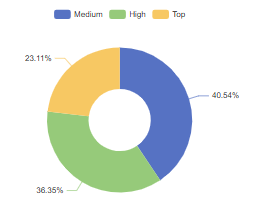
#### Section 1: Campaign Participants split by Value Score
The chart introduces the distribution of the Campaign Participants by [Value Score](https://help.smartico.ai/welcome/products/ai-models/value-score) Segments.
**Key Visualization**:
Pie Chart, presenting the percentage share of each Value Score.
{% hint style="info" %}
**Value to You:**\
This visualization functions as a Targeting Quality Audit, ensuring that campaign resources are being deployed to the correct audience segments. By revealing the composition of participants, it allows the business to instantly verify if a high-value offer is successfully reaching VIPs or if it is suffering from "down-market leakage"—where premium incentives are wastefully consumed by low-value players. Conversely, it helps detect revenue cannibalization by flagging if organic high-spenders are utilizing offers intended strictly for reactivation or retention of lower-tier segments.
{% endhint %}
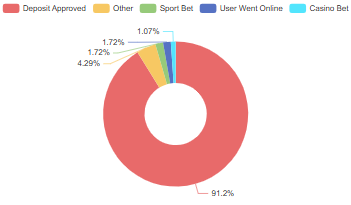
#### Section 2: Campaigns split per Campaign Target
This chart introduces a distribution of the Campaigns by their Targets. The Campaigns Targets are calculated based on the Activity, the user needs to perform in order to reach the Campaign Conversion.
**Key Visualization:**
Pie Chart, presenting the percentage share of each Campaign group. The "Other" category will include the campaigns with targets: Mission Completed, Personal Details Update or campaigns without defined target.
{% hint style="info" %}
**Value to You:**\
This section enables you to instantly assess whether the marketing pressure represents a healthy ecosystem of monetization (e.g., Deposits), activity (e.g., Bets), and engagement (e.g., Logins), or if there is a strategic imbalance—such as an over-reliance on aggressive deposit requests.
{% endhint %}
#### Section 3: Campaigns Conversion Rate by Campaign Target
This chart introduces a number of Campaigns and the Conversion Rate, split by Campaigns' Targets.
**Key Visualization:**
Chart, presenting the number of Campaigns during the filtered period as a column and the average conversion rate as a dot, grouped by Campaigns based on the Campaign Target.
{% hint style="info" %}
**Value to You:**\
Use this chart as an Efficiency Benchmark Tool, enabling the business to calibrate expectations and optimize resource allocation across different player behaviours. This allows you to spot strategic misalignments, such as investing disproportionate effort into high-friction/low-yield targets, or conversely, identifying under-utilized campaign types that offer high conversion potential but are currently neglected.
{% endhint %}
#### Section 4: Communications Sent - Daily Trend
This chart introduces a daily trend of the communications, sent to the users, split by communication channel.
**Key Visualization:**
Stacked bar chart displaying the daily volume of communications sent over time, broken down and color-coded across all eight communication channels (Email, Inbox, Popup, Push, SMS, Telegram, Viber, and WhatsApp).
{% hint style="info" %}
**Value to You:**\
Use this chart for tracking the daily intensity of outbound marketing efforts. By analyzing the communication mix over time, it allows the business to detect operational bottlenecks (e.g., unexpected drops in email volume), identify risky "over-messaging" spikes that could lead to higher unsubscribe rates, and ensure that the channel strategy remains diversified rather than overly reliant on a single, potentially expensive medium like SMS.
{% endhint %}
#### Section 5: Daily Trend of Campaigns split by Campaign Target
This chart introduces a daily number of Campaigns, splitting them by the Campaign Targets.
**Key Visualization:**
Chart, presenting the number of Campaigns that started on each day during the filtered period, distributing the count per Target of the Campaign. The "Other" category will include the campaigns with targets: Mission Completed, Personal Details Update or campaigns without defined target.
{% hint style="info" %}
**Value to You:**\
By continuously mapping campaign targets over time, it enables you to verify that high-impact activities—such as "Deposit" pushes—are correctly timed around key events (e.g., paydays or major sports fixtures), while simultaneously preventing the saturation of the player base with conflicting or repetitive calls-to-action on any single day.
{% endhint %}
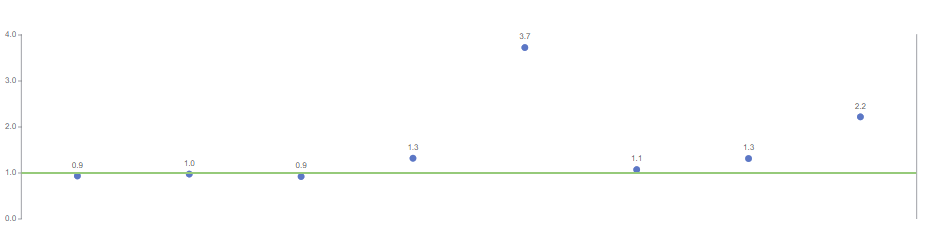
#### Section 6: Attribution Value Trend (refers only to the Deposit Campaigns)
This chart introduces a daily number of users that were converted by the Campaigns as well as the average Attribution Value of those users.
**Key Visualization:**
Chart, presenting the daily number of Converted Users and their Average Attribution Value, considering only the Campaigns with the Target = Deposit.
{% hint style="info" %}
**Value to You:**\
By correlating the daily number of depositors with their average value, it provides immediate insight into whether campaigns are driving meaningful revenue or merely generating low-value activity (such as minimum-deposit bonus hunting). This distinction is vital for refining strategy, ensuring that optimization efforts prioritize maximizing net value rather than just increasing the raw count of participants.
{% endhint %}
### Tab 5: Communications
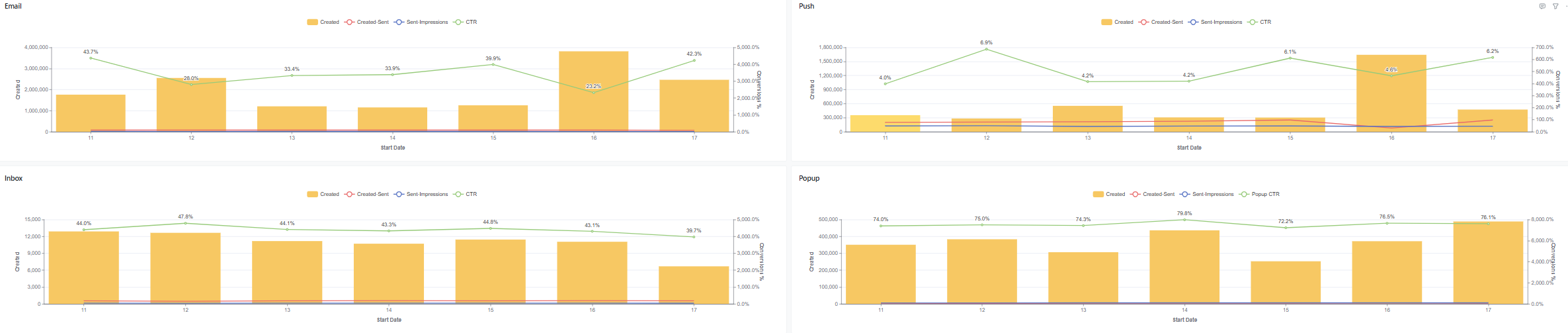
This tab includes the daily trend of the communication funnel, split into communication channels.
**Key Channels:**
* Email
* Push
* Inbox
* Popup
* SMS
* Viber
* Whatsapp
* Telegram
**Key Metrics**:
* Created - count of communications that were created to be sent to the users. This is the 1st step of the communication funnel.
* Created-Sent - share of the communications that were sent to the users out of the communications that were created.
* Sent-Delivered - share of sent communications successfully delivered to recipients.
* Sent-Impressions - share of sent communications that were viewed (opened) by recipients.
* CTR - click-through rate; share of viewed communications that were clicked by recipients.
* Delivered-to-Clicked - share of delivered communications that resulted in a click.
**Key Visualizations:**
Chart, presenting the daily number of Created Communication on the left side of the axis Y and the conversion rates of the communication funnel on the right side of axis Y.
{% hint style="info" %}
**Value to You:**
This visualization serves as a Channel Health & Efficacy Monitor, providing a granular diagnostic of the entire delivery pipeline across all communication mediums.
* Operational Reliability: By tracking the `Created-to-Sent` ratio, it instantly flags technical delivery failures.
* Engagement Benchmarking: The `Sent-to-Impressions` and `CTR` trends allow for a direct performance comparison between channels, enabling the business to dynamically shift budget and volume toward the highest-performing, most cost-effective touchpoints.
{% endhint %}
#### Detailed Communication Tables
Below the channel charts, the tab provides detailed breakdown tables: Communications and Attribution Value per player segment, Daily Communications breakdown, per-campaign communication volume, and a Top 5,000 users list by communication volume. Note that impressions and clicks are tracked as unique occurrences per communication (e.g., opening an email multiple times is counted as one impression).
### Tab 6: Operational Data
#### Section 1: Communications Fails
This chart presents the daily trends of the failed communications ratios per communication channel.
The bottom table elaborates on the reasons for the failed communications per communication channel.
**Key Metrics**:
* Created - count of communications that were created to be sent to the users. This is the 1st step of the communication funnel.
* Failed Communications % - share of the failed communications out of the communications that were created.
{% hint style="info" %}
**Value to You:**
By tracking failure trends and pinpointing specific error causes this view enables the technical team to rapidly diagnose integration outages before they impact revenue. Furthermore, it serves as a critical feedback loop for data hygiene, highlighting segments populated with invalid contact details that require purging to protect the sender's domain reputation and reduce wasted processing costs.
{% endhint %}
#### Section 2: Bots & Negative Clicks
Use this section to monitor the share of the daily Bot Clicks and the Negative Clicks out of the created communications.
**Key Metrics**:
* Users that started the Campaign - count of unique users that registered to the Campaigns.
* Bots Share - share of communication clicks originated by automated security bots or scanners (such as mail/SMS gateway pre-fetches) out of total clicks.
* Share of Negative Clicks - share of user opt-outs and dismissals (unsubscribe link clicks in Email/SMS or "close"/"cancel" clicks in popups and inbox) out of total clicks.
{% hint style="info" %}
**Value to You:**
Tracking "Negative Clicks" serves as an early warning system for database churn, alerting the team to aggressive or irrelevant content that is actively damaging brand reputation and eroding the reachability of the audience.
Tracking non-human activity ("Bot Clicks") protects the business from making strategic decisions based on inflated "vanity metrics," ensuring that performance analysis reflects real player behaviour.
{% endhint %}
#### Section 3: Funnel markers
The table refers to the Markers, the business defined proactively as a part of the Campaign Flow.
In case this wasn't defined, the table will appear empty.
**Key Metrics**:
* Campaign ID - unique identifier of the Campaign.
* Campaign Name - the name of the Campaign.
* Funnel Marker - the name of the Marker, used in the Campaign flow.
* Started - unique number of users that started the Campaign
* Unique Users - unique number of users that reached the Marker.
* Times Reached - how many times the Unique Users reached the Marker.
{% hint style="info" %}
**Value to You:**
Tracking custom checkpoints (Markers) allows the business to perform Micro-Funnel Analysis—identifying exactly where users are dropping off within complex flows. Additionally, the comparison between "Unique Users" and "Times Reached" reveals Looping Behaviour, helping to distinguish between smooth linear progress and users who are stuck, confused, or repeatedly hitting technical friction points.
{% endhint %}
#### Section 4: Detailed ROI Audit
The Detailed ROI Audit table provides a granular financial breakdown per campaign, comparing total Attribution Value and Attribution Value per Player (AV/Player). This helps operators evaluate which specific messages drive the highest revenue per recipient and differentiate essential site-flow triggers from incremental marketing pushes.
### Tab 7: Analytical Data
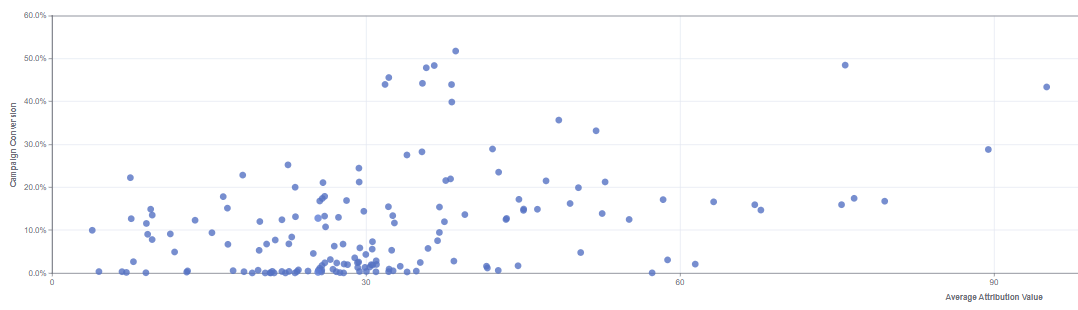
Use this tab to cross reference the Conversion Rate and the Attribution Value for the Campaigns. The Chart only refers to the Campaigns that have more than 20 converted users and an Attribution Value.
**Key Visualizations:**
* Each dot represents a Campaign, showing the ID when hovering over it.
* The higher the dot is on the axis Y - the higher is it's Conversion Rate.
* The more the dot is to the right on axis X - the higher is it's Attribution Value.
The Tables present the chart data in a less graphical manner with one table for the Top Attribution Value Campaigns and one table for the Top Converting Campaigns.
{% hint style="info" %}
**Value to You:**
* Identify "Stars": Pinpoint the "Sweet Spot" campaigns that deliver both high efficiency and high revenue, signalling where to scale budget immediately.
* Diagnose "Missed Opportunities": Differentiate between campaigns that have high potential but poor execution (High Value / Low Conversion) versus those that generate traffic but little profit (Low Value / High Conversion).
* Focus ROI: This ensures that optimization efforts are not wasted on low-value activities, but are instead targeted at initiatives that drive profitable growth.
{% endhint %}
### Tab 8: Control VS Test
Use this tab to monitor the performance of the Campaigns, split into Control and Test populations. Based on this data decide whether the Campaign Test population outperformed the Campaign Control population.
**Key Metrics**:
* Campaign ID - unique identifier of the Campaign.
* Campaign Name - the name of the Campaign.
* Campaign Population - unique count of users that registered to the Campaign.
* Conversion Rate - share of the Converted Users out of Users that registered to the Campaign.
* Attribution Value - average Deposit Amount, directly associated with the user's activity on the given Campaign.
Four-quadrant scatter chart plotting Campaign Efficiency Grade (0–100) on the horizontal axis against Incremental Gross Gaming Revenue Lift on the vertical axis, dividing campaigns into Gold Standard, Hidden Gem, The Illusion, and Pivot or Pause quadrants.
{% hint style="info" %}
**Value to You:**
By isolating a "Control" group (who receive no communication) against a "Test" group, it enables the business to measure True Uplift—stripping away organic behavior to reveal exactly how much additional revenue or activity the campaign itself generated. This distinction is critical for financial discipline; it prevents the business from paying out bonuses to players who would have deposited anyway, and provides the statistical confidence needed to either scale successful campaigns to the full database or terminate ineffective ones before they waste further budget.
#### Statistical Significance & Lift Analysis
The tab includes statistical hypothesis testing (with 95% confidence) to confirm whether observed differences in conversion, wagering, and revenue between Test and Control groups represent a true behavioral shift rather than random noise. A 4-quadrant scatter plot (Campaign Efficiency Grade vs Incremental GGR Lift) categorizes campaigns into Gold Standard (high grade, high lift), Hidden Gem (low volume but high incremental profit), The Illusion (high volume but zero incremental lift over organic play), and Pivot or Pause (underperforming on both volume and lift).
{% endhint %}
### Tab 9: A/B Testing
Use this tab to compare between the pre-set marketing resources and decide which is the better offer for the business to keep. Read more on the A/B Testing [here](https://help.smartico.ai/welcome/products/crm-automation/a-b-testing).
**Key Metrics**:
* Campaign ID - unique identifier of the Campaign.
* Campaign Name - the name of the Campaign.
* Resource Name - the name of the A/B splits, the business made for the comparison purposes.
* Attribution Value - average Deposit Amount, directly associated with the user's activity on the given Resource.
* Users Started - unique count of the users that registered to the given Resource of the Campaign.
* Users Converted - unique count of user that reached the Conversion step on the given Resource of the Campaign.
The below tables allow you to further analyse the A/B performances per each Communication Channel.
{% hint style="info" %}
**Value to You:**
Evaluating distinct resources—such as different email subject lines, banner creatives, or bonus amounts—against financial metrics like Attribution Value allows the business to scientifically determine the "Winning Variant", ultimately squeezing higher ROI from the same volume of traffic.
{% endhint %}
### Tab 10: Report Legend
The Report Legend tab serves as an in-dashboard navigation directory. It maps 27 common operational, marketing, and financial questions (such as evaluating campaign conversion health, monitoring negative feedback, isolating incremental lift, and optimizing communication frequency) directly to the specific dashboard tabs where the corresponding answers and metrics are located.
### Frequently Asked Questions
**Why are Attribution Value, Bet Amount, and GGR showing as 0 for my campaign?**
Attribution Value and its derived financial metrics are calculated exclusively for campaigns whose Target is set to Deposit and where users reached the Campaign Conversion step. Campaigns with other targets (e.g. Bet, Login, Mission Completed, Personal Details Update) track conversion counts and engagement, but do not generate financial attribution value.
**Can I view analytics for a single campaign directly from the campaign builder?**
Yes. In addition to the global Campaigns Dashboard under Reports, every Realtime and Scheduled Campaign includes a built-in Analytics / BI tab within its edit screen that opens a pre-filtered campaign view.
**What is the difference between "Before All" and "Before Clean" in the Before-During tab?**
"Before All" evaluates the 7-day pre-campaign baseline for all participants. "Before Clean" excludes users who were enrolled in any other campaign during that 7-day window, isolating pure baseline behavior without concurrent marketing noise.
**How are Bot Clicks and Negative Clicks tracked?**
Bot Clicks track automated scanner activity (such as security filters or SMS/email gateway link pre-fetches). Negative Clicks measure user opt-outs and dismissals, specifically unsubscribe link clicks in Email/SMS and close or cancel button clicks on popups and inbox messages.
---
# Agent Instructions
This documentation is published with GitBook. GitBook is the documentation platform designed so that both humans and AI agents can read, navigate, and reason over technical content effectively. Learn more at gitbook.com.
## Querying This Documentation
If you need additional information that is not directly available in this page, you can query the documentation by asking a question.
Perform an HTTP GET request on the following URL with the `ask` and `goal` query parameters:
```
GET https://help.smartico.ai/welcome/products/bi-and-reporting/campaigns-dashboard.md?ask=&goal=
```
`ask` is the immediate question: it should be specific, self-contained, and written in natural language.
`goal` is what the user is ultimately trying to achieve, the reason they need the answer. Sharing it helps GitBook give you a better, more relevant answer. A goal is most helpful when it describes the outcome the user wants rather than restating the question. For example, with `ask=how do I create an API token`, a goal like `automate deployments from our CI pipeline` lets GitBook tailor the answer to that use case.
The response will contain a direct answer to the question and relevant excerpts and sources from the documentation.
Use this mechanism when the answer is not explicitly present in the current page, you need clarification or additional context, or you want to retrieve related documentation sections.