> For the complete documentation index, see [llms.txt](https://help.smartico.ai/welcome/llms.txt). Markdown versions of documentation pages are available by appending `.md` to page URLs; this page is available as [Markdown](https://help.smartico.ai/welcome/products/gamification-basics/missions/dynamic-missions.md).
# Dynamic Missions
### General Overview
Dynamic missions allow players to progress by completing actions that are personalized to their own behavior. Instead of static requirements, the mission adapts to each player using Smartico’s AI-driven metrics, such as:
* Favorite casino game
* Favorite game type
* Favorite game provider
* Favorite sport type
* Favorite League
* Recommended casino bet amount
* Recommended deposit amount
Each player sees a personalized version of the same mission, based on their historical activity.
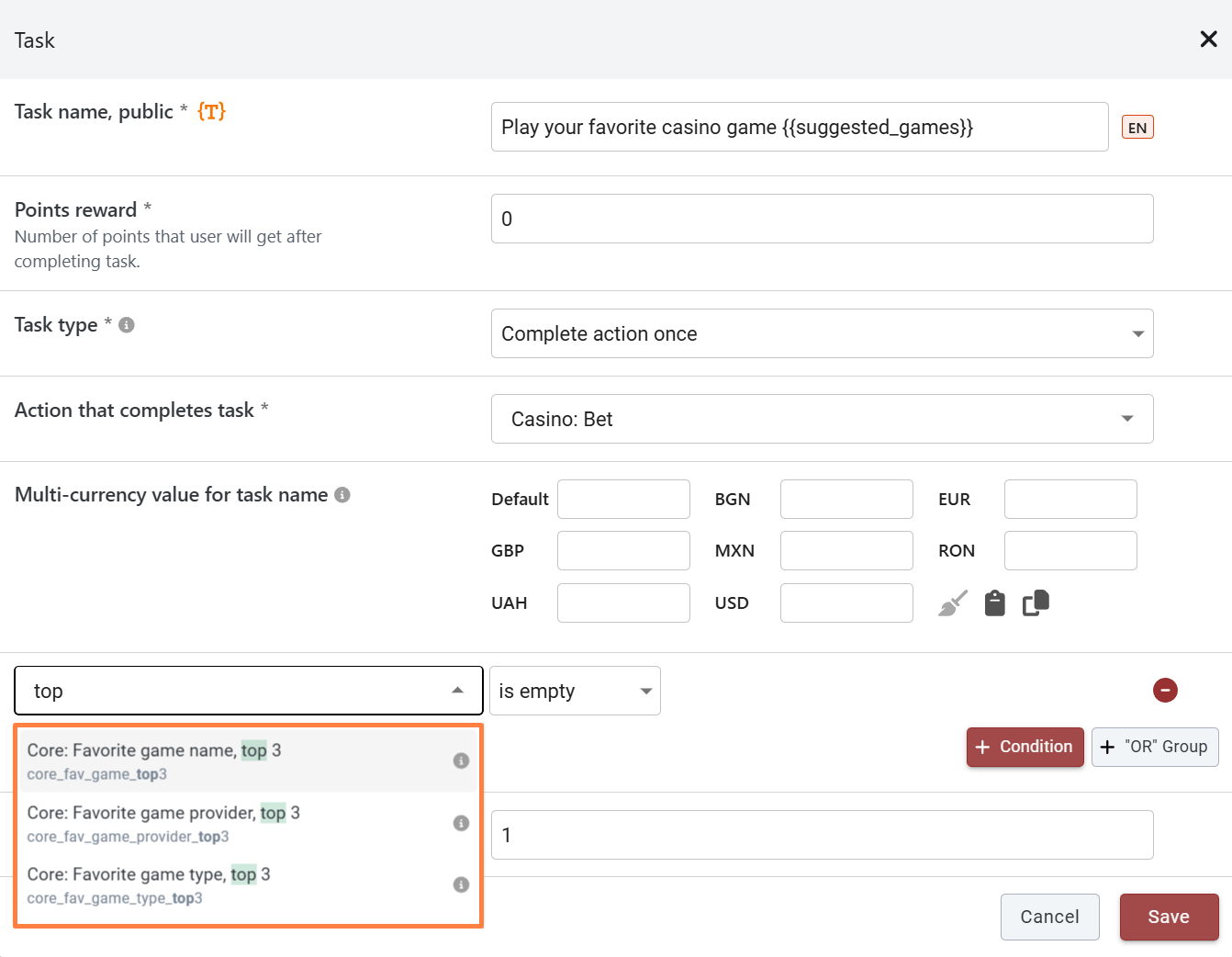
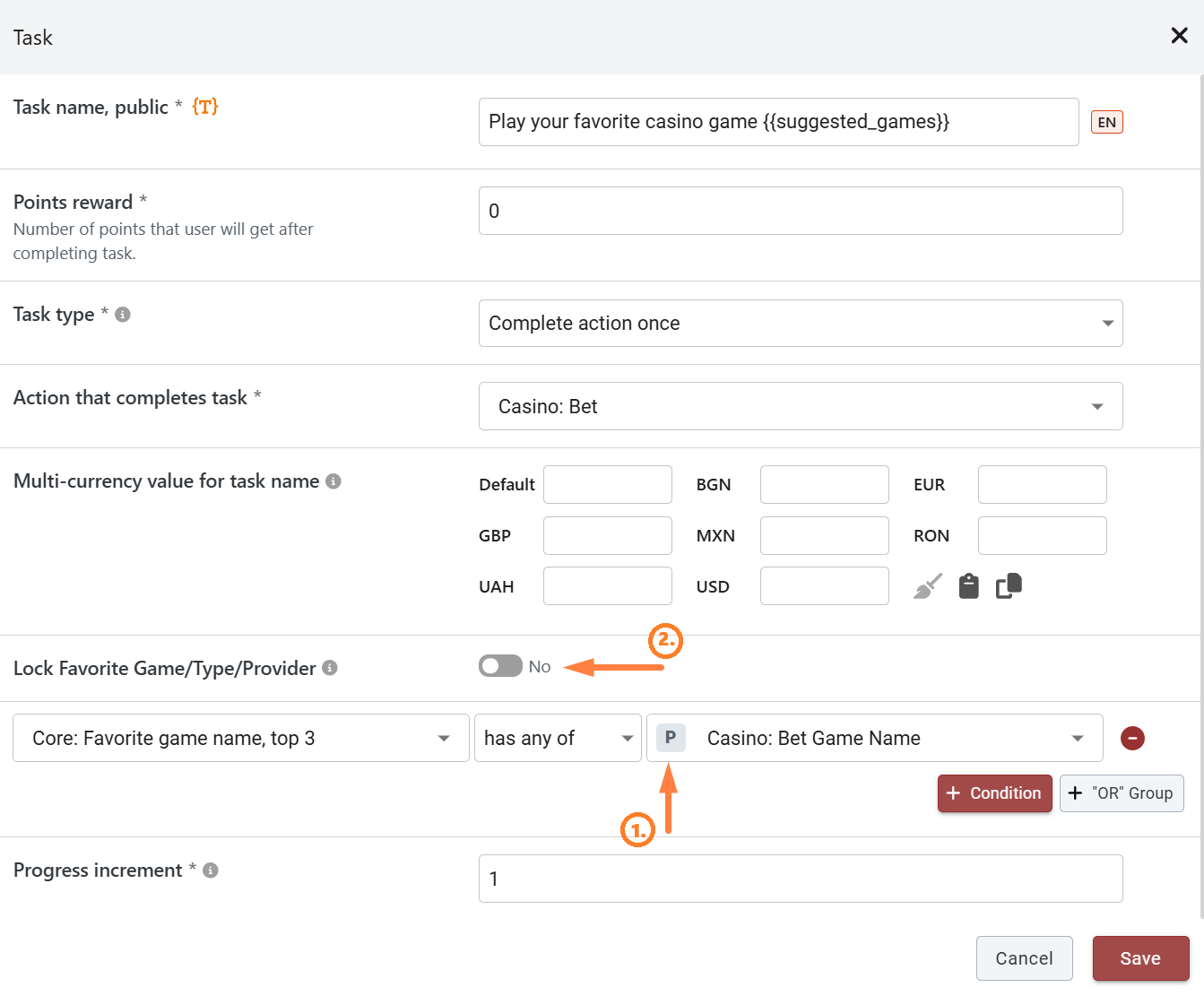
BO: Mission task setup
{% hint style="success" %}
**Note:** Populating these properties requires activation. Please contact your Success Manager for more details.
{% endhint %}
#### How player data is calculated
Smartico continuously analyzes player behavior using internal AI models.\
The following metrics are automatically calculated per user:
* Favorite products (game, game type, provider)
* Favorite sport type
* Favorite league
* Recommended bet amount
* Recommended deposit amount
These values are recalculated daily and refreshed between 02:30 - 04:30 AM UTC**,** and updates are delivered through the system event `Core: favorite/recommended metrics update` (technical name `core_fav_game_update`)
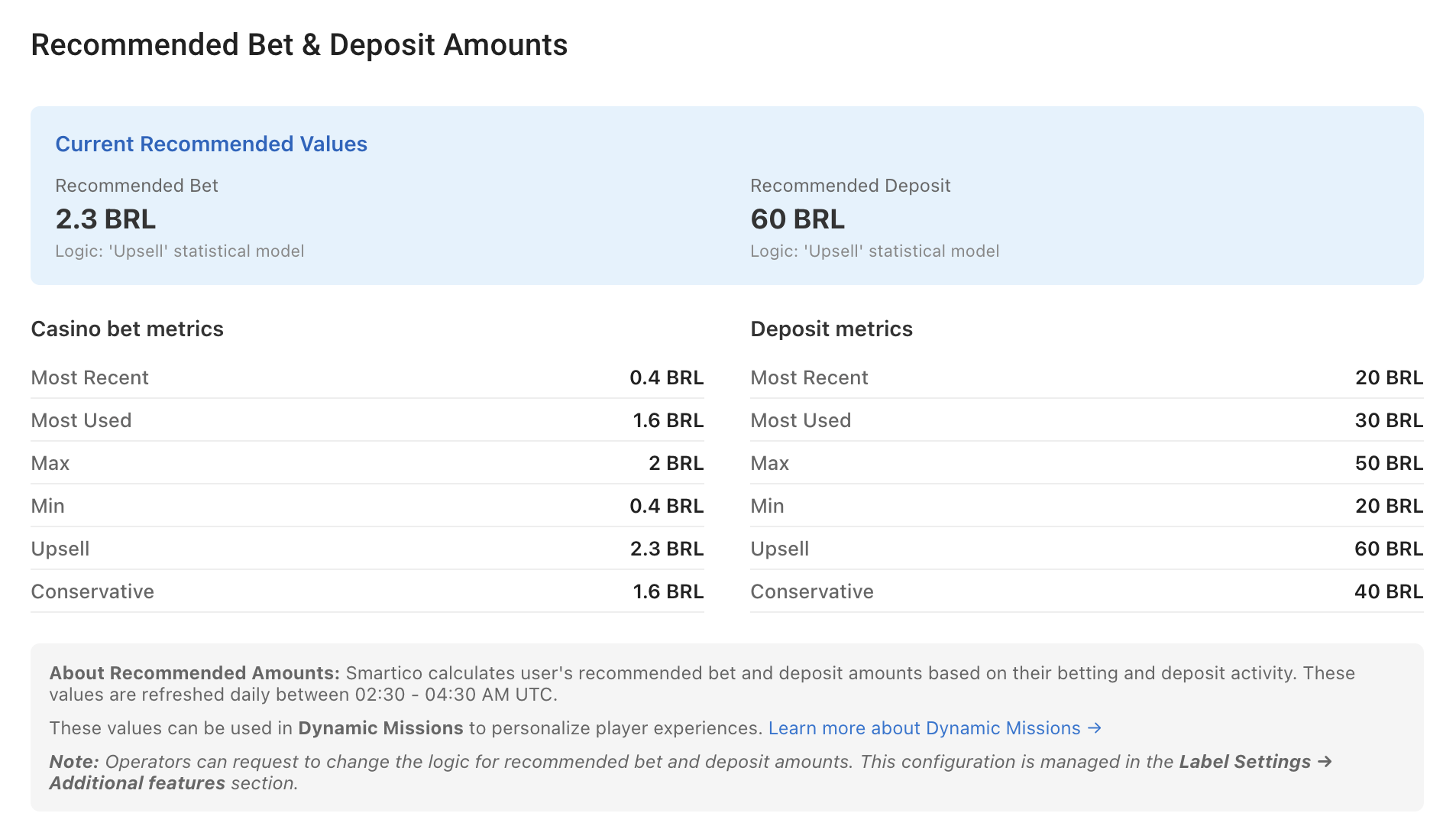
Recommended amounts are visible in the user profile in the CRM tab for each player
👉 Read more about:
* [Favorite product, game, game type & game provider](https://help.smartico.ai/welcome/products/ai-models/favorite-product-game-game-type-and-game-provider)
* [Recommended bet & deposit amounts](https://help.smartico.ai/welcome/products/ai-models/recommended-bet-and-deposit-amounts)
### Supported Dynamic Mission Types
Dynamic missions currently support the following behavior-based metrics:
**Favorites (Top 3)**
* Core: Favorite game name, top 3
* Core: Favorite game type, top 3
* Core: Favorite game provider, top 3
* Core: Favorite Sport Type, Top 3
* Core: Favorite Sport League, Top 3
These represent the user’s top 3 preferences, ranked by engagement.
**Recommended Amounts**
* Core: Recommended casino bet amount\
(stored in the user’s currency)
* Core: Recommended deposit amount\
(stored in the user’s currency)
### How to Set Up a Dynamic Mission
1. Create a Mission - Dynamic missions are configured inside standard mission templates.
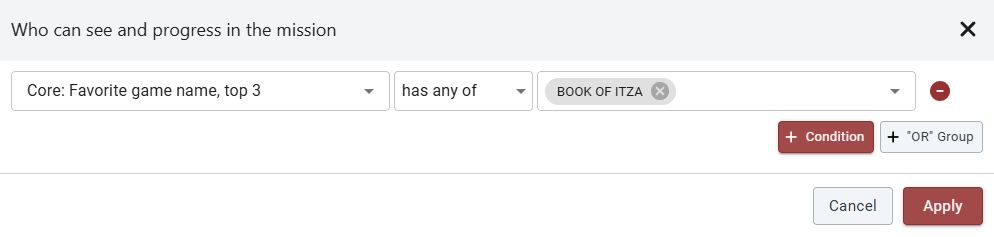
2. Segment Users Correctly - In **Who can see and progress in the mission**, make sure you target only users who actually have the required dynamic data. This prevents users from seeing missions they cannot complete.
**Examples:**
* Mission uses Top 3 favorite games → segment users who have Top 3 favorites defined
* Mission requires a recommended deposit amount → segment users who have a calculated recommended amount
#### Task configuration
The key difference between dynamic and regular missions lies in how task conditions are configured.
**Step 1: Choose the Trigger Event**
Select an event that matches the mission goal, such as:
* `Casino: Bet`
* `Casino: Bet-Win`
* `Casino: Win`
* `Acc: Deposit Approved`
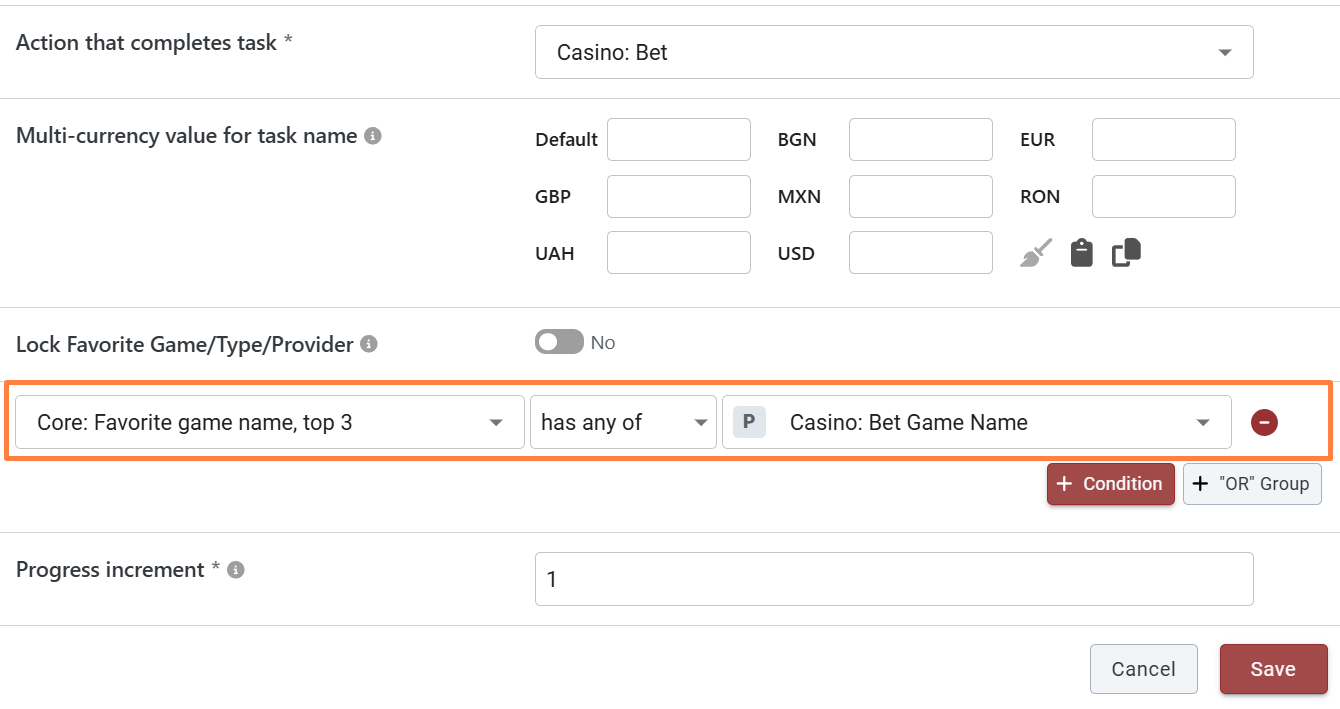
**Step 2: Add Property-to-Property Conditions**
Dynamic missions rely on property-to-property comparisons.
**Example for Favorite Game Mission**
1. Favorite game name, top 3 → has any of → Casino: Bet Game Name
2. Progress is made only when the player bets on their own favorite casino games.
**Example for the Recommended Deposit Mission**
1. Last deposit amount >= Core: recommended deposit amount
2. Progress is made only when the deposit matches the player’s recommended deposit amount.
**Example for Recommended Casino Bet Mission**
1. Casino: Bet amount >= Core: recommended casino bet amount
2. Progress is made only when the bet matches the recommended casino bet amount.
Supported Operations for Favorited:
* `Has on pos. 1 any of` – favorite in position 1
* `Has on pos. 2 any of` – favorite in position 2
* `Has on pos. 3 any of` – favorite in position 3
* `Has any of` – any favorite in the top 3
* `Doesn’t have any of` – excludes favorites in top 3
{% hint style="success" %}
This logic applies equally to favorite game types and favorite providers.
{% endhint %}
### Dynamic Tags for Mission Text
To display personalized values in the mission UI, use dynamic tags.
For **Favorite games, providers, and types**, use the tag `{{suggested_games}}`
* For the top 3 favorites → It shows to 3 game names
* For the top 1 → It shows only the #1 favorite game name
* For favorite type/provider → It shows either the favorite game type or the favorite game provider
For example, title:
```
Make 100 bets on {{suggested_games}}!
```
Will automatically become:
```
Make 100 bets on Book of Dead, Sweet Bonanza, Gates of Olympus!
```
For **Recommended deposit and bet** **amounts**, use the tag `{{suggested_value}}`, it will be replaced with the value and the user's currency.
For example, title:
```
Deposit {{suggested_value}} and get your reward!
```
Will automatically become:
```
Deposit 50 EUR and get your reward!
```
For **Favorite sport type and favorite league**, use the tag `{{suggested_sport}}` , on the UI it will be automatically replaced by the player's favorite sport or league.
For example, title:
```
Place 3 bets on {{suggested_sport}}
```
Will automatically become:
```
Place 3 bets on Football, Basketball, Tennis
```
#### Front-End Presentation
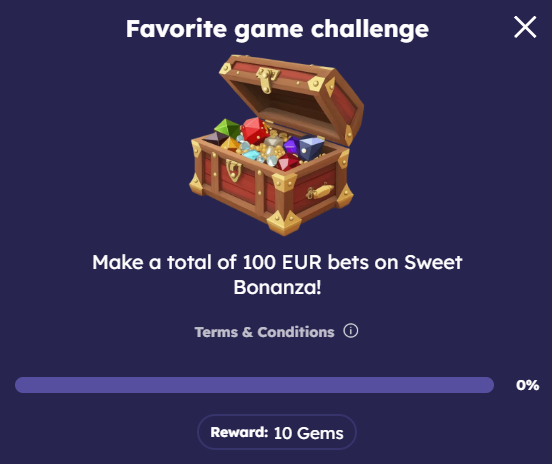
* The mission text is dynamically personalized per user
* Each user sees their own favorite games or recommended values
* Values update daily unless locking is enabled (explained below)
#### Locking Logic
You can control whether dynamic values stay fixed or update during the mission as soon as a recommendation/favorite is changed.
* **When Locked:** The mission captures the player’s favorites (Top 3) or recommended amount at the moment they make their first progress. These values remain fixed until the mission is completed or expires, even if the player’s preferences change later.
* **When Unlocked:** The mission updates automatically as the player’s favorites or recommended amounts change. Progress is preserved, but the required games, types, or recommended bet/deposit amounts may adjust over time.
**Example:**
On January 1st, the player's top provider is Pragmatic Play. They make 10 bets on it (10% progress).\
On January 2nd, their favorite changes to SoftGaming:
* If **locked**, they must finish the mission by betting on Pragmatic Play.
* If **unlocked**, the mission now expects bets on SoftGaming.
If the mission is recurring, subsequent rounds will always use the updated favorites.
This logic applies equally to:
* Favorite games / types / providers
* Recommended bet amounts
* Recommended deposit amounts
{% hint style="success" %}
Locking is available only when using property-to-property comparisons.
{% endhint %}
#### Ensuring Mission Consistency
Always align mission logic with segmentation:
* Mission uses Top 3 favorites → segment users with Top 3 favorites
* Mission requires a specific game as favorite → segment users who have it in Top 3
* Mission uses recommended amounts → segment users with calculated values
**Examples:**
* Mission uses Top 3 favorites → segment users with Top 3 favorites
* Mission requires a specific game (e.g., Book of Itza) as a favorite → segment users who have it in position #1, #2, or #3
This prevents users from accessing missions they cannot progress in.
### Example Use Cases
**Generic Favorite Game Mission:**
1. Make 100 bets on any of your top 3 favorite games.
2. The player can progress by playing any of their current favorites.
3. The mission task name 'Make 100 bets on `{{suggested_games}}` will be transformed to 'Make 100 bets on A, B, C', where A, B, C will be the names of favorite games for a specific player.
**Specific Position Mission:**
1. Make 100 bets on your the most favorite game.
2. Only progress when the player plays their top-ranked game (position 1).
3. The mission task name 'Make 100 bets on `{{suggested_games}}` will be transformed to 'Make 100 bets on A'
**Specific Game in Favorite Position:**
1. Play your #1 favorite game: Book of Dead.
2. Only if this specific game is the player's game (in position 1) he can progress
3. If their favorites change, they’ll still see the mission, but won’t be able to progress further.
**Recommended Deposit Amount:**
1. Make 5 deposits of your recommended amount
2. Player progresses only if the deposit equals their recommended value
3. Task name: Make 5 deposits of {{suggested\_value}}
4. UI example: Make 5 deposits of 50 EUR
**Recommended Casino Bet Amount:**
1. Make 10 bets with your recommended casino bet amount
2. Player progresses only if each bet matches the recommended value
3. Task name: Make 10 bets with {{suggested\_value}} each
4. UI example: Make 10 bets with 5 EUR each
**Generic Favorite Sport Mission (Top 3 Sports):**
1. Place 3 bets on any of your top 3 favorite sports.
2. The player can progress by placing bets on any of their top 3 sports (e.g., Football, Basketball, or Tennis).
3. The mission task name: `Place 3 bets on {{suggested_sport}}` transforms to `Place 3 bets on Football, Basketball, Tennis`.
4. Recommended: Enable **Lock Favorite League/Sport** if the task requires multiple bets, so the sports remain consistent throughout the mission round.
**Top League Mission (Position 1 Favorite League with Lock):**
1. Place 5 bets on your #1 favorite league.
2. The player progresses only when betting on their top-ranked league (e.g., Premier League).
3. The mission task name: `Place 5 bets on your favorite league: {{suggested_sport}}` transforms to `Place 5 bets on your favorite league: Premier League`.
4. With **Lock Favorite League/Sport** enabled, the moment the player places their first qualifying bet, the target league freezes to *Premier League* even if their profile shifts mid-week.
**Specific League in Favorite Position:**
1. Bet on the UEFA Champions League (only active for players who have it as their #1 league).
2. Only players who currently hold UEFA Champions League in position 1 of their top leagues can progress.
3. If their favorites shift prior to starting, they will still see the mission but cannot progress until it returns to position 1.
### Favorite Casino Report
You can also analyze favorites in the Games & Sports Reports, where you’ll find data on most played games, top preferences, bet share, and unique users.
Read more about Favorite games and Game types:
{% embed url="" %}
### Dynamic Target Calculation (Prop-to-Prop) for Mission Tasks
With the **Property-to-Property (Prop-to-Prop)** dynamic targets for mission tasks that track accumulated values, such as “**Complete action a few times, check a SUM of attribute.**” You can create personalized, dynamic targets based on a numeric player state property multiplied by a custom factor. For example, a target can be calculated as `2 × Recommended Deposit Amount`, allowing each player’s target to be determined automatically based on their individual property value.
A mission task can use either a fixed multi-currency target or a dynamic Prop-to-Prop target, but not both:
* When fixed currency values are configured, the Prop-to-Prop option is hidden.
* When Prop-to-Prop is enabled, the multi-currency input grid is hidden and replaced with a Property selector and Multiplier field.
For **Recommended deposit and bet** **amounts**, use the tag `{{suggested_value}}`, it will be replaced with the value and the user's currency.
{% hint style="info" %}
**Note:** Keep in mind that the recommended amount is dynamic and may change over time.
{% endhint %}
**How to Configure in BackOffice:**
1. Navigate to Gamification → Missions and edit or create a mission task.
2. Select the task type: "Complete action a few times, check a SUM of attribute" (e.g., Deposit total or Bet total).
3. Choose the triggering action and the property to accumulate (e.g., Casino: Bet Amount).
4. In the "Total amount should reach" section, switch the "Enable 'Prop to Prop' for 'Total amount should reach'" toggle to Yes.
5. Configure the dynamic calculation fields:
6. Multiplier: Set the multiplication factor (defaults to 2x).
7. Property Dropdown: Select the numeric player property used as the baseline (such as Recommended Deposit Amount or custom CRM attributes).
**Example Use Case:**
Dynamic Casino Wagering Mission:
* Task Goal: Wager real money based on recommended deposit.
* Action: Casino: Bet-Win
* Tracked Value: Bet Amount (Real)
* Target Setting: Prop-to-Prop enabled with 1.5 × Recommended Deposit Amount.
* Player Experience:
* Player A (Recommended Deposit: €30) receives an automatic wagering target of €45.
* Player B (Recommended Deposit: €200) receives an automatic wagering target of €300. Both players engage with the exact same mission while enjoying a challenge tailored to their activity level.
### FAQ
**Q:** **Do favorites require activation?**\
**A:** Yes. Contact your Success Manager.
**Q:** **How often are favorites updated?**\
**A:** Daily between 02:30–04:30 AM UTC.
**Q:** **Do players keep progress if the favorites change?**\
**A:** Yes, when using Not-Locked logic.
**Q: Can I dynamically show player favorites in mission text?**\
**A:** Yes, using the `{{suggested_games}}` tag.
**Q: Where does Smartico get the favorite game names from? Are they taken from the** [**game catalog**](/welcome/technical-guides/games-catalog-api.md)**?**\
**A:** Names of the games are taken from the bets/wins [transactions](/welcome/technical-guides/data-integration.md#casino-bets-and-wins). At this point, they are not connected to the game details from the [Games Catalog](/welcome/technical-guides/games-catalog-api.md).
---
# Agent Instructions
This documentation is published with GitBook. GitBook is the documentation platform designed so that both humans and AI agents can read, navigate, and reason over technical content effectively. Learn more at gitbook.com.
## Querying This Documentation
If you need additional information that is not directly available in this page, you can query the documentation by asking a question.
Perform an HTTP GET request on the following URL with the `ask` and `goal` query parameters:
```
GET https://help.smartico.ai/welcome/products/gamification-basics/missions/dynamic-missions.md?ask=&goal=
```
`ask` is the immediate question: it should be specific, self-contained, and written in natural language.
`goal` is what the user is ultimately trying to achieve, the reason they need the answer. Sharing it helps GitBook give you a better, more relevant answer. A goal is most helpful when it describes the outcome the user wants rather than restating the question. For example, with `ask=how do I create an API token`, a goal like `automate deployments from our CI pipeline` lets GitBook tailor the answer to that use case.
The response will contain a direct answer to the question and relevant excerpts and sources from the documentation.
Use this mechanism when the answer is not explicitly present in the current page, you need clarification or additional context, or you want to retrieve related documentation sections.



.jpg?alt=media)
