> For the complete documentation index, see [llms.txt](https://help.smartico.ai/welcome/llms.txt). Markdown versions of documentation pages are available by appending `.md` to page URLs; this page is available as [Markdown](https://help.smartico.ai/welcome/products/gamification-basics/tpp.md).
# The Power Plugin
### Power Plugin (TPP) Integration
Smartico supports a native integration with **The Power Plugin (TPP)** - a platform specializing in exclusive collectibles, such as celebrity-signed T-shirts, autographed footballs, and other unique items.
#### Getting Started
To enable the integration, the following requirements must be completed:
1. **Client–TPP Contract**\
The operator must hold a valid commercial contract with TPP.
2. **Submit an Integration Ticket**\
Open a ticket through the Smartico Customer Portal and provide:
* TPP API Key
* TPP API URL
If these details are unavailable, Smartico can contact TPP directly on your behalf to obtain them.
Once credentials are received, our team will validate and configure the connection.\
**Typical setup time:** a few business days.\
For precise timelines, please consult your Integration or Customer Success Manager.
#### Synchronization & Store Items
After activation:
* Smartico automatically imports all available TPP products.
* A dedicated **bonus template** is created for each imported item.
* Inventory is refreshed **every 30 minutes** by default.
#### User Flow
1. A user visits the Smartico Store and purchases an item linked to a TPP product.
2. Upon successful purchase, the user receives a pop-up confirmation with an option to continue.
3. Clicking the pop-up button redirects the user to TPP’s shipping details page.
4. The user submits delivery information on TPP’s site.
5. TPP processes the shipment and sends the product directly to the user.
***
### Configuration Guide
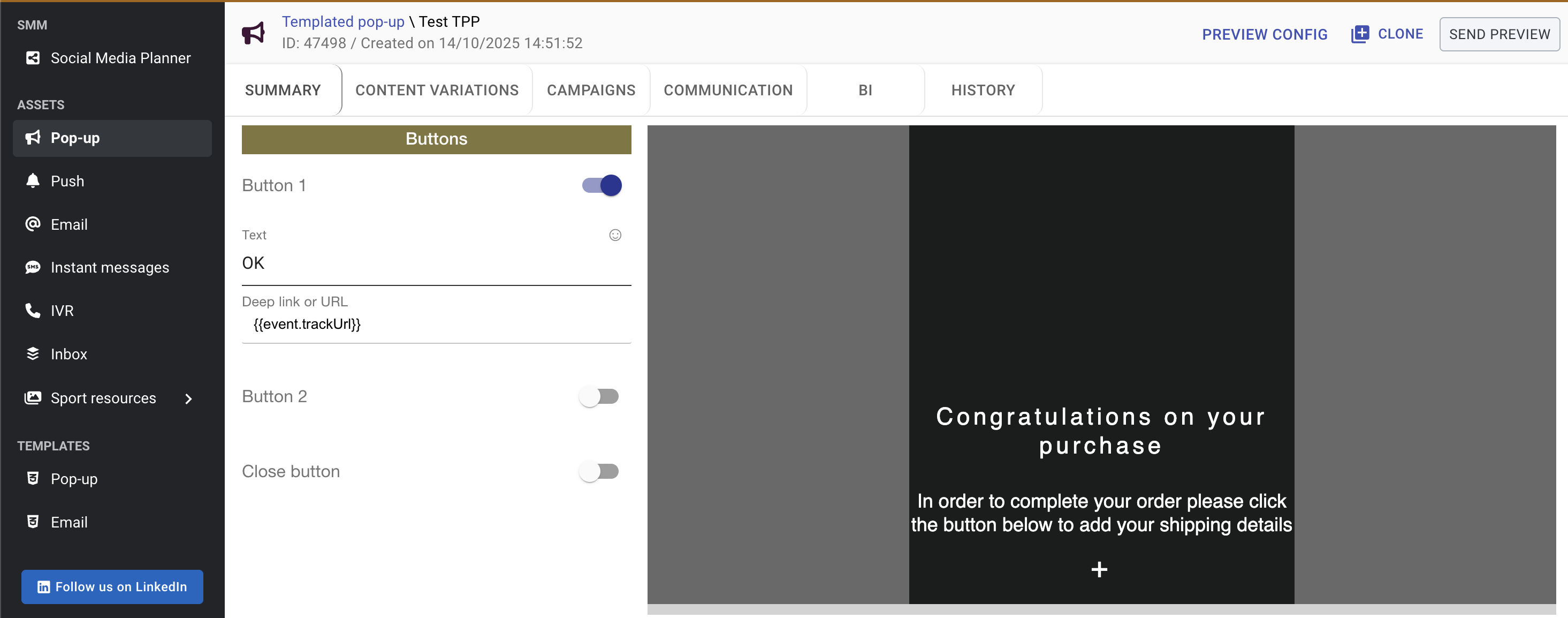
#### 1. Create the Purchase Confirmation Pop-Up
Configure a pop-up triggered upon purchase success.\
The call-to-action button must include the following URL/deeplink token to redirect the user:
```
{{event.trackUrl}}
```
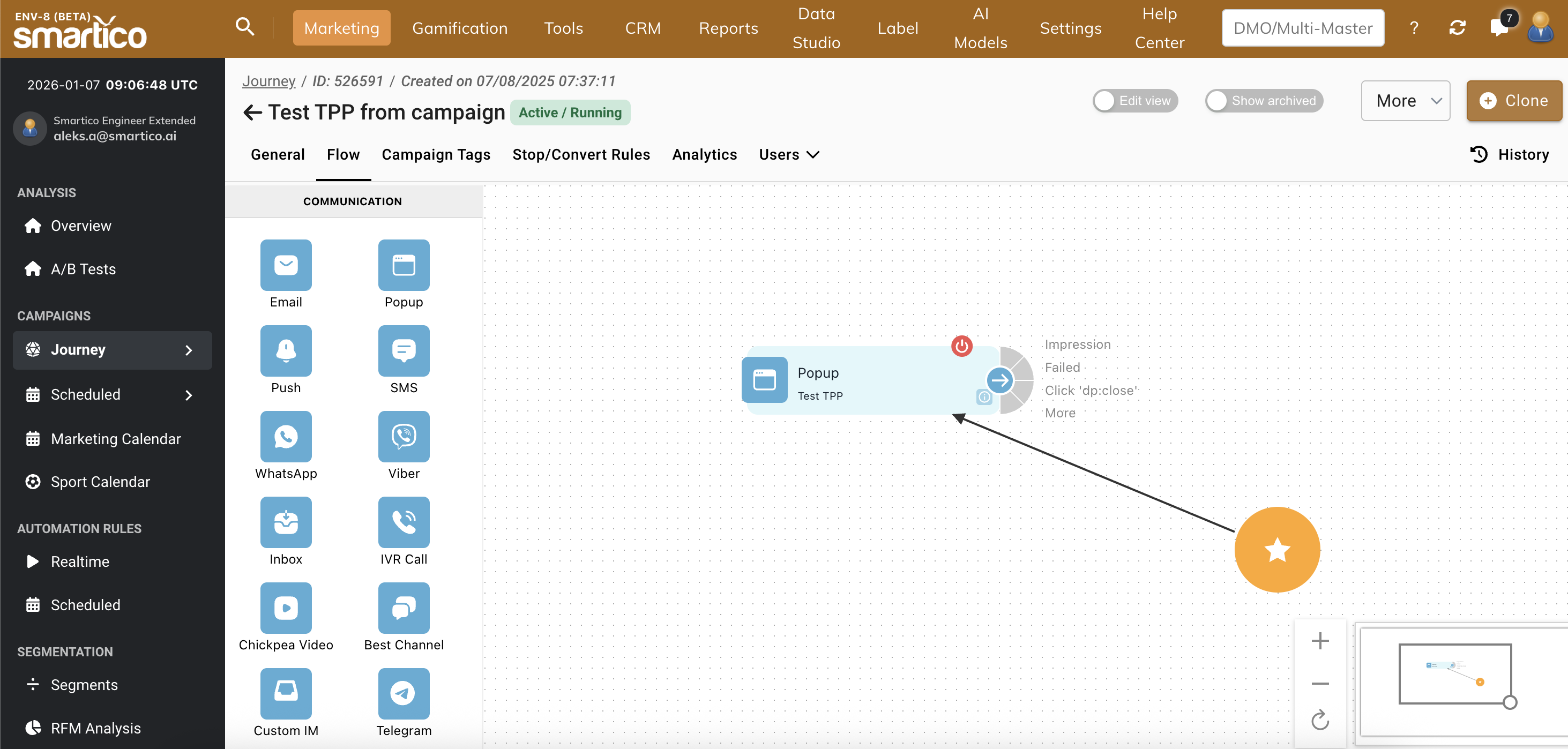
#### 2. Build an Automation Flow or Journey
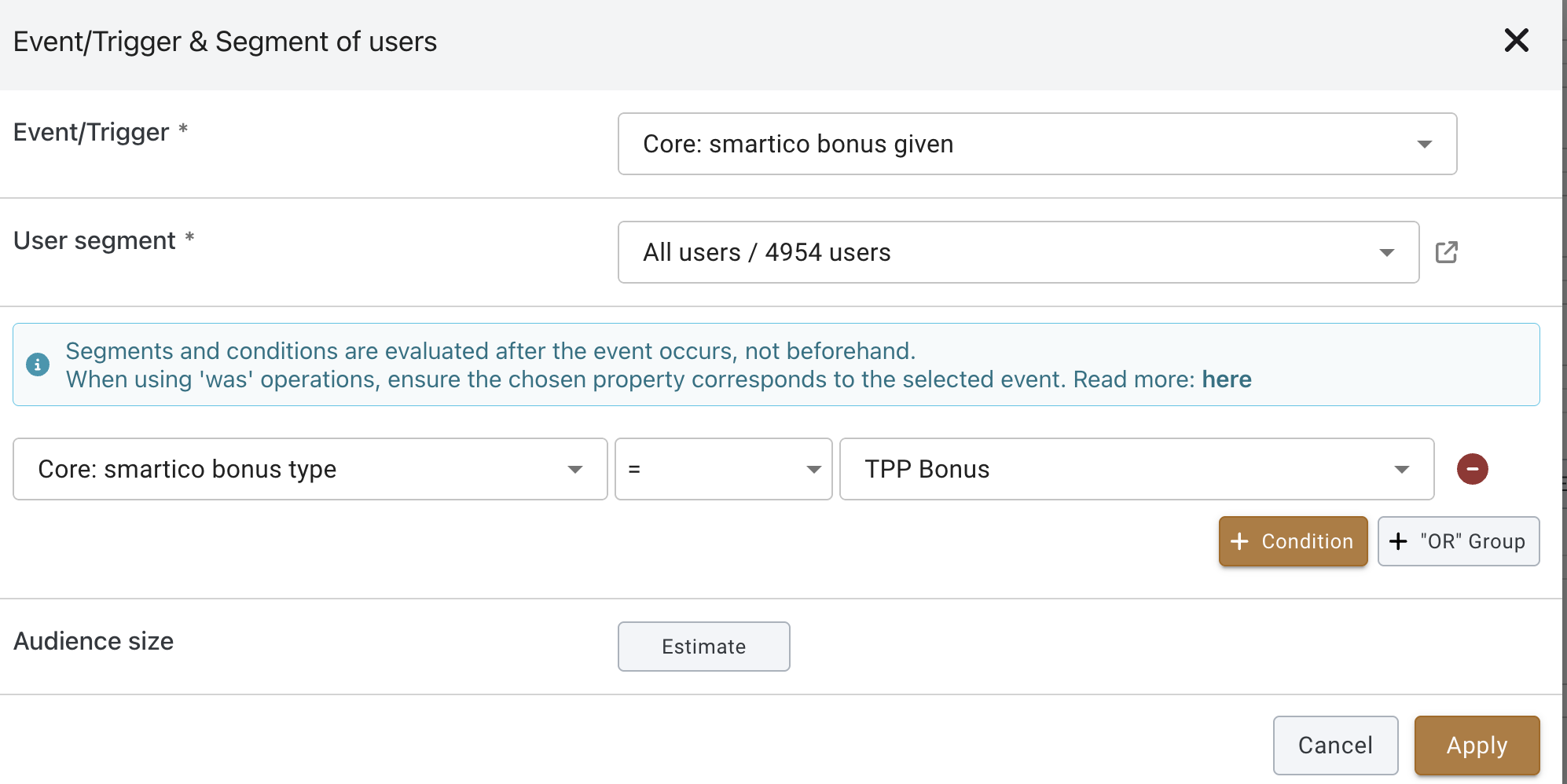
Create a rule using:
* **Trigger:** `Core: Smartico Bonus Given`
* **Condition:** `Core: Smartico Bonus Type = TPP Bonus`
The rule should deliver the pop-up configured in Step 1.
#### 3. Add Store Items Linked to TPP
Create one or more store items that reward users with TPP bonus templates.\
Make sure to:
* Add item metadata (name, image, category, etc.)
* Define audience segmentation
* Activate the store item
***
#### Ready to Launch
Once these steps are completed, users can immediately browse and purchase TPP products from the Smartico Store.
---
# Agent Instructions
This documentation is published with GitBook. GitBook is the documentation platform designed so that both humans and AI agents can read, navigate, and reason over technical content effectively. Learn more at gitbook.com.
## Querying This Documentation
If you need additional information that is not directly available in this page, you can query the documentation by asking a question.
Perform an HTTP GET request on the following URL with the `ask` and `goal` query parameters:
```
GET https://help.smartico.ai/welcome/products/gamification-basics/tpp.md?ask=&goal=
```
`ask` is the immediate question: it should be specific, self-contained, and written in natural language.
`goal` is what the user is ultimately trying to achieve, the reason they need the answer. Sharing it helps GitBook give you a better, more relevant answer. A goal is most helpful when it describes the outcome the user wants rather than restating the question. For example, with `ask=how do I create an API token`, a goal like `automate deployments from our CI pipeline` lets GitBook tailor the answer to that use case.
The response will contain a direct answer to the question and relevant excerpts and sources from the documentation.
Use this mechanism when the answer is not explicitly present in the current page, you need clarification or additional context, or you want to retrieve related documentation sections.