> For the complete documentation index, see [llms.txt](https://help.smartico.ai/welcome/llms.txt). Markdown versions of documentation pages are available by appending `.md` to page URLs; this page is available as [Markdown](https://help.smartico.ai/welcome/technical-guides/front-end-integration/extended-integration/events-and-actions.md).
# Events and actions
Use these calls of the Smartico script to report what the player does on your site: session events, the login entry point, custom actions, custom events, JS markers and UTM fields. You can use them to start campaigns, automation rules and missions.
## **Online, offline, login, and logout events**
Smartico has 4 main events related to user session tracking
* user\_went\_online - happens whenever the user is refreshing the page, or navigating between the pages of the site, and also in case when the connection is lost and restored (happens especially on mobile devices), but **not more often than once in 1 minute**.
* user\_went\_offline - happens when connection with user is lost. In general, when user is closing a page/browser, or moving browser application in the background on mobile device. Important to note that it doesn't happen immediately because of different browsers/applications behaviour. Delay could be quite variable. Smartico is not allowing to use this event as trigger for campaigns, missions, automation rules or anything else in order to avoid confusion.
* login - is the Smartico logic of identification of a new session. When the user logs in for the first time, Smartico generates the "login" event. In the next 30 minutes, if the user is refreshing the page or navigating between the pages, the "login" event will not be reported. If a different user logs in on the same browser, the "login" event is reported right away. If the user does log out on your site, your front-end developers need to report logout action explicitly using **\_smartico.logout()** javascript call, or set `window._smartico_user_id` to null as described in [Front-end integration](https://help.smartico.ai/welcome/technical-guides/front-end-integration/extended-integration/pages/fZuSGL9QlAW3KpaOsRDy#id-2.-identifying-the-user). If this is not done, on the next login within a **30-minute** time window, Smartico will not trigger the login event again
* user\_logged\_out - not managed by Smartico in any way, because Smartico is not aware when the user is doing logout. This event need to be triggered explicitly using **\_smartico.logout()** JavaScript call. When you set `window._smartico_user_id` to null (or an empty value) after a user was identified, the script calls **\_smartico.logout()** for you. If the **Acquisition** product is enabled on your setup, the script does not send this event.
## **Last login entry point**
You can set a property "Last login entry point" and segment users by it or react when they are logging in from a specific entry point.
This is useful, in case the integrated website has different entry points, for example - there is a lobby, landing page, user profile, etc. Or there are different device types that can be used to log in, like mobile, desktop, app, TV, etc.
The entry point can be reported in the following way:
```javascript
_smartico.setLoginEntry('LOBBY')
```
You can pass any string value as the entry point, but the number of different entry points per label is limited to 50.
## **Custom actions / Client action**
You can report a specific action done by the end-user, for example when the user is clicking on the submit button on the cashier page, you can report the action 'CashierSubmitClicked'.
Example:
```javascript
_smartico.action('CashierSubmitClicked');
```
As soon as the action is defined and triggered at least once, you can build a real-time journey to react to such an action
Real-time journey to start campaign when user does specific action
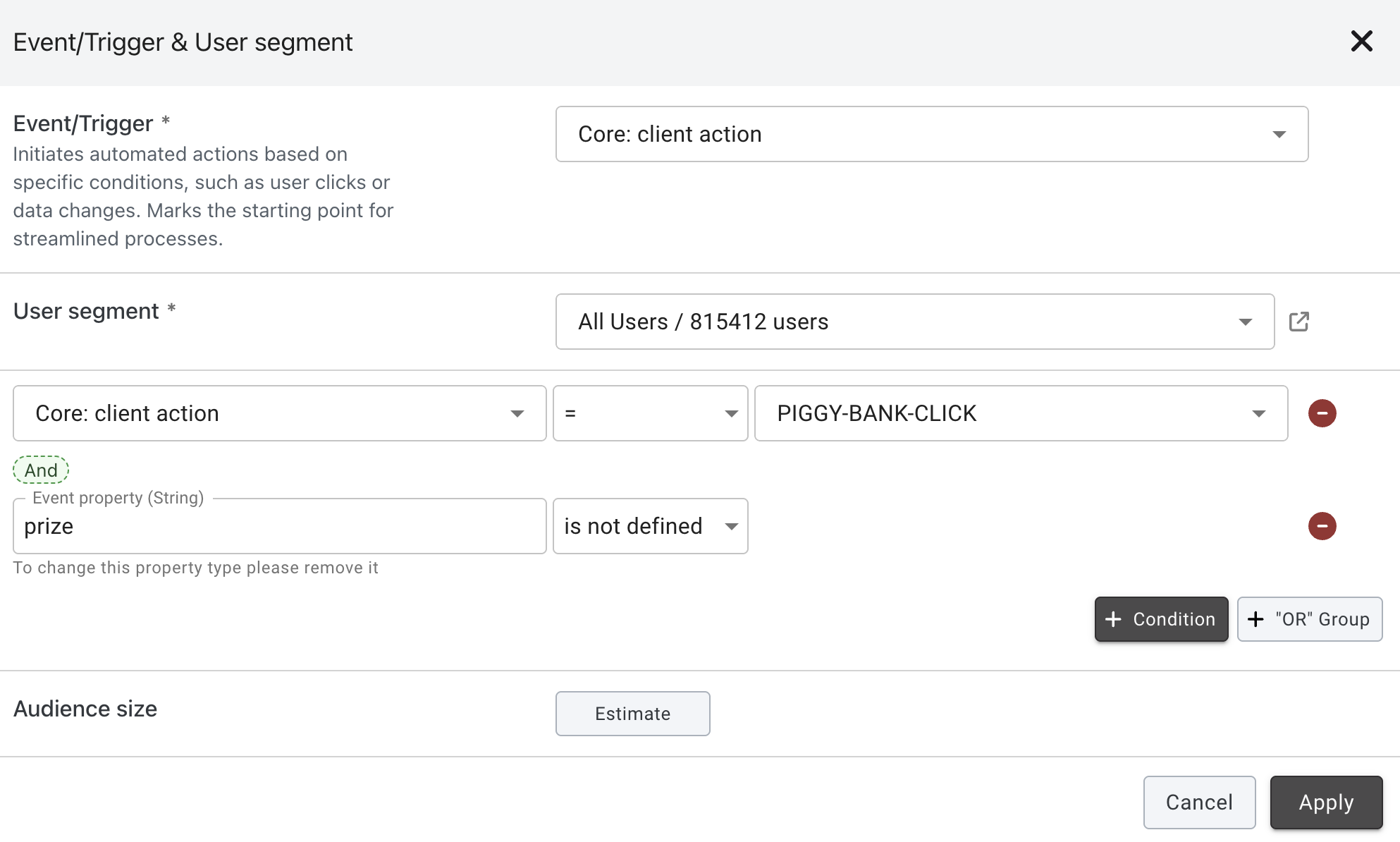
You can also report custom data as part of the event and later evaluate it in the Journeys / Realtime automation rules / Missions or any other mechanics that are based on the real-time events.
For example:
```
_smartico.action('PIGGY-BANK-CLICK', { prize: 'ABC' });
```
In the backoffice, in the Query Builder you can validate the value of the event payload (read [Query Builder](/welcome/products/crm-automation/segmentation/query-builder.md#event-evaluation-in-query-builder) article for more details about event evaluation)
## Triggering custom action through the URL (or any other deep link)
In some cases, you will want to start a campaign when the user is getting to a specific page.
One of the options is to pass a special parameter in the URL of any of your pages.
For example, you can build a URL like
{% embed url="" %}
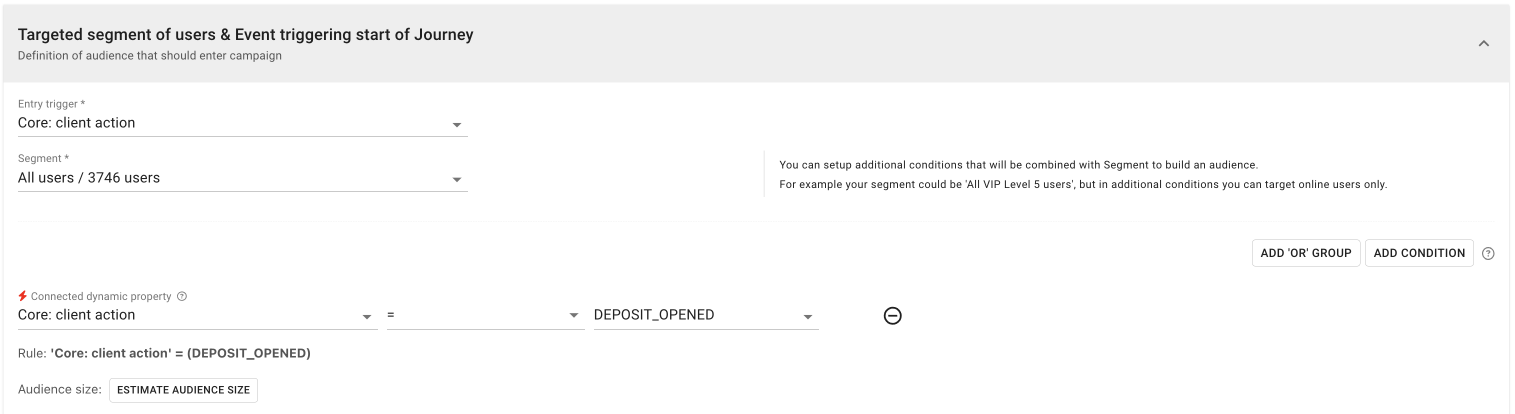
When a user comes on this page you can catch him with the campaign waiting for the "Core: client action" and action DEPOSIT\_OPENED
Example of the campaign
Note: the passed parameter in the URL is URL Encoded. You can pass any deep links that will be triggered automatically after the user is logged in, except `dp:go` and deep links that carry a `url` parameter: the script ignores them. You can put `_smartico_dp` after `#` (as in the example) or in the query string after `?`. The script runs the deep link about 1 second after the user is identified.
## JS markers (public tags)
There is a possibility to put markers on the user from the campaign flow or with automation rules and use these markers on the front end.
When the marker is set to the user, you are able to use it in the front end using the following code.
```javascript
_smartico.on('props_change', function(props) {
if (props.core_public_tags !== undefined) {
// note that the passed object is an array
// with upper-cased markers of users
console.log('List of user tags', props.core_public_tags.join(','));
}
});
```
You can also update JS markers from the client side with JavaScript, e.g.
```javascript
// add A & B tags
_smartico.updatePublicTags('add', ['A', 'B']);
// remove A tag
_smartico.updatePublicTags('remove', ['A']);
// replace all tags with new set of C & D
_smartico.updatePublicTags('replace', ['C', 'D']);
// clear all tags
_smartico.updatePublicTags('clear');
```
## **Client-side events**
You can report events in the context of identified end users via Smartico JS SDK.
Public channels are considered as not trusted, those should be used only for non-sensitive events like - the user navigating to a specific screen, clicking on some elements, etc.
Example:
```javascript
_smartico.event('opened_deposit_page', { payment_method: 'PaySafe'});
```
The payload of the event is passed as JSON object with any structure and data types.
{% hint style="info" %}
Before reporting any custom events, please contact the Smartico Customer Success Manager to align the data that will be reported and how it should be processed by the Smartico system.
Smartico team will need to register such events and define rules for processing and storing payload
{% endhint %}
## Setting UTM fields on the user profile
Smartico has two fields to hold UTM parameters - core\_utm\_source and core\_utm\_campaign.
These fields can be set via server REST API or can be also set from the front-end
```javascript
_smartico.setUTMs('My UTM source', 'My UTM campaign')
```
## Frequently Asked Questions (FAQ)
### Why does the login event not trigger on every page navigation?
Smartico applies a 30-minute session window to prevent duplicate login events on page refreshes and routine navigation. A login event is generated only on the first login in a new session, after 30 minutes of inactivity, immediately when the logout method was explicitly called during the user logout flow (or `window._smartico_user_id` was set to null), or when a different user logs in on the same browser.
---
# Agent Instructions
This documentation is published with GitBook. GitBook is the documentation platform designed so that both humans and AI agents can read, navigate, and reason over technical content effectively. Learn more at gitbook.com.
## Querying This Documentation
If you need additional information that is not directly available in this page, you can query the documentation by asking a question.
Perform an HTTP GET request on the following URL with the `ask` and `goal` query parameters:
```
GET https://help.smartico.ai/welcome/technical-guides/front-end-integration/extended-integration/events-and-actions.md?ask=&goal=
```
`ask` is the immediate question: it should be specific, self-contained, and written in natural language.
`goal` is what the user is ultimately trying to achieve, the reason they need the answer. Sharing it helps GitBook give you a better, more relevant answer. A goal is most helpful when it describes the outcome the user wants rather than restating the question. For example, with `ask=how do I create an API token`, a goal like `automate deployments from our CI pipeline` lets GitBook tailor the answer to that use case.
The response will contain a direct answer to the question and relevant excerpts and sources from the documentation.
Use this mechanism when the answer is not explicitly present in the current page, you need clarification or additional context, or you want to retrieve related documentation sections.