> For the complete documentation index, see [llms.txt](https://help.smartico.ai/welcome/llms.txt). Markdown versions of documentation pages are available by appending `.md` to page URLs; this page is available as [Markdown](https://help.smartico.ai/welcome/products/vibe-studio/custom-games.md).
# Custom Games
## What are Custom Games?
**Custom Games** are the mini-game presentation layer built with Smartico's Vibe Studio. They let you build mini-games with fully custom visuals, animations, layout, and flow, while the reward logic, prize pool, rules, and player eligibility still live in the same place all mini-games live: the Mini-games section.
In short:
* **Gamification → Mini-games** is where the game's rules and rewards are configured.
* **Vibe Studio → Custom games** is where the game's look and interaction are built.
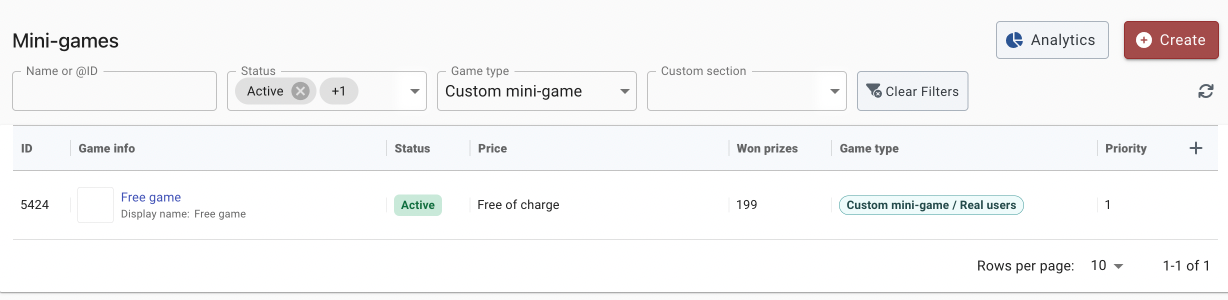
Mini-game configuration
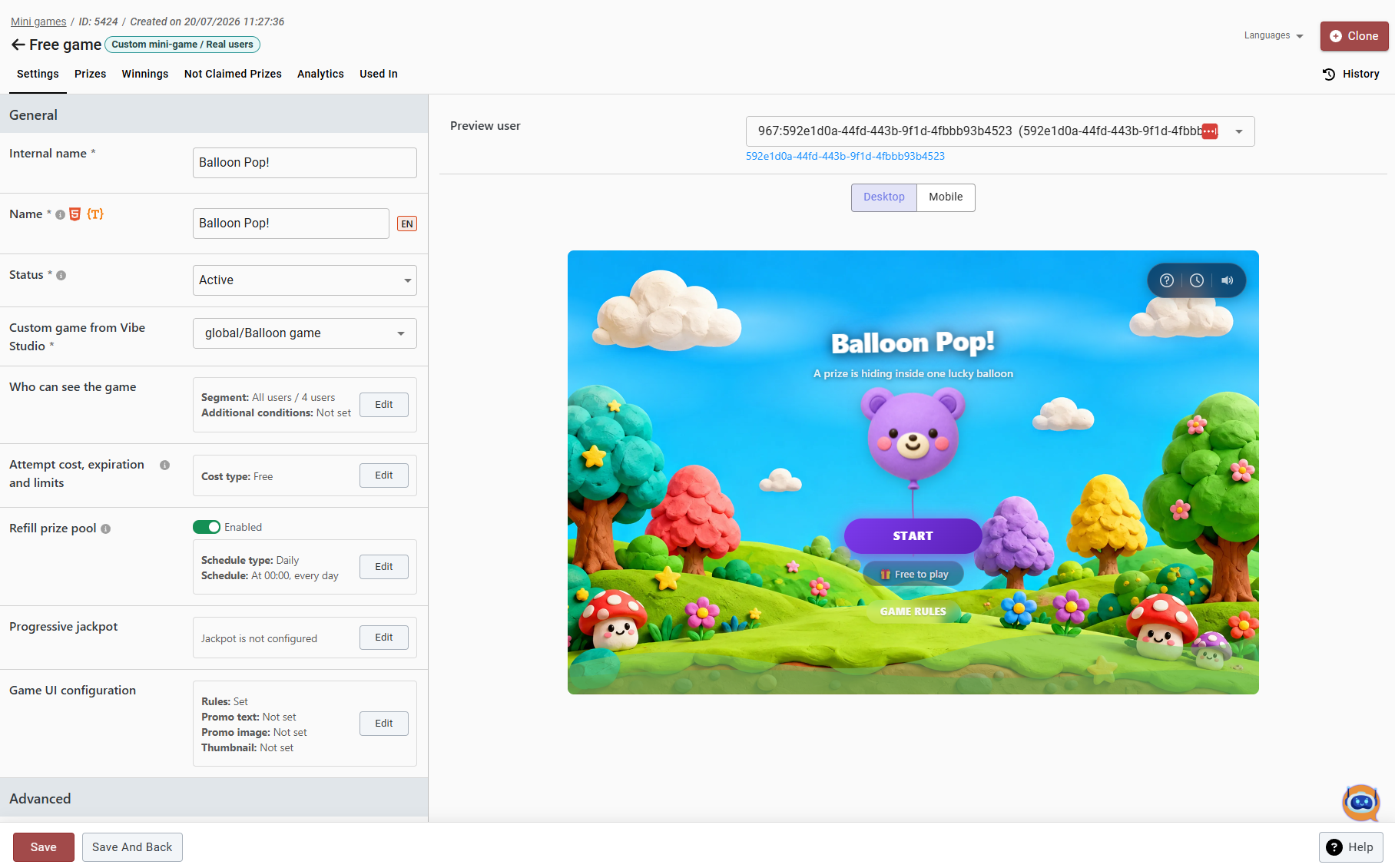
Vibe Studio, custom game UI creation
## Step-by-step guide
#### Step 1 - Create the mini-game template
Go to Gamification → Mini-games → Create, and choose the "**Custom mini-game**" game type from the game-type gallery (it is shown when your label has Vibe Studio). This creates the mini-game template entity - the same kind of object every other mini-game (Spin-a-Wheel, Scratch Card, Gift Box, etc.) uses, just with its visuals delegated to Vibe Studio.
On this template, you configure everything you'd configure on any mini-game:
* Internal & public name
* Prize pool and prize rules (probabilities, caps, refill schedule)
* Buy-in cost (Free / Points / Spins / Gems / Diamonds)
* Who can see and play it (segments, brands, pricing)
* Status (Draft while you're setting it up, Active once ready to go live)
#### Step 2 - Choose the game design
Still on the mini-game template, a required field appears: "**Custom game from Vibe Studio.**"
This dropdown lists every Custom Game page available to your label:
* **Global templates** - ready-made game designs published by Smartico, available to every label.
* **Your own custom games** - any Custom Game you've already built and published from your label's Vibe Studio → Custom games.
In the list, global templates start with **global/** and your own games with **custom/**. When a game is built for a specific mechanic, its name ends with that mechanic in brackets.
You now have two options:
* **Use a ready-made design as-is**. If one of the global templates already looks right for your promotion, just select it here and set the mini-game template's Status to Active. No trip to Vibe Studio needed - the game is live immediately with your configured prizes and rules.
* **Customize the design**. If you want your own branding, animations, copy, or a different gameplay entirely, move to Step 3 first, then come back to this field once your custom version is published.
#### Step 3 - Build the custom design in Vibe Studio
Go to Vibe Studio → Custom games → Create → "Create custom game from template."
This opens the same two-step template gallery used across Vibe Studio: pick which kind of game you want to start from, name your copy, and it's created as a new label-owned Custom Game page.
#### Step 4 - Edit with the AI editor
On the new custom game's page, click **Open for Editing** to open it in the Vibe Studio editor.
Because this Custom Game is meant to be paired with the mini-game template you already created in Step 1, the editor session is aware of that mini-game's setup - you (and the AI agent) can pull in the live configuration (the prize list, rules, buy-in type, etc.) you already defined on the mini-game template, so the visuals you build match what will actually be awarded. Choose that mini-game template in the toolbar picker (for example **Custom mini-game**). Prize odds and prize stock are never shown to the AI.
Use the AI chat to change layout, art, copy, animations - and add translations (see below); preview on desktop and mobile as you go.
When the game is ready, click **Publish**. A custom game has no link to share: the **Game published** message reminds you to select it in the mini-game template's **Custom game from Vibe Studio** field (Step 2). Players get the game only through that mini-game.
### Ready to use custom game templates
**Shell game -** player sees the shell with the prize, and after shells are shuffled, he needs to guess where the prize is. No matter what he picks, the prize is already chosen based on the template setup.
**Balloon game** - player needs to pop the balloons until he reveals the prize. The prize is predefined at the start based on the template, but not known to the player. If he didn't complete it in time, he will lose his prize.
**Sphere Strike / Spiral** is a skill-based, color-matching game with a high-stakes reward loop. Upon initialization, the player is presented with a potential prize. The core gameplay requires the player to shoot projectiles to match three or more balls of the same color, clearing a continuously advancing chain along a spiral track. If the player successfully clears the board, they are awarded the prize. If the chain reaches the center of the spiral, it triggers a fail state and the prize is lost.
**Darts:** The player views all available prizes and continuously throws darts until three land on their winning sector. Important: This is a pseudo-skill game. The prize is pre-calculated based on a template at the start of the round. No matter how the player interacts, the game simply guides the required number of darts into the predetermined winning sector.
**Pinyata:** In this game, the player simply taps or clicks to hit the pinyata. After three hits, the pinyata bursts open to reveal what they have won.
**Goalscorer:** In this game the player drags back to take penalty shots and must score 2 goals out of 3 attempts against the goalkeeper to win. In cases where the outcome is of "no prize" type, the goalkeeper will save most of the attempts.
**Cross Hopper**: In this game, the player needs to cross the road while collecting a specific number of Mystery Chips. Players must avoid getting hit by vehicles, as each hit reduces their health bar. Collecting the required number of Mystery Chips results in winning a prize. If the health bar reaches zero before that, the player loses.
**Smash it!:** This game is based on our standard Voyager mechanics. It includes a real lose condition, three difficulty levels (Easy, Medium, and Hard), configurable minimum and maximum steps, and prize accumulation.
* **Gameplay:** Players drag and smash zombies or throw them into the house.
* **Win:** Players defeat the required number of zombies before they reach the house.
* **Lose:** If zombies reach the house, they start tearing it down and the player’s life bar decreases. When it reaches zero, the house is destroyed and the player loses.
* **Prize:** The accumulated prize is awarded only if the player wins. No prize is awarded in a losing scenario.
Almost all standard Voyager mechanics are supported in this game. The only setting not supported is Seed window (minutes).
**Game settings:**
* **Min. number of prizes that can be collected:** Sets the minimum number of zombies the player must kill to win.
* **Max. number of prizes that can be collected:** Sets the maximum number of zombies the player must kill to win.
* **Game difficulty:**
* **Easy:** Zombies approach slowly.
* **Medium:** Zombies approach faster. Some are armored and require 3 clicks to remove their armor before they can be killed.
* **Hard:** Zombies approach much faster. Some are armored and require 5 clicks to remove their armor before they can be killed.
### Good to Know
* The **Mini-game template is the source of truth** for rewards, prize pools, odds, limits, and eligibility. These are always configured in Gamification → Mini-games, not in Vibe Studio.
* You can **change the game's design** at any time by linking a different Custom Game, without affecting its rewards or configuration.
* **Preview and test before publishing** using a test user to see exactly how the game will appear on desktop and mobile. The preview plays real rounds: it uses the preview player's attempts, and prizes won in the preview are really given to that player.
* The **Used In** tab on the custom game's page (Vibe Studio → Custom games) lists the mini-games that use it.
* **Translations** are managed within the Custom Game, allowing one game to support multiple languages without creating separate versions. Just write "/translate" in the chat, and the AI agent will do everything else.
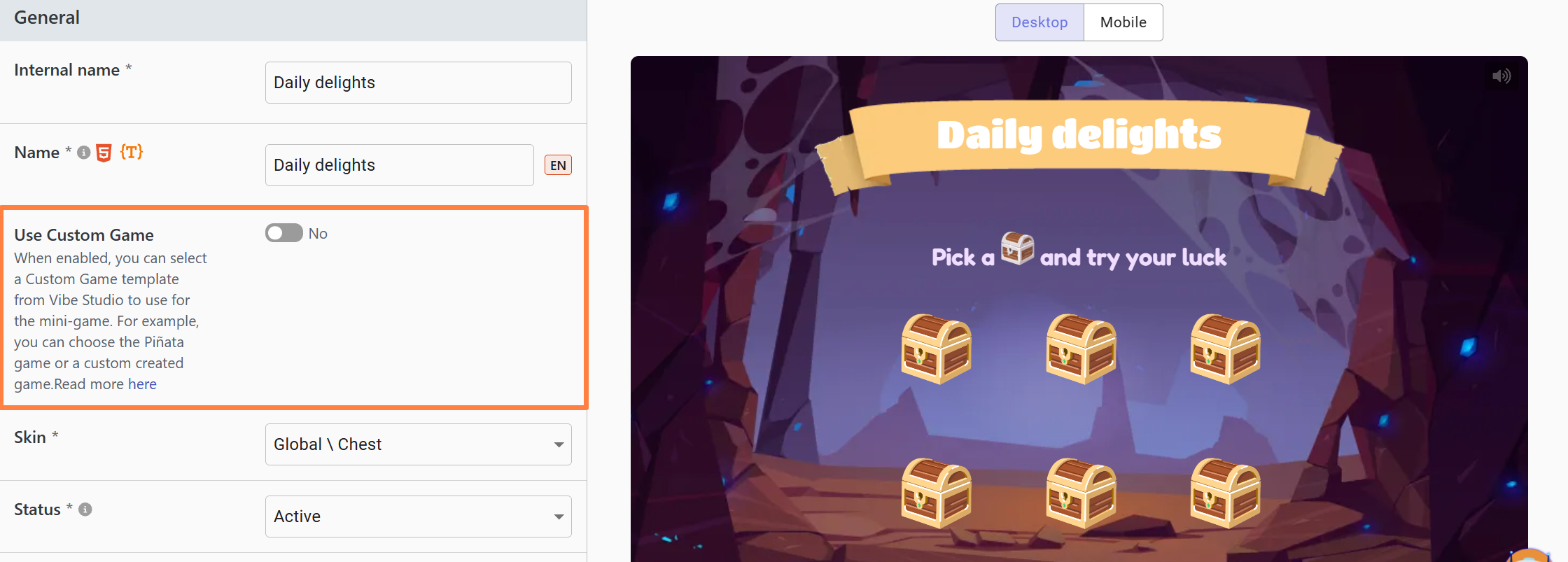
### ‘Use Custom Game’ in Mini-games
The '**Use Custom Game'** option allows you to replace the standard skin of a mini-game with a Custom Game from Vibe Studio, without creating a separate Custom Mini-game template. The toggle is available for the Spin A Wheel (Loyalty Wheel), Scratch & Catch, GiftBox, [Lootbox](/welcome/products/gamification-basics/lootbox-2.0.md), [Treasure Hunt](/welcome/products/mini-games/treasure-hunt.md), [Voyager](/welcome/products/mini-games/voyager.md), [Ballanza](/welcome/products/mini-games/ballanza.md) and [Coin Flip](/welcome/products/mini-games/coin-flip.md) mini-games (not for MatchX, Quiz or Prize Drop), and is disabled by default. When enabled, the Skin option is replaced with a Custom Game selector, allowing you to choose a Custom Game template created in Vibe Studio.
{% hint style="info" %}
**Important:** When selecting a Custom Game, make sure it uses the same mechanics as the original mini-game. For example, if you are configuring a Loyalty Wheel and select a Custom Game based on Voyager mechanics, the game will not work correctly. The Custom Game must use the mechanics of the mini-game it is replacing.
{% endhint %}
**Custom Lootbox:** To create a Custom Lootbox, use the original Lootbox template and select your Custom Game from there. Do not use the Custom Mini-game template.
{% hint style="info" %}
If you want to create a game that doesn’t use any existing Smartico mini-game mechanics, you can still select **Create → Custom Mini-game** in the Mini-games section. However, you’ll need to implement the game logic on your own backend (BE), while the UI can be built in Vibe Studio.
{% endhint %}
The Custom Mini-game template exposes settings from all available mini-game types. For example, it may include settings specific to Treasure Hunt. If your Custom Game does not use Treasure Hunt mechanics, simply leave those settings empty.
### Frequently Asked Questions (FAQ)
#### Why does the preview show “Template \[ID] not found. Check TEMPLATE\_ID or ask your admin”?
This error occurs when the game engine cannot find an active template for the preview user. Check the following:
1. **Status is Active:** Set the mini-game template in **Gamification → Mini-games** to **Active**, not **Draft**.
2. **User qualifies for the segment:** If the mini-game is segment-restricted, ensure the selected **Preview user** meets every segment criterion.
#### Why does the preview load but show “0 Spins Available”?
The preview reflects the selected player’s real wallet and ticket balance. To test the game:
* For games costing **Spins / Tickets**, grant the preview player a test spin through **Gamification → Mini-games → Action Menu → Give Attempts / Spins**. You can also issue a spin from the player profile.
* For **Free** games, check that the player has not reached a daily or total attempt limit.
#### Can I link any Custom Game design to any mini-game type?
No. The Vibe Studio design must match the mini-game template’s mechanics:
* A **Loyalty Wheel** template requires a wheel-based Custom Game.
* A **Giftbox / Piñata** template requires a giftbox or pick-a-box Custom Game.
* For games outside our standard templates, select **Custom mini-game** when creating the template.
#### What is the difference between Vibe Studio and Gamification → Mini-games?
* **Gamification → Mini-games** configures backend rules, prize pools, odds, attempt costs, segmentation, and win limits.
* **Vibe Studio → Custom games** configures the presentation layer, including layout, animations, sound effects, themes, and branding. You can update a Custom Game design without resetting prize pools or winning odds.
---
# Agent Instructions
This documentation is published with GitBook. GitBook is the documentation platform designed so that both humans and AI agents can read, navigate, and reason over technical content effectively. Learn more at gitbook.com.
## Querying This Documentation
If you need additional information that is not directly available in this page, you can query the documentation by asking a question.
Perform an HTTP GET request on the following URL with the `ask` and `goal` query parameters:
```
GET https://help.smartico.ai/welcome/products/vibe-studio/custom-games.md?ask=&goal=
```
`ask` is the immediate question: it should be specific, self-contained, and written in natural language.
`goal` is what the user is ultimately trying to achieve, the reason they need the answer. Sharing it helps GitBook give you a better, more relevant answer. A goal is most helpful when it describes the outcome the user wants rather than restating the question. For example, with `ask=how do I create an API token`, a goal like `automate deployments from our CI pipeline` lets GitBook tailor the answer to that use case.
The response will contain a direct answer to the question and relevant excerpts and sources from the documentation.
Use this mechanism when the answer is not explicitly present in the current page, you need clarification or additional context, or you want to retrieve related documentation sections.