> For the complete documentation index, see [llms.txt](https://help.smartico.ai/welcome/llms.txt). Markdown versions of documentation pages are available by appending `.md` to page URLs; this page is available as [Markdown](https://help.smartico.ai/welcome/products/tools-and-guides/multi-currency-usage-report.md).

# Multi-currency usage report

### Overview

When using a multi-currency functionality, you should keep the currency-specific values aligned with your vision of currency conversion rates.

Let's take an example of the Automation Rule that should give "**1 Gamification point for every 10 EUR bet amount**".

To properly set up this rule, you will need to define the required amounts for every currency.

<div data-with-frame="true"><figure><img src="https://77049817-files.gitbook.io/~/files/v0/b/gitbook-x-prod.appspot.com/o/spaces%2FfS5hl0PiysHtKAKMsQTe%2Fuploads%2FcA2XZGopqWG2nYCA9g5Q%2F524f61a59d-crop-1-d0b56a3c-c5b16f.png?alt=media" alt=""><figcaption><p>Automation rule giving 1 point for every 10 EUR total bet amount</p></figcaption></figure></div>

In most cases, you will not follow exact currency rates, because they are not friendly to communicate to the end-users. Most probably you will choose to ask Bulgarian users with BGN currency for the 20 BGN, while the real 10 EUR conversion should be 19.1 BGN.

{% hint style="warning" %}
**Reference rates vs. Live exchange rates**

The reference rates configured under **Tools > Smartico internal > Currency usage** are static rates used solely for report auditing and the Autofill helper button. They do **not** update automatically with market exchange rate fluctuations, and they do **not** affect live player wagering, live bonus issuance, or wallet conversions (which use Smartico's automated live FX pipeline). If market exchange rates shift significantly, update your reference rates manually and review this report to identify rules that need updating.
{% endhint %}

{% hint style="info" %}
There is no problem adjusting this automation rule when there is a big change in the currency rate and you want to adjust your amounts...

But what if there are many automation rules, campaigns, missions, user segments, store item restrictions, and tournament configurations? As your setup grows, keeping all configurations aligned with actual currency rates becomes increasingly difficult.
{% endhint %}

### Currency usage report

The "**Currency usage**" report is giving you an overview of all the places where you have defined multi-currency amounts and a way to find gaps between defined values and currency rates.

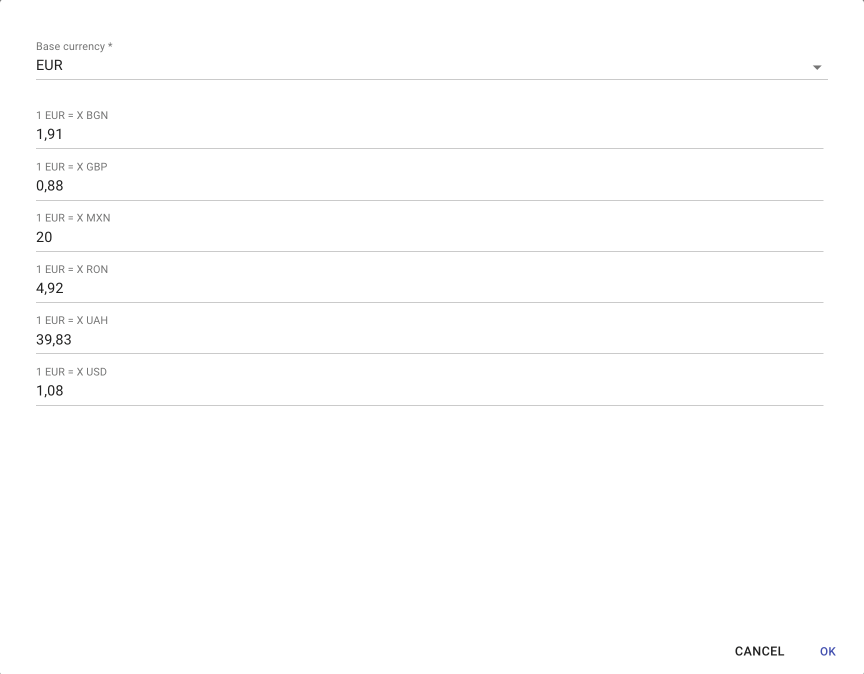
Before using the report, you must define your reference currency rates. Navigate to **Tools > Smartico internal > Currency usage** and click the **Currencies rates** button in the top-right corner. Select your **Base currency** (the reference currency whose value remains constant, e.g. EUR), then enter the conversion multiplier (1 Base = X Target) for each additional currency configured on your label.

<div data-with-frame="true"><figure><img src="https://77049817-files.gitbook.io/~/files/v0/b/gitbook-x-prod.appspot.com/o/spaces%2FfS5hl0PiysHtKAKMsQTe%2Fuploads%2FlERme4mqNlcE1K7kINg5%2F1749198d49-crop-2-e19460ec-e48e37.png?alt=media" alt=""><figcaption><p>Setting base currency and rates for others</p></figcaption></figure></div>

After that, you can run a report to see if there are any misalignments in the expected amounts and the actual.

<div data-with-frame="true"><figure><img src="https://77049817-files.gitbook.io/~/files/v0/b/gitbook-x-prod.appspot.com/o/spaces%2FfS5hl0PiysHtKAKMsQTe%2Fuploads%2F4vTaNTUYKgPgFEtH1xiR%2F001e1b09e3-crop-3-a80a3e92-a609b9.png?alt=media" alt=""><figcaption><p>Report showing the difference in the expected and actual multi-currency amounts</p></figcaption></figure></div>

In our example, we have GBP and USD highlighted in orange because the difference is quite significant, above 5%. And BGN and RON are above 1% highlighted in yellow. Other currencies are not highlighted, because their amounts are within 1% difference from expected.

<div data-with-frame="true"><figure><img src="https://77049817-files.gitbook.io/~/files/v0/b/gitbook-x-prod.appspot.com/o/spaces%2FfS5hl0PiysHtKAKMsQTe%2Fuploads%2Fgit-blob-d075410d271102037d77e3c222881fd1dee44fb5%2Fimage.png?alt=media" alt=""><figcaption><p>GBP difference is 12%, expected value should be 8.8 GBP</p></figcaption></figure></div>

You can use the filter on top of the report to focus on missing values or to find only those entities that have differences above the specific % threshold.

#### Report columns and color coding

The report displays all entities across your label that use multi-currency conditions (such as Campaigns, Segments, Automation Rules, Missions, Tournaments, Shop Items, Jackpots, Raffles, Label tags, and communication templates).

* **Context**: The entity type and a direct clickable link to the entity configuration.
* **Base currency column**: The value configured for your base currency, or a red **missing** badge if no base value is set.
* **Currency columns**: The configured amount for each target currency.
  * **No highlight**: Discrepancy is under 1% from expected.
  * **Yellow**: Discrepancy is between 1% and 5%.
  * **Orange**: Discrepancy is greater than 5%.
  * **Red ("missing \[Base]")**: The entity lacks a base currency value.
  * **Tooltip**: Hovering over any colored cell shows the calculated expected amount and percentage difference.
* **Property**: The property being evaluated (for example, Total Bet Amount).

#### Available filters

* **Property name**: Search by property name or UI label.
* **Context**: Filter by entity type (**Campaign**, **Segment**, **Automation rule**, **Mission** (missions and badges), **Tournament**, **Shop item**, **Jackpot template**, **Raffle**, **Label tags**, or a communication template: **Resource: Email**, **Resource: SMS**, **Resource: Push**, **Resource: Popup**, **Resource: Inbox**, **IVR**).
* **Missing values**: Filter for entities missing values across all currencies (Any) or for a specific currency.
* **Rate above, %**: Display only entities exceeding a difference threshold (from > 1% up to > 50%).
* **Missing defaults**: Filter specifically for entities with base currency values set versus missing.

### Autofill currency rates

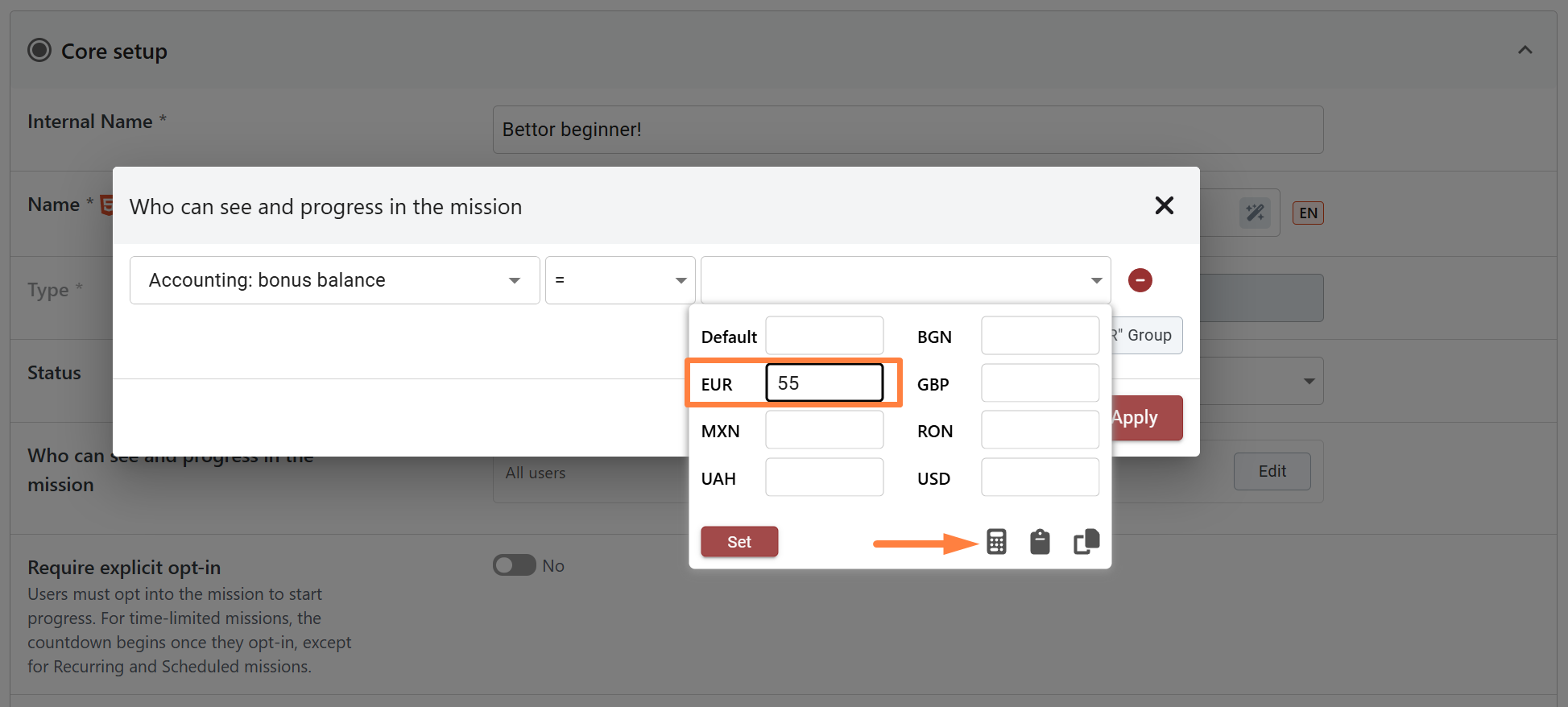
After setting up the currency rates, you can use the Autofill button in the currency modal when adding a currency-related condition. This button automatically fills in values for all available currencies based on the base currency. To enable it, first, populate the base currency. Once the base currency is set, the Autofill button becomes active, allowing you to automatically calculate and apply the corresponding values for all other currencies.

#### Currency modal helper tools

When editing multi-currency values in condition modals, several convenience tools are available alongside the Autofill button:

* **Autofill (calculator icon)**: Calculates amounts for all other currencies from the base currency value using your reference rates. Fiat currencies are rounded to 2 decimal places, while major cryptocurrencies (BTC, ETH, SOL, USDT, USDC, BNB) are rounded to 8 decimal places.
* **Copy to clipboard**: Copies the current set of currency values as JSON for reuse across different rules.
* **Paste from clipboard**: Pastes currency values copied with **Copy to clipboard** from another condition. Only this format can be pasted; text copied from a spreadsheet is not accepted.
* **Clear fields (broom icon)**: Resets and empties all entered currency amounts.

<div data-with-frame="true"><figure><img src="https://77049817-files.gitbook.io/~/files/v0/b/gitbook-x-prod.appspot.com/o/spaces%2FfS5hl0PiysHtKAKMsQTe%2Fuploads%2Fgit-blob-acfee26849b64e3b8653394cd3a8ec71cf3c9cf8%2FScreenshot_74.png?alt=media" alt=""><figcaption></figcaption></figure></div>

### FAQ

#### Why is the Autofill button disabled or greyed out?

The Autofill button requires three conditions to become active:

1. A **Base currency** must be set under **Tools > Smartico internal > Currency usage > Currencies rates**.
2. Conversion rates must be defined for your other currencies.
3. You must enter a numeric value into the **Base currency field** within the current modal. Once the base value is present, the Autofill button activates.

#### Do multi-currency reference rates update automatically when market exchange rates change?

No. Reference rates in Currency Usage are static values defined by the operator to represent desired conversion rules (often rounded for friendly player communication). They do not automatically adjust to live market fluctuations. When market rates change, update your reference rates in "Currencies rates" and run the report to find misaligned rules.

#### How do new currencies appear in the Currency Usage report and Autofill options?

Currencies displayed in the report and Autofill inputs are populated from your label's active wallet currencies. Once a new currency is enabled on your label, it appears automatically in the "Currencies rates" setup modal and condition forms. The report shows a column only for currencies that have a saved rate, so add the rate for a new currency in "Currencies rates".

#### What entity types are monitored by the Currency Usage report?

The report scans all multi-currency conditions configured across Campaigns, User Segments, Automation Rules, Missions / Achievements, Tournaments, Shop Items, Jackpots, Raffles, Label tags, and communication templates (email, SMS, push, pop-up, inbox, IVR).


---

# Agent Instructions
This documentation is published with GitBook. GitBook is the documentation platform designed so that both humans and AI agents can read, navigate, and reason over technical content effectively. Learn more at gitbook.com.

## Querying This Documentation
If you need additional information that is not directly available in this page, you can query the documentation by asking a question.

Perform an HTTP GET request on the following URL with the `ask` and `goal` query parameters:

```
GET https://help.smartico.ai/welcome/products/tools-and-guides/multi-currency-usage-report.md?ask=<question>&goal=<user_goal>
```

`ask` is the immediate question: it should be specific, self-contained, and written in natural language.
`goal` is what the user is ultimately trying to achieve, the reason they need the answer. Sharing it helps GitBook give you a better, more relevant answer. A goal is most helpful when it describes the outcome the user wants rather than restating the question. For example, with `ask=how do I create an API token`, a goal like `automate deployments from our CI pipeline` lets GitBook tailor the answer to that use case.

The response will contain a direct answer to the question and relevant excerpts and sources from the documentation.

Use this mechanism when the answer is not explicitly present in the current page, you need clarification or additional context, or you want to retrieve related documentation sections.