> For the complete documentation index, see [llms.txt](https://help.smartico.ai/welcome/llms.txt). Markdown versions of documentation pages are available by appending `.md` to page URLs; this page is available as [Markdown](https://help.smartico.ai/welcome/products/tools-and-guides/faqs/faq-crm-automation.md).

# FAQ: CRM Automation

### **When I am sending "Preview" of the mail resources, the unsubscribe deep link is not replaced**

"unsubscribe" deep link will be replaced only when it is sent from the real campaign. You can use "Test with user" inside the campaign in order to test "unsubscribe" flow

<figure><img src="https://lh3.googleusercontent.com/EBMPquDhrEZdjk5lchQKwQtSBlqeOktZgUrXH4Eo8C3blmq6dc3JbcEiBee4MrUMqkq--l_9OFN3FGJ-xmohRzgNgBXG9HL23D9VAq-Ww05geVRz1jHWZmC4E4XdRx4PSrz1sDqFZK-2oJ0bYfC-PVfrtkYLJADhoXV96ZfgdwMitX0ExP53yxVP" alt=""><figcaption></figcaption></figure>

### **How to provide the possibility for users to opt-out from SMS communication**

Include in the SMS message tag {{optout}}. When SMS is sent, the tag will be replaced automatically with a unique link that will lead the user to the optout page. In Data Studio you will be able to measure opt-out rate per campaign or SMS template

### **How can I safely test Real-time Automation Rules before enabling them for all players?**

To test a Real-time Automation Rule safely:

* **Add a Test Filter Condition**: Add a condition to the rule restricting execution to your test user ID, a test player tag, or a dedicated test segment.
* **Trigger the Event**: Generate the configured trigger event for your test player (for example, performing a test transaction or updating a user property in the Back-Office).
* **Check Execution History**: Verify the execution under the Automation Rules history tab and check the player's profile to confirm that points, bonuses, or tags were granted as expected.
* **Remove Test Restrictions**: Once verified, remove the test filter condition to activate the rule for all eligible players.

### **Users do not progress in the flow after CTA clicks on my emails, SMS, popups, and other communication assets?**

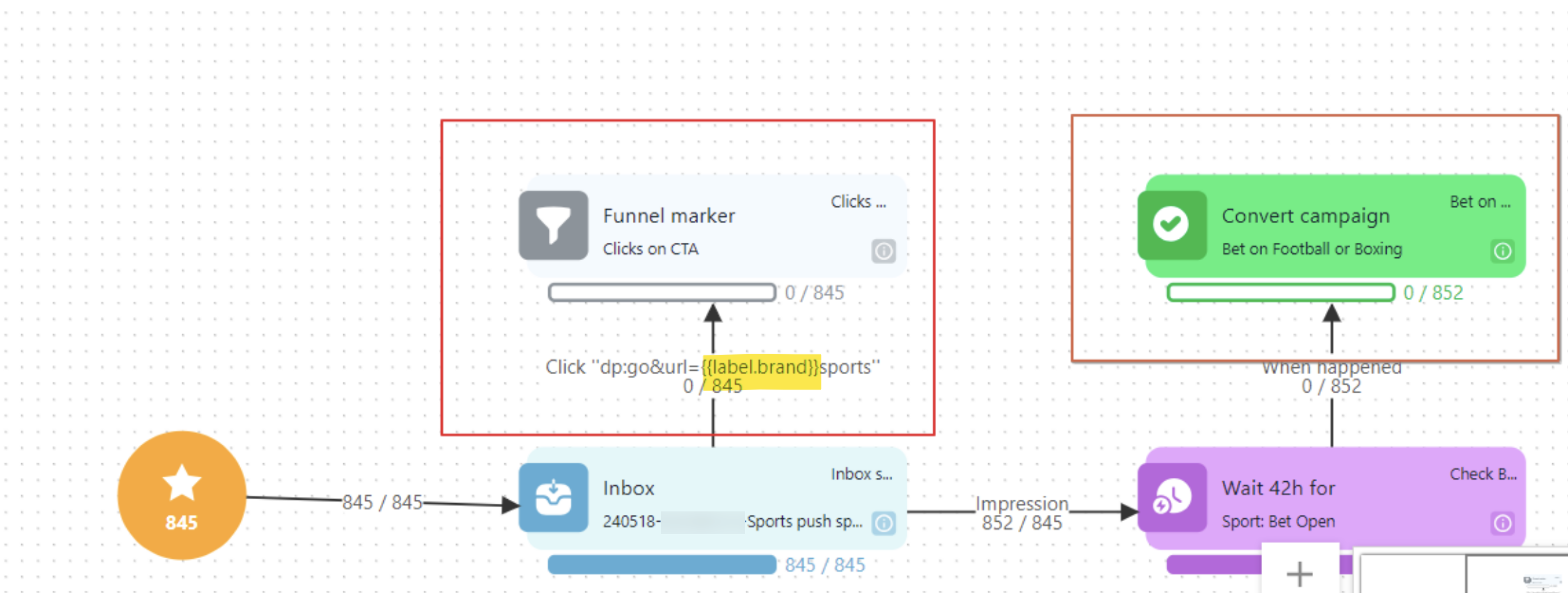
The problem with the flow could be connected to an event where players click on a link that uses a label tag. In the communication asset (such as email, SMS, or popup), this tag translates the value depending on the conditions, meaning players never actually click the exact link as expected by the tracking setup.

<div data-full-width="false"><figure><img src="https://77049817-files.gitbook.io/~/files/v0/b/gitbook-x-prod.appspot.com/o/spaces%2FfS5hl0PiysHtKAKMsQTe%2Fuploads%2Fgit-blob-3296797bbac65070012fde46ccc471241e78bd7f%2Fimage.png?alt=media" alt=""><figcaption></figcaption></figure></div>

To resolve this, you should use the "Click link containing" option instead of relying on exact link matches. This will allow the tracking to recognize clicks on links that contain certain keywords or segments of the URL, ensuring accurate tracking.

<figure><img src="https://77049817-files.gitbook.io/~/files/v0/b/gitbook-x-prod.appspot.com/o/spaces%2FfS5hl0PiysHtKAKMsQTe%2Fuploads%2Fgit-blob-cdae0100d34ba850edee012a7dee27a873b7666d%2Fimage.png?alt=media" alt=""><figcaption></figcaption></figure>

After making these changes, monitor the journey to ensure that tracking for CTA clicks works correctly.

#### Additional Help:

If you continue to experience issues, please contact support with detailed information, including:

* The specific journey involved and a link to the journey in the backoffice
* The exact tracking problems encountered
* Relevant screenshots or logs

### I have an active journey flow and I would like to insert an email activity into it. Should I pause the campaign and insert the email, or do I need to create a new flow for this change to be done?

You can add an activity to an active journey flow without stopping the campaign or creating a new one. However, if you are adding new branch connectors or changing condition rules, it is recommended to pause the campaign before making structural changes and re-activate it afterward so that the routing rules update cleanly. Keep in mind the following:

* **Insertion Point**: You can insert the email wherever you want within the journey.
* **User Progress**: Users who have already passed the point where you are adding the email will not receive it because they have moved beyond that point in the journey.

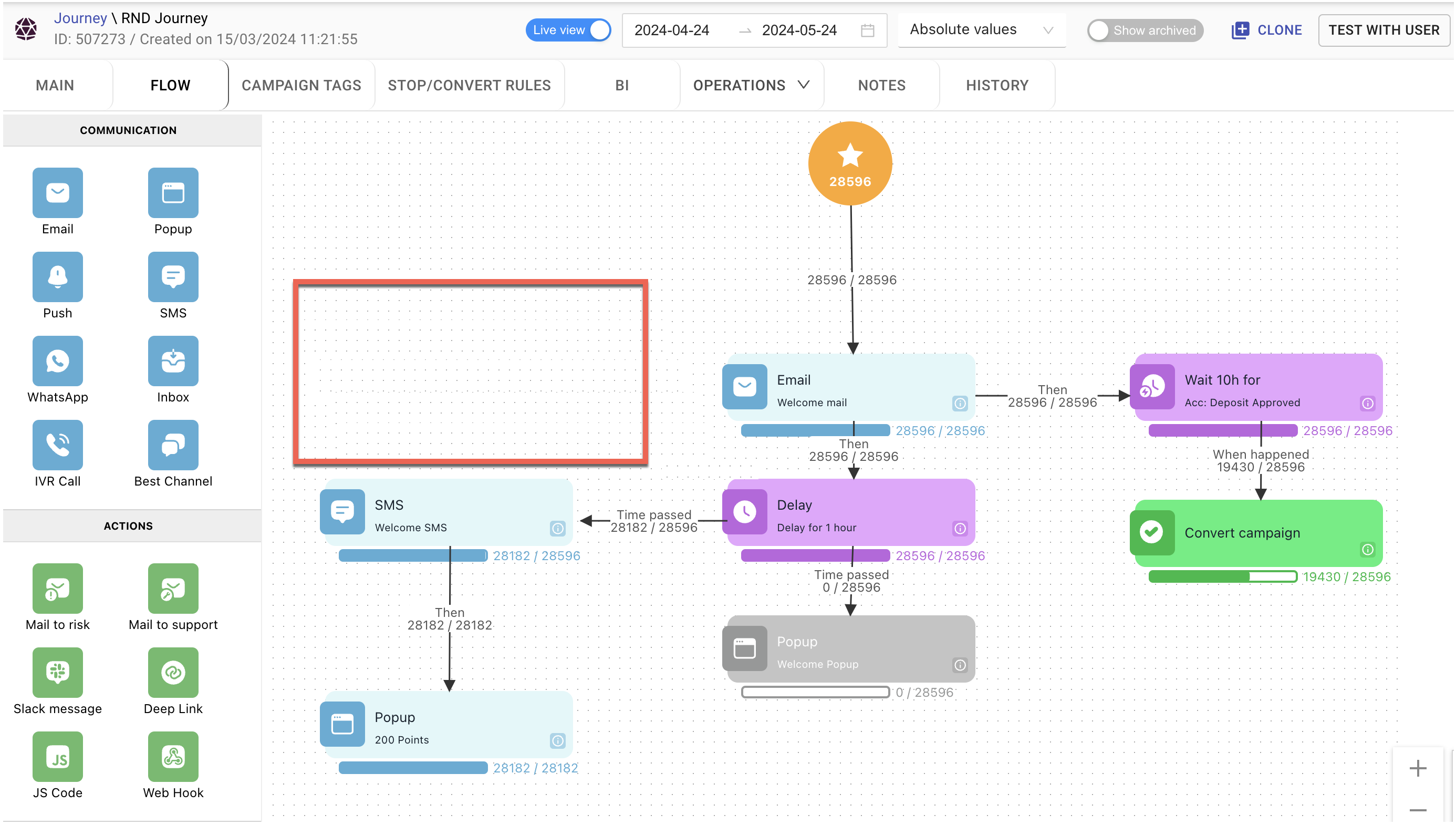
For example if we want to add the email activity where the red rectangle is:

<figure><img src="https://77049817-files.gitbook.io/~/files/v0/b/gitbook-x-prod.appspot.com/o/spaces%2FfS5hl0PiysHtKAKMsQTe%2Fuploads%2Fgit-blob-fc335af0ea71ee7c4b32f8b7571773ba0c610295%2Fimage.png?alt=media" alt=""><figcaption></figcaption></figure>

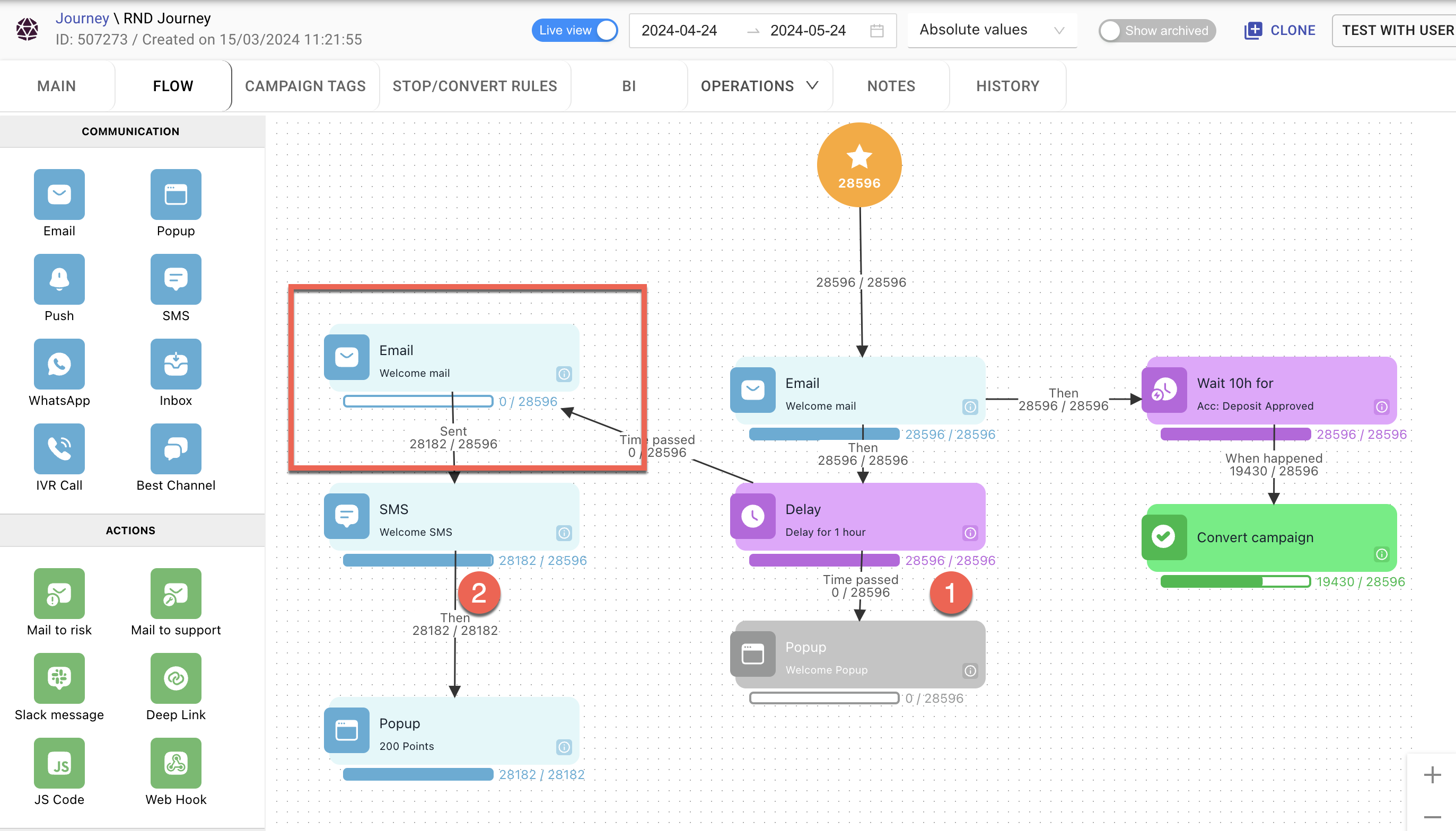
We would insert the Email activity and change the connections Delay 1h -> Email -> SMS\
You can see that users after point 2 have already passed that point in the campaign and will "miss" the email, while users who are in the phase of the delay or prior to it in point 1 will receive it once they are out of the delay.

<figure><img src="https://77049817-files.gitbook.io/~/files/v0/b/gitbook-x-prod.appspot.com/o/spaces%2FfS5hl0PiysHtKAKMsQTe%2Fuploads%2Fgit-blob-47e3a8fef2957b8414d064427427b94007ad48c4%2Fimage.png?alt=media" alt=""><figcaption></figcaption></figure>

#### Additional Help:

If you need further assistance with modifying your journey flow, please contact support with detailed information, including:

* The specific journey you are working on
* The exact point where you want to insert the email
* Any relevant screenshots or logs

By understanding these guidelines, you can effectively manage and update your active journey flows without interrupting the user experience.

### **Why are players not entering my Real-time Journey (Campaign)?**

If players are not entering an active Real-time Journey when a trigger event occurs, check the following campaign settings:

* **Entry Mode**: "Once in a lifetime" allows each player to enter the journey only once. If they have already entered or completed the flow, they cannot re-enter. Use "Every time conditions are met" to allow repeated entries, or "Stop and Start" to restart the journey if the player is currently in an active flow.
* **Active Hours & Schedule**: Check whether the campaign has configured active hours (in UTC or User Timezone) or an explicit stop date that blocks new entries.
* **Campaign Duration**: Ensure the max campaign duration is sufficiently long for players to progress through all stages.
* **Segment Calculation Timing**: If the journey requires membership in a behavioral segment, note that behavioral segments update on a batch schedule (every few minutes to daily), so newly qualifying players will only enter once the segment calculation completes.

### **Why didn’t I receive any SMS from the campaign?**

Smartico’s role in sending SMS is to prepare the content and send a call to the SMS gateway to deliver the message.\
There could be several reasons why the SMS didn’t go out. Here are the steps to diagnose and resolve the issue:

#### Before Contacting Smartico Success Managers, Check the Following:

1. **Check the Error Message**:
   * Hover over the exclamation mark <img src="https://77049817-files.gitbook.io/~/files/v0/b/gitbook-x-prod.appspot.com/o/spaces%2FfS5hl0PiysHtKAKMsQTe%2Fuploads%2Fgit-blob-6407a1b3cd8b20238cce0cfc0b46bbe16a245187%2Fimage.png?alt=media" alt="" data-size="line"> representing the error message to see a short description of the issue.
   * Alternatively, use the grid icon <img src="https://lh7-eu.googleusercontent.com/fmsqPrkutpdQw0PnkOFa1EYh3tFGo42p32Hwym4Luod-Yv7SK1GVgvm7vQ9NWyscVorYe2HoFrsWGPD2eksY8U1CywAeps3mSV6r8vAToFq5FaKivRD0MK2rCt1H5dC0nI1ckcNu22KUmyh5BLiXTT4" alt="" data-size="line"> to view the “fail reason” column.
   * Click on the arrow on the left side to open details and preview the message for better visibility.

<div data-full-width="false"><figure><img src="https://77049817-files.gitbook.io/~/files/v0/b/gitbook-x-prod.appspot.com/o/spaces%2FfS5hl0PiysHtKAKMsQTe%2Fuploads%2Fgit-blob-caf57d642f80b475dc30fa6804e84c9f7ebf6c77%2Fsms1.jpg?alt=media" alt=""><figcaption><p>Hover the "1" to see the error</p></figcaption></figure></div>

<figure><img src="https://77049817-files.gitbook.io/~/files/v0/b/gitbook-x-prod.appspot.com/o/spaces%2FfS5hl0PiysHtKAKMsQTe%2Fuploads%2Fgit-blob-431fec1edb23e93f8905f2628b63177fb5188d07%2Fsms2.jpg?alt=media" alt=""><figcaption><p>Click to expand for more details</p></figcaption></figure>

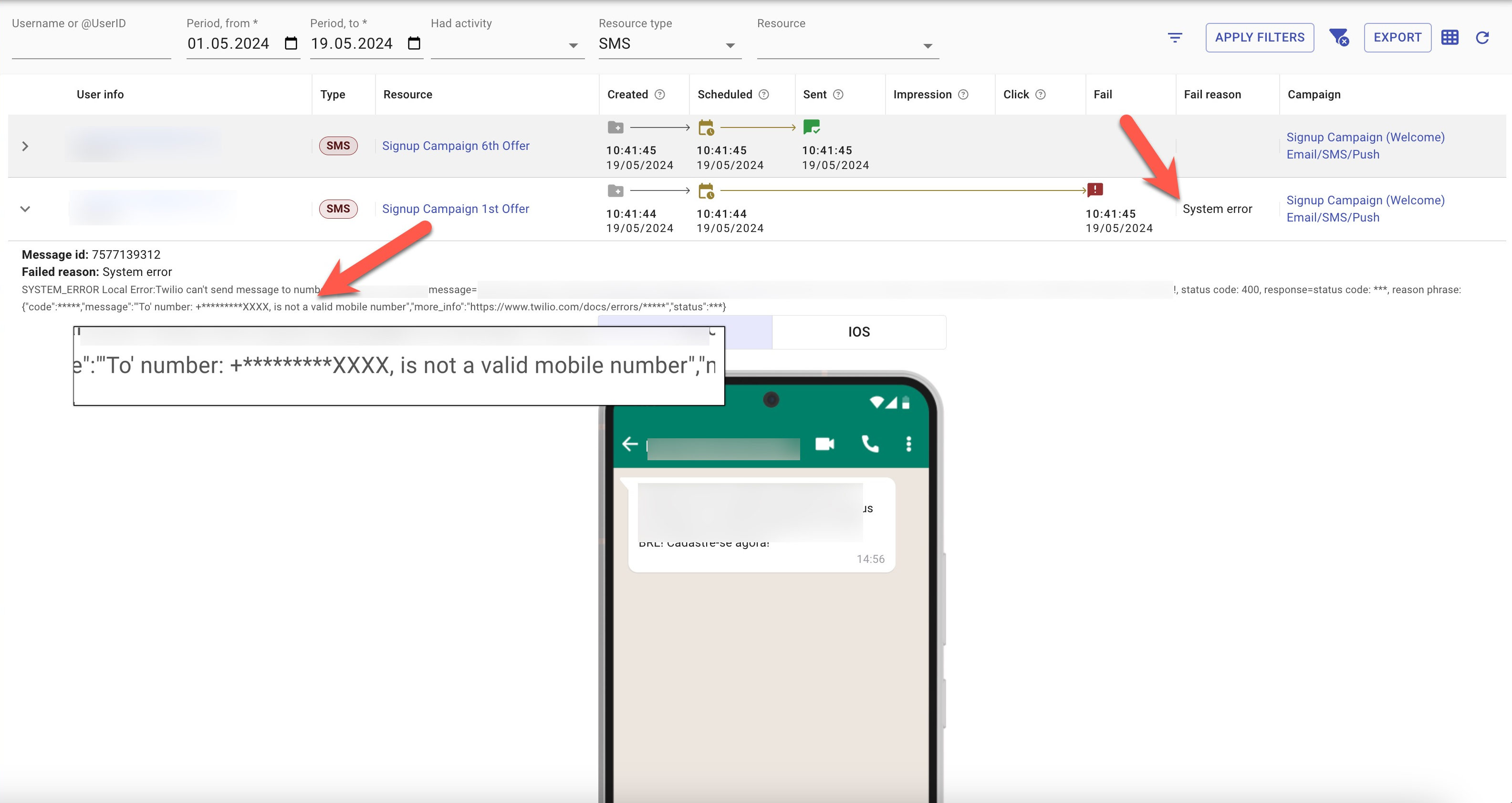
In the example above, the phone number is invalid.

#### Possible Solutions:

1. **Verify Phone Number**:
   * Check in your PAM if the user's phone number is valid.
   * Verify with the SMS provider the phone number that was attempted to be sent.
2. **Check SMS Provider Permissions**:
   * Ensure that the SMS provider allows you to send messages to the target country.

#### Common Examples of Errors:

1. **System Error**:

   * Errors from the SMS gateway might not be mapped and will appear as “system error.” Expand to find the full response from the gateway. Check if the user's phone number is valid in your PAM.

   <figure><img src="https://77049817-files.gitbook.io/~/files/v0/b/gitbook-x-prod.appspot.com/o/spaces%2FfS5hl0PiysHtKAKMsQTe%2Fuploads%2Fgit-blob-9f552d8fb33b8c3dadfa6a55e05c96a86982cd72%2Fsms3.jpg?alt=media" alt=""><figcaption></figcaption></figure>
2. **Insufficient Balance**:
   * Ensure there are sufficient credits in the SMS gateway.
3. **SMS Disabled for User**:
   * The user has opted out from the PAM or unsubscribed from SMS through Smartico unsub links. Exclude such users from campaigns to avoid sending SMS to ineligible recipients.
4. **User/Global CAPs**:
   * The SMS was blocked due to anti-spam limitations configured during onboarding. To change these limits, contact your Success Manager.

#### Additional Help:

If you continue to experience issues, please contact support with detailed information, including:

* The specific campaign involved and a link to the campaign in the backoffice
* The exact error messages encountered, and the users affected by them
* Relevant screenshots or logs

By following these steps, you should be able to troubleshoot and resolve issues with SMS delivery in your campaigns effectively.

### **How does "Value Before Event" work in Real-time Automation Rules and Campaign conditions?**

"Value Before Event" allows you to evaluate what a player's property value was immediately before the incoming trigger event occurred, rather than its updated value after the event:

* **State Transition Tracking**: This is essential for detecting property changes—such as checking if a player's VIP level was previously "Bronze" before upgrading to "Silver", or checking if their account status transitioned from "Pending" to "Active".
* **Accurate Trigger Conditions**: By evaluating the pre-event value alongside the post-event state, conditions can verify the exact state transition without being affected by the event's immediate property overwrite.

### **Why did users stop progressing in the "Traffic Split" stage in my campaign?**

The issue arises from the connections in the traffic split stage. Here’s a detailed explanation.

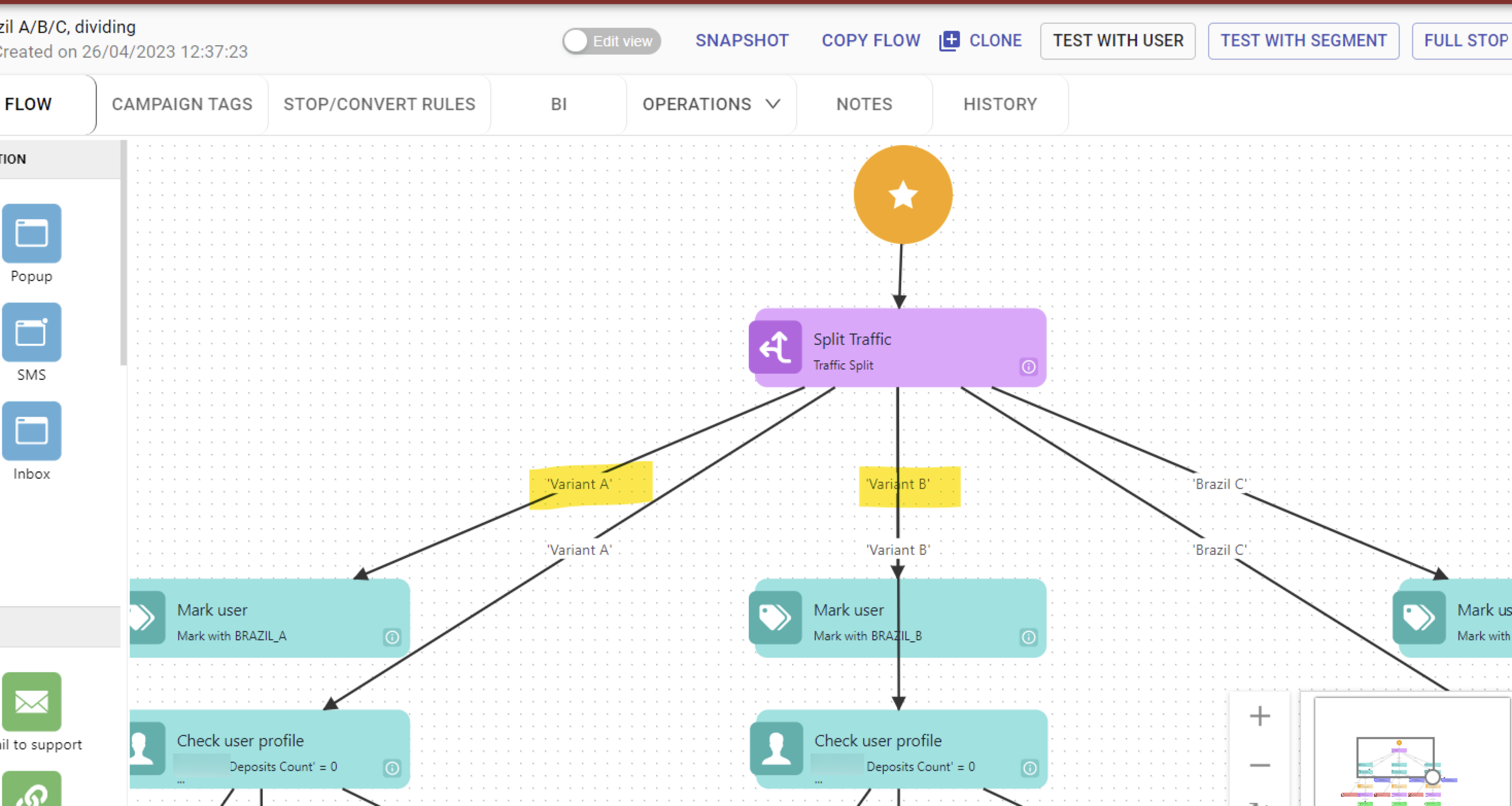
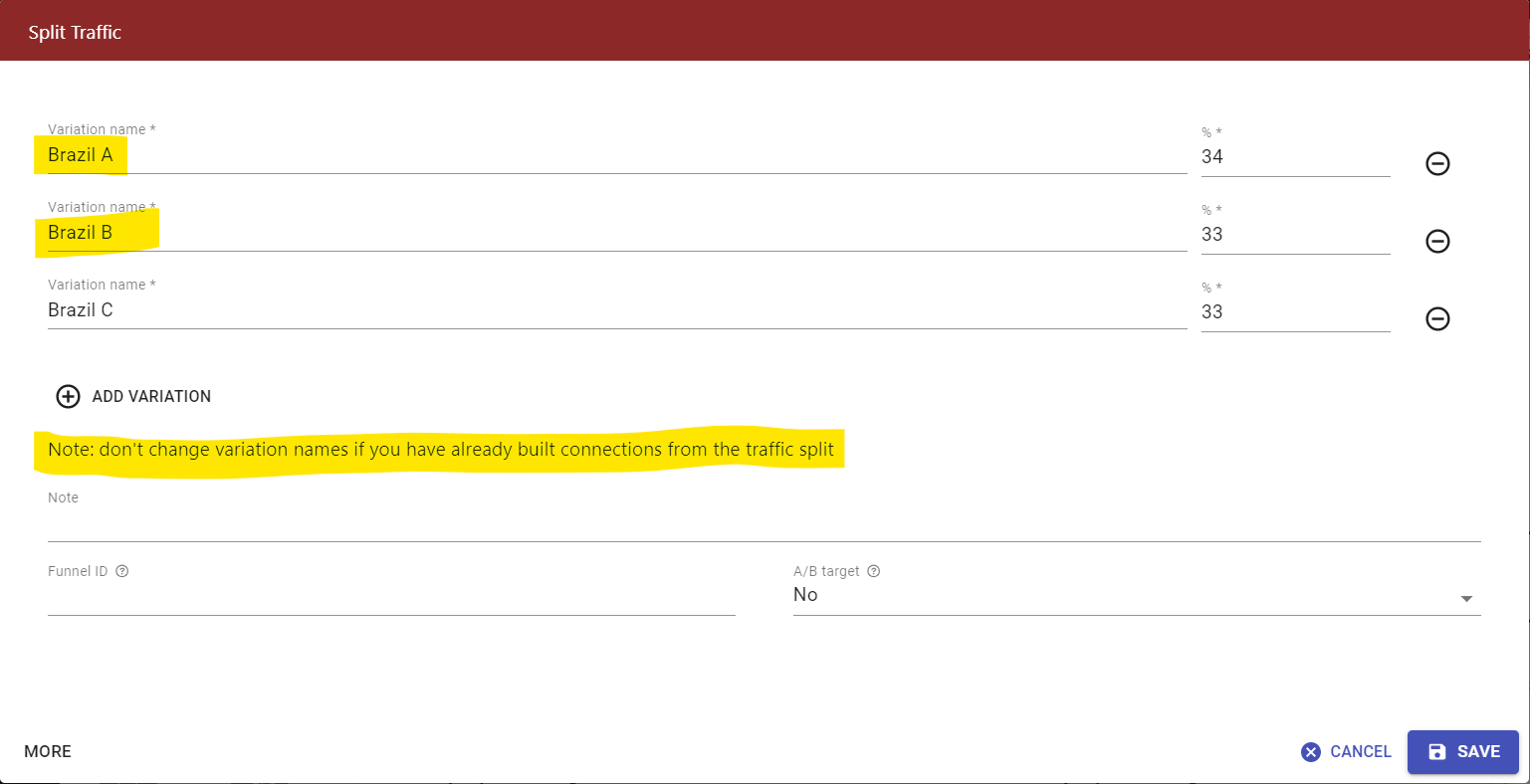
The most common reason for this is because the names of the variants in the traffic split were changed after the initial setup.

<figure><img src="https://77049817-files.gitbook.io/~/files/v0/b/gitbook-x-prod.appspot.com/o/spaces%2FfS5hl0PiysHtKAKMsQTe%2Fuploads%2Fgit-blob-565dc0572df93186ddb993283b81e923522a0cb5%2Fimage.png?alt=media" alt=""><figcaption></figcaption></figure>

Originally, the traffic split variants were named “Variant A” and “Variant B”. These were later changed to “Brazil A” and “Brazil B”. Changing the names of the variants does not update the flow connections automatically. As a result, the system could not recognize the connection, causing the users to stop progressing further.

<figure><img src="https://77049817-files.gitbook.io/~/files/v0/b/gitbook-x-prod.appspot.com/o/spaces%2FfS5hl0PiysHtKAKMsQTe%2Fuploads%2Fgit-blob-262bcb54dfb90eadb8fbcc6af27f13d35f66b2fd%2Fimage.png?alt=media" alt=""><figcaption></figcaption></figure>

To resolve this issue, ensure the connections are correctly established **after** renaming the variants.

{% hint style="danger" %}
**Do Not Change Naming**

Avoid changing the names of the variants after setting up the flow. If renaming is necessary, ensure to re-establish the connections.

**Remove and Re-add Elements**:

If renaming is unavoidable, remove the elements and add them again to ensure the correct connections are populated.

**Restore Original Names**:

Alternatively, restore the original names of the split elements to maintain the connections.
{% endhint %}

#### Additional Help:

If you continue to experience issues and the name of the split groups were not changed, please contact support with detailed information, including:

* The specific campaign involved and a link to the backoffice
* The exact configuration changes made
* Any relevant screenshots or logs

By following these steps, you should be able to troubleshoot and resolve issues with traffic split stages in your campaigns effectively.

### **How does the "Qualification" feature work in Real-time Automation Rules?**

Qualification requires a player to meet a prerequisite event and condition before they become eligible to trigger the rule's primary action:

* **Prerequisite Trigger**: When qualification is enabled, the player must first complete the specified qualification event (such as account verification or a first deposit) matching any configured qualification conditions.
* **Validity Limits**: You can configure qualification to expire after a specific time duration (e.g., within 24 hours) or after a specific number of rule completions (e.g., valid for the next 3 triggering actions).
* **Main Rule Execution**: Only after qualification is passed will the player's subsequent actions trigger the main rule event, evaluate accumulation, and grant the configured reward or action.

### **Why don't I see new users in the "Live view" of the campaign flow?**

The "Live view" presentation is updated every 5 minutes, so you may need to check results a bit later to get updated data

### **What is the difference between Campaigns (Journeys) and Automation Rules, and when should I use each?**

Campaigns and Automation Rules serve different CRM automation needs:

* **Campaigns (Journey Builder)**: Designed for multi-step player communication workflows across channels (Email, SMS, Push, Inboxes, Popups). They support multi-branching paths, delays, wait-for-event triggers, and conversion tracking.
* **Automation Rules**: Optimized for high-speed, single-action executions without visual flow builders. They instantly execute operational or gamification actions—such as awarding bonuses, adding or deducting points, assigning missions, granting mini-game attempts, updating player tags, or triggering a campaign. Automation rules cannot send direct player communications (such as Email or SMS) and do not track conversion goals, but they support real-time accumulation thresholds (such as awarding 1 point per 100 bets).

### **How does accumulation work in Automation Rules, and how do accumulated values reset?**

Accumulation allows an automation rule to track running totals across multiple events before triggering an action:

* **Cumulative Progress**: The rule sums numeric property values across qualifying events (for example, accumulating total wagered amount) until reaching the required target threshold.
* **Accumulation Reset**: You can configure accumulation to reset automatically on a recurring schedule (such as daily, weekly, or monthly) or upon each successful rule completion.
* **Frequency Caps**: You can apply execution frequency limits (such as once per day or lifetime) to control how many times a player can earn the reward.


---

# Agent Instructions
This documentation is published with GitBook. GitBook is the documentation platform designed so that both humans and AI agents can read, navigate, and reason over technical content effectively. Learn more at gitbook.com.

## Querying This Documentation
If you need additional information that is not directly available in this page, you can query the documentation dynamically by asking a question.

Perform an HTTP GET request on the current page URL with the `ask` query parameter, and the optional `goal` query parameter:

```
GET https://help.smartico.ai/welcome/products/tools-and-guides/faqs/faq-crm-automation.md?ask=<question>&goal=<endgoal>
```

`ask` is the immediate question: it should be specific, self-contained, and written in natural language.
`goal` is optional and describes the broader end goal you are ultimately trying to accomplish on behalf of the user. GitBook uses it to tailor the answer towards what is most useful for that goal.

The response will contain a direct answer to the question and relevant excerpts and sources from the documentation.

Use this mechanism when the answer is not explicitly present in the current page, you need clarification or additional context, or you want to retrieve related documentation sections.