> For the complete documentation index, see [llms.txt](https://help.smartico.ai/welcome/llms.txt). Markdown versions of documentation pages are available by appending `.md` to page URLs; this page is available as [Markdown](https://help.smartico.ai/welcome/products/tools-and-guides/email-gateways-guide.md).
# Email Gateways Guide
Smartico is communicating with Mail providers to deliver offline communication to the end users. You can choose which Email providers to use and configure it in Smartico BO. The email gateways can be configured from **Label** -> **Gateways** -> **Mail**. If the provider is not on the list you can request it by contacting your Customer Success Manager.
### How to create an email gateway in Smartico BO:
1. Go to Label -> Gateways -> Mail
2. Click on the ‘Create’ button
3. Select the desired mail provider
4. Click Next
**Creation Wizard**
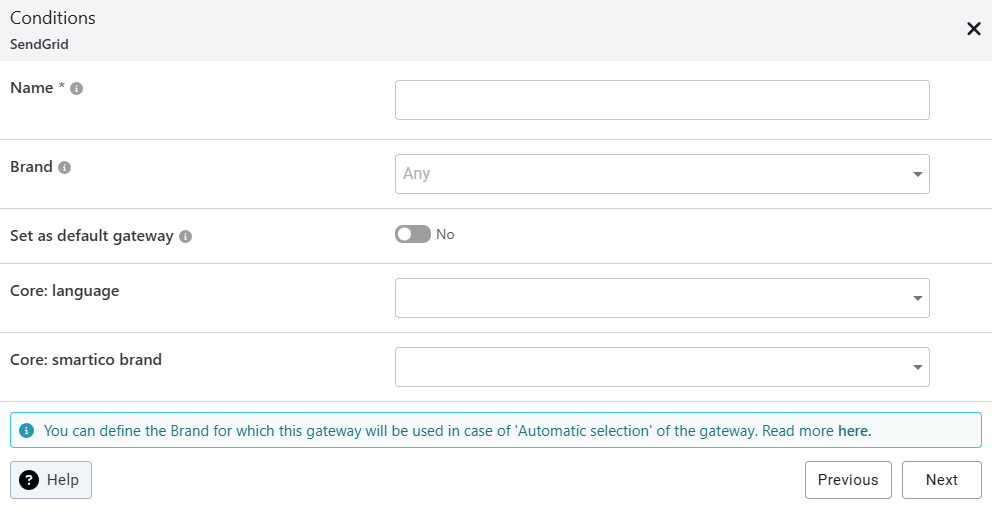
1. Conditions screen - here, you can add the name of the mail gateway and the conditions to target users in case ‘Automatic selection’ is set in the [Email](/welcome/products/crm-automation/activities-of-flows/activity-email.md) activity. The default one is Brand (the **Brand** field shows on labels with more than one brand), but you can add up to two more user properties by requesting them from your Customer Success Manager. You can also choose whether this gateway will be used as a default one or not. If **'Set as default gateway'** is enabled, this gateway will be automatically preselected whenever you add an Email activity to a campaign flow. When no gateway is set as default, a new Email activity starts with **Automatic selection**. The default flag does not change how **Automatic selection** picks a gateway.
{% hint style="info" %}
**Please note:** **Set as default gateway** is only a Back Office convenience: the default gateway is preselected in the **Provider** field when you add a new Email activity (you can change it there). It is not a fallback when the email is sent: Smartico never reads this flag when it picks a gateway, and **Automatic selection** works the same with or without a default gateway. To have a fallback for **Automatic selection**, keep one gateway with Brand **Any** and no extra conditions.
You can have only one default gateway per channel type (e.g., only one default Email gateway at a time).
{% endhint %}
For detailed instructions on configuring multi-brand environments and brand-specific communication routing, see the [Multi-brands support](https://help.smartico.ai/welcome/products/tools-and-guides/multi-brands-support) guide.
2. Authentication & Configuration screen - Each email provider requires specific authentication configurations. On this screen, you’ll find the ‘Callback URL’ (for providers that support it), which you need to enter in the email provider’s BO. ‘Additional Parameters’ relate to your integration type; they are optional but may be necessary depending on the integration. Other settings vary based on the email provider and may include settings like API Key, API Endpoint URL, Username, Password, etc.
{% hint style="warning" %}
**Callback URL setup is required for analytics:** Entering the Callback URL in your email provider's webhook or event notification settings enables Smartico to receive real-time updates for email deliveries, opens, link clicks, hard/soft bounces, spam complaints, and unsubscribes. Without this webhook configured, campaign delivery reports will show incomplete statistics and failure reasons will be unavailable.
{% endhint %}
### One-Click Unsubscribe Headers (RFC 8058)
For the Amazon SES and SendGrid providers, the Authentication & Configuration screen includes optional fields **List Unsubscribe** and **List Unsubscribe Post**. Smartico sends their values as the `List-Unsubscribe` and `List-Unsubscribe-Post` headers of every email. Configuring these fields enables native one-click unsubscribe links in mailbox headers (required by Gmail and Yahoo sender guidelines), allowing recipients to unsubscribe directly from the email client interface. Mailgun also sends these headers if you add `List-Unsubscribe` and `List-Unsubscribe-Post` under **Additional parameters**.
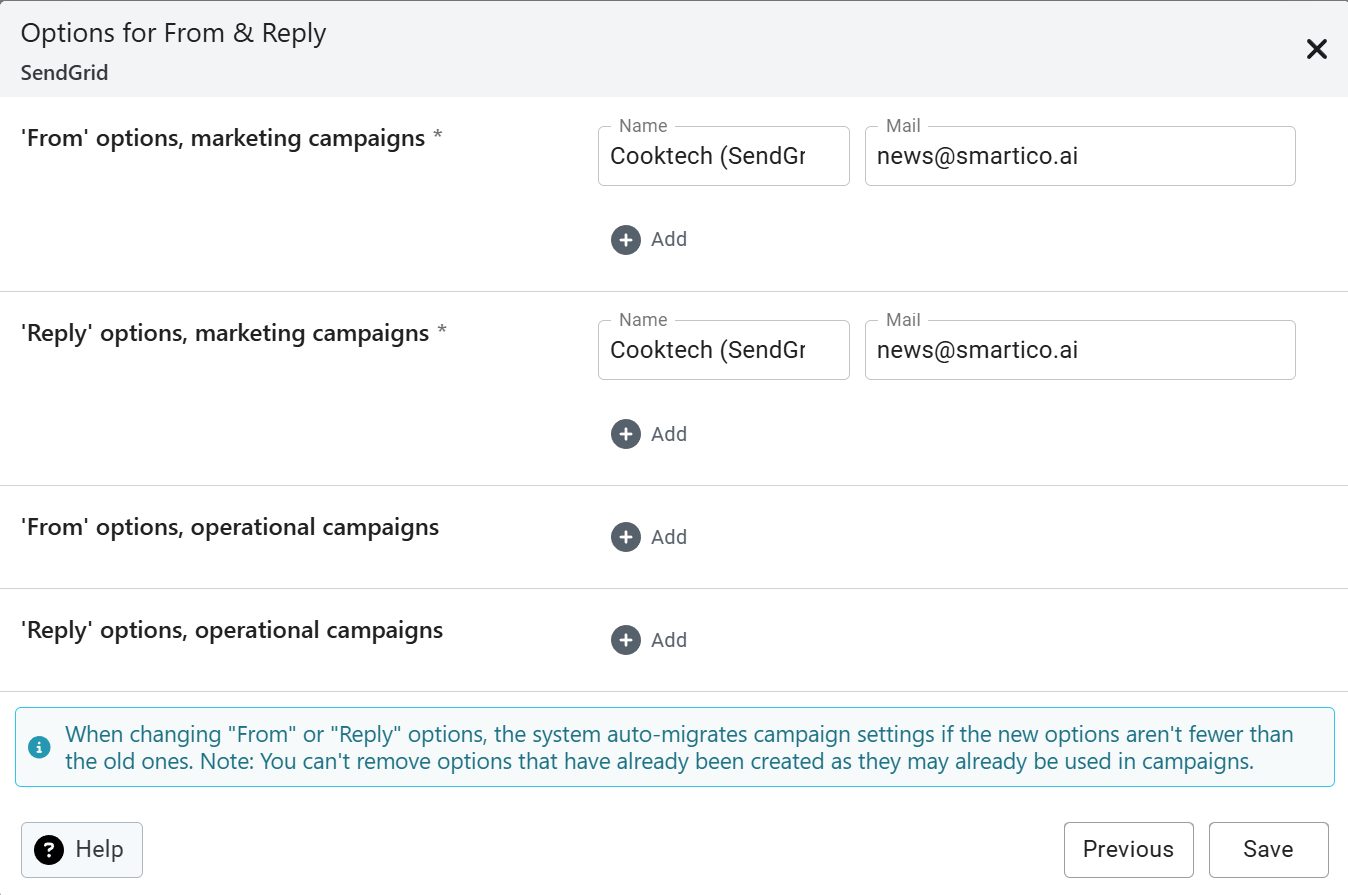
3. Options for From & Reply - On this screen, you can choose the name and email for the ‘FROM’ and ‘Reply To’ fields for both marketing and operational campaigns. When you pick this gateway in an Email activity, you choose from the marketing options. With **Automatic selection**, an operational campaign uses the first operational option when one is set, and the first marketing option otherwise.
{% hint style="info" %}
If you edit an existing name or email, the system will automatically update campaign settings, as long as the new options are not fewer than the previous ones. You can't remove options that have already been created as they may already be used in campaigns.
{% endhint %}
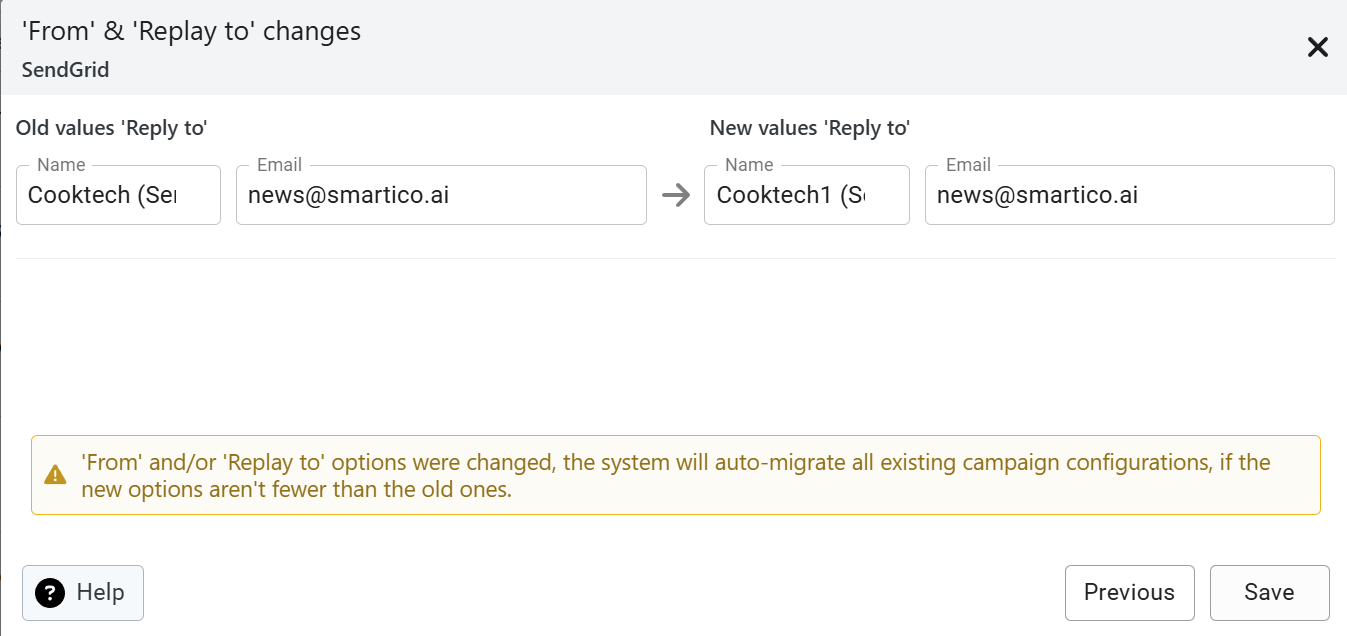
4. If you edit an existing "From" or "Reply" option of an existing gateway, when you click ‘Next’ you'll see a confirmation screen (**'From' & 'Replay to' changes**) summarizing the changes. You can review them and proceed with saving the setup. If you only add new options, there is no confirmation screen and **Save** stores the gateway directly.
### Frequently Asked Questions
**Q: How do I change the sender name or sender email address used in an existing campaign?**
**A:** Sender names and email addresses are managed at the gateway level under **Label -> Gateways -> Mail**. Open your email gateway configuration and go to **Options for From & Reply**. You can add new sender options or modify existing ones. When you update an existing sender name or address, Smartico automatically propagates the changes to all campaign configurations (in any status) using that option, as long as the list of options does not get shorter.
**Q: Why do emails fail with an "Email provider is not configured" error when using Automatic Selection?**
**A:** This occurs when a campaign email activity is set to Automatic Selection, but the targeted player belongs to a brand or segment that does not match any active gateway conditions. Automatic Selection only looks at gateways whose Brand is the player's brand or **Any**. Among them, it takes a gateway whose conditions match the player; if none matches, it takes a gateway with no extra conditions. **Set as default gateway** is not used here: it only preselects the gateway in new Email activities. To prevent this error, keep one gateway with Brand **Any** and no extra conditions to act as a fallback for all unmatched players.
**Q: How can I check why an email failed to deliver or bounced?**
**A:** Email failure reasons (such as invalid recipient, mailbox full, spam rejection, or provider block) are captured automatically if the gateway's Callback URL is configured in your provider's portal. You can view these details in Campaign Analytics and User Communications history. If granular failure reasons are missing, verify that your email provider is successfully sending webhook events to Smartico's Callback URL.
### Deleting an Email Gateway & Migration
When deleting an existing email gateway, Smartico requires migrating the campaigns that currently reference it to prevent delivery disruptions. All campaigns that use the gateway are moved, in any status, not only active or scheduled ones. When you click Delete, a confirmation dialog asks for a **Migration option** and offers two migration paths:
* **Migrate to auto-selection:** All campaigns currently assigned to this gateway will switch to Automatic Selection, resolving the provider dynamically based on brand and user properties.
* **Migrate to another provider:** Reassigns campaigns to a specific alternative email gateway (**Target provider**), allowing you to select replacement 'From' and 'Reply-To' options (**From option**, **Reply to option**).
The deletion cannot be reverted.
---
# Agent Instructions
This documentation is published with GitBook. GitBook is the documentation platform designed so that both humans and AI agents can read, navigate, and reason over technical content effectively. Learn more at gitbook.com.
## Querying This Documentation
If you need additional information that is not directly available in this page, you can query the documentation by asking a question.
Perform an HTTP GET request on the following URL with the `ask` and `goal` query parameters:
```
GET https://help.smartico.ai/welcome/products/tools-and-guides/email-gateways-guide.md?ask=&goal=
```
`ask` is the immediate question: it should be specific, self-contained, and written in natural language.
`goal` is what the user is ultimately trying to achieve, the reason they need the answer. Sharing it helps GitBook give you a better, more relevant answer. A goal is most helpful when it describes the outcome the user wants rather than restating the question. For example, with `ask=how do I create an API token`, a goal like `automate deployments from our CI pipeline` lets GitBook tailor the answer to that use case.
The response will contain a direct answer to the question and relevant excerpts and sources from the documentation.
Use this mechanism when the answer is not explicitly present in the current page, you need clarification or additional context, or you want to retrieve related documentation sections.