> For the complete documentation index, see [llms.txt](https://help.smartico.ai/welcome/llms.txt). Markdown versions of documentation pages are available by appending `.md` to page URLs; this page is available as [Markdown](https://help.smartico.ai/welcome/products/release-notes/october-2026.md).

# October 2026

Smartico release notes for October 2026 - covering CRM Automation and Gamification improvements done since the previous release.

### <i class="fa-message-xmark">:message-xmark:</i> Expire the Inbox on Delivery Timeout

The Inbox activity in Campaign flows has a new option, **Expire the inbox on timeout**. When enabled and the message isn't delivered to the player within the Delivery timeout, the activity fails with Execution timeout, takes the Failed branch, and the message is removed from the player's inbox at the same time. \
The player can no longer open the message later, so no impression is recorded after the step has already failed.

<figure><img src="https://77049817-files.gitbook.io/~/files/v0/b/gitbook-x-prod.appspot.com/o/spaces%2FfS5hl0PiysHtKAKMsQTe%2Fuploads%2FAuDqaU8s8P1OjwaRysOU%2Fimage.png?alt=media&amp;token=4786066a-c720-49cc-976b-1271b40e0df9" alt=""><figcaption><p>BO: "Expire the inbox on timeout" in Inbox Activity</p></figcaption></figure>

Read more about [Inbox](https://help.smartico.ai/welcome/products/crm-automation/communication-channels/inbox)

### <i class="fa-futbol">:futbol:</i> Match X: Saved team images

You can now save a custom image (for example, a jersey or logo) for a team once, and Match X will use it automatically every time that team plays again. Before this, an image you uploaded had to be selected again for the same team in every new round.

**What's new:**

* **Team images window.** A new **Team images** button on the Match X Rounds page opens one place where you can upload images and set an image for each team. It replaces the old *Upload team image* button.
* **Saved for next matches.** When a team's saved image is set, new matches with that team that you add from the sports feed show this image by default.
* **Control over existing events.** When you save, choose which rounds get the new image: only future rounds (default), all unresolved rounds, resolved rounds only, everywhere, or none.
* **Removing a team image.** Choose separately which rounds go back to the team's standard image when you remove a team from the list.
* **Save from a match.** When you change a team's image in a feed match's details, the **Use as the team image for the next matches** switch (on by default) saves it as that team's image for your future matches.
* **Apply label default.** If a match shows a different image than the team's saved one, an **Apply label default** button lets you switch that match to the saved image in one click.

<figure><img src="https://77049817-files.gitbook.io/~/files/v0/b/gitbook-x-prod.appspot.com/o/spaces%2FfS5hl0PiysHtKAKMsQTe%2Fuploads%2FtDTcQXP405Uh5hBypl6Y%2FMAtch%20X1.png?alt=media&amp;token=148d5b50-4e8a-409c-a80a-bbd853ea6025" alt=""><figcaption><p>BO: Match X -> Rounds -> Team images</p></figcaption></figure>

Read more about [Match X](https://help.smartico.ai/welcome/products/mini-games/matchx-game)

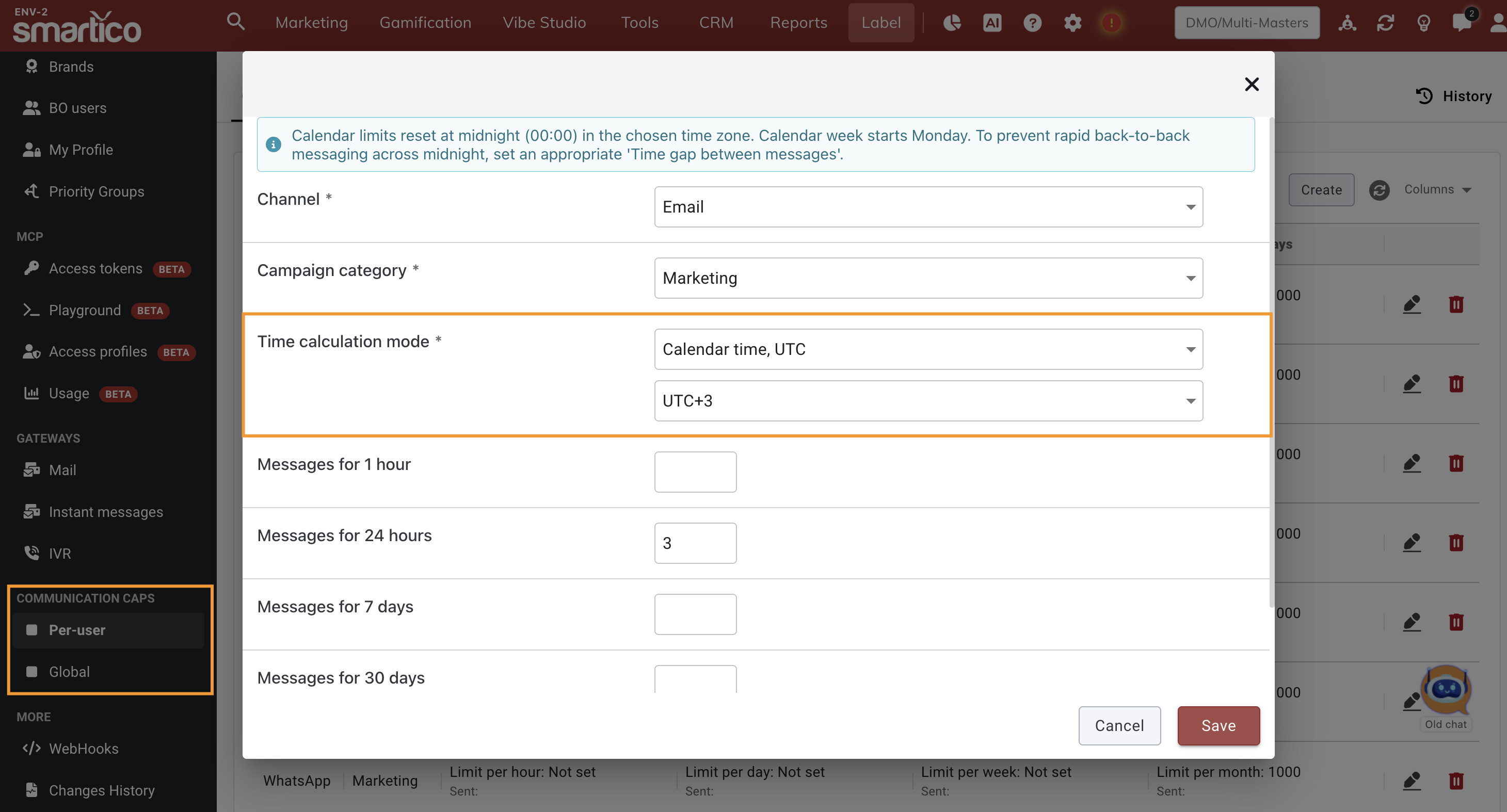
### <i class="fa-calendar-days">:calendar-days:</i> Calendar-based Communication CAPs

You can now choose how daily, weekly, and monthly communication caps are calculated. Go to **Label → Communication Caps**, open a cap on the **Per-user** or **Global** tab, and select a **Time calculation mode**:

* **Sliding window (default):** Counts messages sent in the last 24 hours, 7 days, or 30 days.
* **Calendar time, UTC:** Counts messages within the current calendar day, week (Monday–Sunday), or month, using the selected time zone. UTC is selected by default.
* **User time zone:** Uses each player's local time to calculate calendar days, weeks, and months.

**When to use it:** Choose a calendar-based mode if you want players to receive a fresh message allowance at midnight. For example, you can limit marketing messages to 3 per day for each player.

<figure><img src="https://77049817-files.gitbook.io/~/files/v0/b/gitbook-x-prod.appspot.com/o/spaces%2FfS5hl0PiysHtKAKMsQTe%2Fuploads%2Fi4NNWhDB951nNHzUk1aJ%2FCalendar%20CAPs.png?alt=media&amp;token=f2393184-ec94-442b-9ef2-e3460739ca70" alt=""><figcaption></figcaption></figure>

**Good to know:**

* The **1-hour limit** and **Time btw. messages** settings work as before.
* Calendar-based limits reset at midnight. For example, a player who receives 3 messages at 23:50 can receive 3 more after midnight. To prevent messages from being sent too close together, set a longer **Time btw. messages** (e.g., 1–2 hours).
* All existing caps remain on **Sliding window**, so their behavior won’t change unless you update the setting.

Read more about [Communication CAPs](https://help.smartico.ai/welcome/products/crm-automation/communication-channels/communication-caps)

### <i class="fa-slot-machine">:slot-machine:</i> Inactivity reset for Personal Jackpots

We’ve introduced a new **Inactivity reset period** setting for Personal Jackpots. It resets a player’s personal pot back to its initial seed amount when the player hasn’t placed a contributing bet for a set period of time. For example, if a player doesn’t bet for 7 days, the amount they built up in their personal jackpot is wiped and the pot starts again from the seed.

**Where:** Jackpot setup → Exploding logic & seed amount, right after *Max. amount to explode*. The setting is shown only for jackpots of the **Personal** type.

<figure><img src="https://77049817-files.gitbook.io/~/files/v0/b/gitbook-x-prod.appspot.com/o/spaces%2FfS5hl0PiysHtKAKMsQTe%2Fuploads%2FrmIhS22KwZ3fPacBrxFl%2Fimage.png?alt=media&amp;token=3e9e1c9c-a2c5-403c-aa4a-1a10f021bfaa" alt=""><figcaption><p>BO: Example of Inactivity Reset period set to 7 days</p></figcaption></figure>

**How it works:**

* Switch the toggle to **Enabled** and set the period in hours or days. The minimum period is 1 hour.
* The period is counted from the player’s last bet that contributed to the pot.
* When the period passes without a new contributing bet, the pot goes back to the seed amount. Player contributions and any amount collected for the next seed are removed.
* The next contributing bet grows the pot again from the seed amount.

Read more about [Jackpots](https://help.smartico.ai/welcome/products/gamification-basics/jackpots)

### <i class="fa-gamepad-modern">:gamepad-modern:</i> Smash it! - New custom game in Vibe Studio

We’ve introduced a new Custom Game, Smash It!, based on our standard Voyager mechanics. It includes a real lose condition, three difficulty levels (Easy, Medium, and Hard), configurable minimum and maximum steps, and prize accumulation.

**Gameplay overview:**

* Players drag and smash zombies or throw them into the house.
* **Win:** Players defeat the required number of zombies before they reach the house.
* **Lose:** If zombies reach the house, they start tearing it down and the player’s life bar decreases. When it reaches zero, the house is destroyed and the player loses.
* **Prize:** The accumulated prize is awarded only if the player wins. No prize is awarded in a losing scenario.

<figure><img src="https://77049817-files.gitbook.io/~/files/v0/b/gitbook-x-prod.appspot.com/o/spaces%2FfS5hl0PiysHtKAKMsQTe%2Fuploads%2FscaWUEueI6eVC8L9Qvju%2FLaptop%20Phone%20Mockup%2004.png?alt=media&amp;token=428009bb-ba5b-4f67-80d4-c1aac13097e7" alt=""><figcaption></figcaption></figure>

Read more about [Custom Games](https://help.smartico.ai/welcome/products/vibe-studio/custom-games)

### <i class="fa-message-sms">:message-sms:</i> Combined offline communication CAP

You can now set a single communication cap across all offline channels, alongside individual channel caps. For example, limit a player to 5 messages per day across Email, SMS, Push, and other offline channels combined.

**Where:** General Settings → Communication Caps, on both the Per-user and Global tabs. Select Offline communication CAP in the Channel list; it appears as Offline (Combined) in the caps list.

**Channels counted:** Email, IVR, Push, SMS, WhatsApp, Viber, Telegram, RCS, and Custom IM. Popups, \
\
**How it works:**

* The combined cap works alongside individual channel caps. A message is held if it exceeds either limit.
* Set the category to Any to count all offline messages, or choose a specific category (e.g., Marketing) to count only messages from campaigns in that category.
* The minimum time between messages applies across all offline channels. For example, if the gap is 60 seconds, a Push sent 10 seconds after an Email is held.
* Best Channel steps check the combined cap for the selected channel.
* Campaign cap settings (respect all caps, ignore all, ignore global, or ignore per-user) apply to the combined cap as they do to individual channel caps.
* On the Global tab, sent counters combine messages across all offline channels.

**Example:** Per-user caps: Email 3 per 24 hours, and Offline (Combined) 5 per 24 hours. A player who has had 3 emails and 2 SMS today gets no more offline messages until the 24-hour window moves on. They can still get Popups and Inbox messages.

<figure><img src="https://77049817-files.gitbook.io/~/files/v0/b/gitbook-x-prod.appspot.com/o/spaces%2FfS5hl0PiysHtKAKMsQTe%2Fuploads%2FQsxwXpNQ8qPLvVeNBi5h%2FCAPs.png?alt=media&amp;token=af00be74-c2e9-4cd5-a852-fc22fc77da77" alt=""><figcaption><p>BO: Offline communication CAP</p></figcaption></figure>

Read more about [Communication CAPs](https://help.smartico.ai/welcome/products/crm-automation/communication-channels/communication-caps)

### <i class="fa-gamepad-modern">:gamepad-modern:</i> Cross Hopper - New Custom game in Vibe Studio <a href="#gem-rush-new-custom-game-in-vibe-studio" id="gem-rush-new-custom-game-in-vibe-studio"></a>

We’ve introduced a new Custom Game called Cross Hopper, built on our standard Voyager mechanics.

<figure><img src="https://77049817-files.gitbook.io/~/files/v0/b/gitbook-x-prod.appspot.com/o/spaces%2FfS5hl0PiysHtKAKMsQTe%2Fuploads%2FkPGZGMNodz0v7XuwNmS7%2FCompressed%20Image.png?alt=media&amp;token=9f1a4b1e-6bc8-40fd-b033-172017a8649f" alt=""><figcaption></figcaption></figure>

Gameplay Overview:

* **Objective**: Cross the road to collect the required number of Mystery Chips while avoiding traffic to prevent the health bar from reaching zero.
* **Winning Outcome**: The player successfully collects the required number of Mystery Chips to reveal the reward.
* **Losing Outcome**: If the oncoming traffic reduces the player's health bar to zero before reaching the required chips, the player loses the game and doesn't receive any prize.

Replace your standard Voyager experience with Cross Hopper by turning on the 'Use Custom Game' toggle and selecting the Cross Hopper global template from Vibe Studio.

Read more about [Custom Games](https://help.smartico.ai/welcome/products/vibe-studio/custom-games)

### <i class="fa-video">:video:</i> Session replay for Smartico widgets (FullStory, Amplitude)

If you record your site with FullStory or Amplitude Session Replay, the Smartico Gamification widget is now recorded too, in the same session as the rest of your page. Before, the widget area played back as an empty box, so you could not see what the player did in missions, tournaments, the store or mini-games.

To turn it on, add one option to your `_smartico.init` call. The widget starts your replay tool inside its iframe, in the tool's official iframe mode, and records only while your page is recording, so your consent and sampling rules still apply.

```javascript
_smartico.init('<label key>', {
    brand_key: '<brand key>',
    analytics_bridge: { vendor: 'fullstory', key: '<org id>' },
    // or: { vendor: 'amplitude', key: '<api key>' }
});
```

{% hint style="info" %}
**Note:** FullStory and Amplitude are supported for now. If you use another session replay tool, please contact your Success Manager: more tools can be added on request.
{% endhint %}

Read more about [Session replay (FullStory, Amplitude)](https://help.smartico.ai/welcome/technical-guides/front-end-integration/extended-integration/session-replay-fullstory-amplitude)

### <i class="fa-mobile-screen">:mobile-screen:</i> Push notifications for Huawei phones

Smartico now sends push notifications to Huawei phones without Google services. The pushes go through Huawei Push Kit, from the same campaigns and Push assets that you already use; Android, iOS and web pushes work as before. Huawei phones on EMUI and HarmonyOS 2–4 are supported.

Push assets get two new fields: **Huawei action type** (**Open app custom page**, **Open external link** or **Open app home screen**) and **Huawei deep link or URL**. The push preview has a new **HarmonyOS** tab, and the Huawei fields also work in **Send Preview** and in the **Push message** form on the user profile page.

![Push notifications for Huawei phones](https://77049817-files.gitbook.io/~/files/v0/b/gitbook-x-prod.appspot.com/o/spaces%2FfS5hl0PiysHtKAKMsQTe%2Fuploads%2FKMW1vteJ0NMZnG1gExYF%2Frn-huawei-push-8a512514-65e0f2.jpg?alt=media)

{% hint style="info" %}
**Note:** Your app must register Huawei push tokens, and your Huawei Push Kit credentials must be in Label settings. To enable Huawei pushes for your label, please contact your Success Manager.
{% endhint %}

Read more about [Push notifications](https://help.smartico.ai/welcome/products/crm-automation/communication-channels/how-to-create-a-push-resource) and [Push configurations](https://help.smartico.ai/welcome/technical-guides/front-end-integration/push-configurations)

### <i class="fa-palette">:palette:</i> Ready templates for emails and popups in Vibe Studio

Vibe Studio now starts with a gallery of ready designs: 49 email templates and 43 popup templates, in rows by topic (welcome offers, sports, VIP, missions, tournaments, seasonal events and more). Click **Preview** to see a design at desktop or phone size with sample values, or **Apply** to load it at once, without waiting for the AI. Then change the texts, the offer, the colours and the links by writing in the chat.

Email templates for gamification events (mission completed, tournament won, level up, jackpot win and others) already use the event tags: connect them to the matching campaign trigger, and the player sees their own mission, tournament or prize.

The Create menus now start with Vibe Studio: **Popup with Vibe Studio** and **Doodle with Vibe Studio** for popups, **HTML with Vibe Studio** and **Liquid with Vibe Studio** for emails. The old editors are still there as **Template (legacy)** and **Visual (legacy)**, and as **Edit in legacy editor** in the arrow menu of the **Edit in Vibe Studio** button.

<figure><img src="https://77049817-files.gitbook.io/~/files/v0/b/gitbook-x-prod.appspot.com/o/spaces%2FfS5hl0PiysHtKAKMsQTe%2Fuploads%2FpDr15iVqCey7xk0XIrv7%2Frn-vibe-studio-templates-f6577aaf-9b94be.jpg?alt=media" alt="Ready email and popup designs in Vibe Studio"><figcaption><p>Vibe Studio: ready email and popup designs</p></figcaption></figure>

{% hint style="info" %}
**Note:** Popup and email templates (Templates → Pop-up and Templates → Email) are being retired. Popups and emails made from them keep working; please make new ones in Vibe Studio.
{% endhint %}

Read more about [Popups](https://help.smartico.ai/welcome/products/crm-automation/communication-channels/pop-up) and [Email](https://help.smartico.ai/welcome/products/crm-automation/communication-channels/email)

### <i class="fa-wand-magic-sparkles">:wand-magic-sparkles:</i> New doodles in Vibe Studio

A doodle is a small game inside a popup: the player spins a wheel, opens a chest, takes a penalty or answers a quiz, and then claims the prize. Vibe Studio now has 47 ready doodles in five groups: Luck & reveal, Arcade, Sport & skill, Puzzles & brain, and Quizzes & polls. You can also describe your own idea, and the AI builds the doodle in a ready frame with a start screen, a timer, a win screen and a **Try again** screen.

Every player who plays to the end wins. In your campaign, give the prize on the branch **Click 'dp:doodle\_win'** of the Popup step. To create a doodle, go to **Marketing → Assets → Pop-up**, click **Create** and choose **Doodle with Vibe Studio**.

<figure><img src="https://77049817-files.gitbook.io/~/files/v0/b/gitbook-x-prod.appspot.com/o/spaces%2FfS5hl0PiysHtKAKMsQTe%2Fuploads%2FQ1hEHGH7IxMkWtq5Db99%2Frn-doodles-a588edc7-0fdee2.jpg?alt=media" alt="Ready doodles in Vibe Studio"><figcaption><p>Vibe Studio: 47 ready doodles</p></figcaption></figure>

Read more about [Doodles](https://help.smartico.ai/welcome/products/crm-automation/communication-channels/doodles)

### <i class="fa-bookmark">:bookmark:</i> Save your own templates in Vibe Studio

A new **Save as template** button in the top bar of Vibe Studio saves the current popup, doodle or email as a template for your team, together with a picture of the design. Everyone who works on your label finds it first in the gallery, in the row **Saved by your team**, with **Preview** and **Apply**. **Apply** loads a copy, so the template itself never changes.

Popup templates show in popups, doodle templates in doodles, and email templates in emails of the same type (HTML or Liquid).

<figure><img src="https://77049817-files.gitbook.io/~/files/v0/b/gitbook-x-prod.appspot.com/o/spaces%2FfS5hl0PiysHtKAKMsQTe%2Fuploads%2FIK2fP6lcZvLxrdmHTBeU%2Frn-save-as-template-4788ceee-6db53c.jpg?alt=media" alt="Save as template and the Saved by your team row"><figcaption><p>Vibe Studio: Save as template and the Saved by your team row</p></figcaption></figure>

Read more about [Popups](https://help.smartico.ai/welcome/products/crm-automation/communication-channels/pop-up), [Doodles](https://help.smartico.ai/welcome/products/crm-automation/communication-channels/doodles) and [Email](https://help.smartico.ai/welcome/products/crm-automation/communication-channels/email)

### <i class="fa-arrow-right-arrow-left">:arrow-right-arrow-left:</i> Popup, Doodle and Wheel Design AI agents are retired

The **Popup Builder**, **Doodle Game Creator** and **Wheel Design Creator** AI agents are retired. When you open one of them, a notice shows what to use instead:

* **Popups** — Vibe Studio: **Pop-up → Create → Popup with Vibe Studio**.
* **Doodles** — Vibe Studio: **Pop-up → Create → Doodle with Vibe Studio**.
* **Wheels and other mini-game designs** — **Vibe Studio → Custom games**.

Popups, doodles and wheel designs that you made with these agents keep working.

Read more about [AI Agents](https://help.smartico.ai/welcome/products/ai-agents) and [Custom Games](https://help.smartico.ai/welcome/products/vibe-studio/custom-games)

### <i class="fa-sitemap">:sitemap:</i> Track a user’s journey in Flow Builder

We’ve introduced a new option that allows you to track an individual user’s journey directly in Flow Builder. When Live View is enabled, you can enter a user to see which steps they have reached and where they are currently stuck. The numbers displayed on the connectors update to reflect the selected user’s specific journey.

<figure><img src="https://77049817-files.gitbook.io/~/files/v0/b/gitbook-x-prod.appspot.com/o/spaces%2FfS5hl0PiysHtKAKMsQTe%2Fuploads%2FbJTKKB5PFeS7Y2ssPUpi%2Fuser%20path.png?alt=media&amp;token=bc4b26a4-8ae0-4261-b120-836a57609497" alt=""><figcaption><p>BO: Flow builder inside Campaigns</p></figcaption></figure>

Read more about [Campaigns](/welcome/products/crm-automation/create-journey-flow.md)

### <i class="fa-stars">:stars:</i> Favorite Sport Type and League Properties

We’re introducing two new CRM properties that help you segment users based on their favorite sports and leagues. You can use these properties to create more personalized sportsbook missions and campaigns tailored to each bettor’s interests.

{% hint style="info" %}
**Note:** This feature requires additional activation. Please contact your Success Manager to enable it.
{% endhint %}

**How it works:**

Two new reference properties are available:

* **Core: Favorite Sport Type, Top 3** (`core_fav_sport_type_top3`): Stores a bettor’s top three sports, such as Football, Tennis, and Basketball.
* **Core: Favorite Sport League, Top 3** (`core_fav_sport_league_top3`): Stores a bettor’s top three leagues, such as the UEFA Champions League, NBA, and Premier League.
* **New dynamic UI tag:** `{{suggested_sport}}` - which can be used in Dynamic missions to display both - the favorite sport or league on the mission UI.

{% hint style="info" %}
Each property contains the user’s top three most frequently bet-on sports or leagues, ranked by preference. The first element in the array represents the bettor’s top favorite, followed by their second and third favorites.
{% endhint %}

These properties allow you to target users with sportsbook campaigns and missions that better match their betting preferences.

<figure><img src="https://77049817-files.gitbook.io/~/files/v0/b/gitbook-x-prod.appspot.com/o/spaces%2FfS5hl0PiysHtKAKMsQTe%2Fuploads%2F9SfJwfn2cq612x7X40F6%2Ffavorite%20sport.png?alt=media&amp;token=6ec674a9-0670-4477-9725-d38d11d043ad" alt=""><figcaption><p>BO: Mission task with favorite league, top 3</p></figcaption></figure>

Read more about [Dynamic Missions](https://help.smartico.ai/welcome/products/gamification-basics/missions/dynamic-missions)

### <i class="fa-arrows-cross">:arrows-cross:</i> Change Level from User Profile page

We’ve introduced a new **Change Level** option to the Quick Actions menu in the BO user profile page. You can now manually update a player’s level in seconds without creating segments or automation rules. Simply select an active level from the dropdown, and add an optional internal comment for tracking before saving.

{% hint style="info" %}
**Note**: This option is only available for labels using **Level Logic with manual control of level upgrades and downgrades**.
{% endhint %}

<div><figure><img src="https://77049817-files.gitbook.io/~/files/v0/b/gitbook-x-prod.appspot.com/o/spaces%2FfS5hl0PiysHtKAKMsQTe%2Fuploads%2FDiKVWCj6drB6TROYZTel%2FScreenshot%202026-10-12%20161424.png?alt=media&amp;token=e60d31d7-b75f-43f6-b5ab-81117a10e55f" alt=""><figcaption><p>BO: Change Level option in Quick Action menu from the User Profile page</p></figcaption></figure> <figure><img src="https://77049817-files.gitbook.io/~/files/v0/b/gitbook-x-prod.appspot.com/o/spaces%2FfS5hl0PiysHtKAKMsQTe%2Fuploads%2FHCMr4fbj73yEoRoAF1Be%2FScreenshot%202026-10-12%20161400.png?alt=media&amp;token=860e26aa-944b-4404-8d5c-f0571ec060f0" alt=""><figcaption><p>BO: Select a Level to assign to the user</p></figcaption></figure></div>

Read more about [Levels](https://help.smartico.ai/welcome/products/gamification-basics/levels)

### <i class="fa-wpforms">:wpforms:</i> Send Forms from User Profile page

We’ve introduced a new **Send Form** option in the Quick Actions menu of the user profile page in BO. You can now send forms directly to specific users. Simply choose your form template, and review the template preview before sending.

{% hint style="info" %}
**Note**: Make sure that the target user is matching the selected form template’s segmentation criteria.
{% endhint %}

<div><figure><img src="https://77049817-files.gitbook.io/~/files/v0/b/gitbook-x-prod.appspot.com/o/spaces%2FfS5hl0PiysHtKAKMsQTe%2Fuploads%2FDvHQhm7IgJc9cokKl2TT%2FScreenshot%202026-10-12%20120802.png?alt=media&amp;token=b7e79a0c-dca3-45d8-93bc-2cd038929cc6" alt=""><figcaption><p>BO: Send Form option in Quick Action menu from the User Profile page</p></figcaption></figure> <figure><img src="https://77049817-files.gitbook.io/~/files/v0/b/gitbook-x-prod.appspot.com/o/spaces%2FfS5hl0PiysHtKAKMsQTe%2Fuploads%2FwBLYXkLaau4K2rA8uI19%2FScreenshot%202026-10-12%20120657.png?alt=media&amp;token=91676bc4-54e6-4f54-811d-5749f823bab8" alt=""><figcaption><p>BO: Select a Form template along with a live preview</p></figcaption></figure></div>

Read more about [User Profile Page](https://help.smartico.ai/welcome/products/crm-automation/segmentation/user-profile-page)

### <i class="fa-right-left-large">:right-left-large:</i> Allow Clan Tournament re-entry after Clan switch

We’ve introduced a new label setting under Clans that gives you the ability to allow for players who change clans during an active clan tournament run to re-enter the competition.

<div data-with-frame="true"><figure><img src="https://77049817-files.gitbook.io/~/files/v0/b/gitbook-x-prod.appspot.com/o/spaces%2FfS5hl0PiysHtKAKMsQTe%2Fuploads%2FKOXLHpxoe0dweR2UKcS6%2Fimage.png?alt=media&amp;token=98281712-3d2f-4454-bdda-e064c75ab1e2" alt=""><figcaption><p>BO: Label settings – Control user capability to re-entry tournaments on clan switch</p></figcaption></figure></div>

When configured:

* **Enabled**: Upon switching clans players can opt-in again to re-enter the ongoing tournament under their new clan starting fresh with 0 points (previous tournament score is not transferred).
* **Disabled**: Changing clans permanently cancels the player's active clan tournament runs. The player can only participate in future runs (default behavior).

{% hint style="info" %}
**Note**: Players are **required** to opt-in again to participate in the tournament after switching clans.
{% endhint %}

Read more about [Clan Switching Rules](https://help.smartico.ai/welcome/products/gamification-basics/tournaments/clans-and-clan-tournaments#clan-switching-rules)

### <i class="fa-code">:code:</i> Swift and Kotlin SDKs & Demo Apps - Native iOS and Android integrations

Following the release of our React Native demo app, we have released native **Swift (iOS)** and **Kotlin (Android)** SDKs along with complete open-source demo applications, showcasing how to build **fully custom, native gamification UIs** on top of the Smartico API.

With these SDKs, your mobile applications can communicate directly with Smartico services without needing hosted widgets or web wrappers, giving you full control over the UI, styling, and navigation to match your brand.

The demo applications showcase the full integration surface:

* **Session & Identity:** User authentication, session restore, user identification, and live user property updates pushed in real time.
* **Native Gamification Screens:** Missions, badges, tournaments with live leaderboards, raffles, jackpots, store catalogue and purchases, levels and VIP progress, inbox messaging, and customizable player avatars.
* **Engagement & Routing:** Native engagement popups, deep link dispatching (`dp:`), and push notifications with complete lifecycle tracking (delivered, impressions, and click actions).
* **Flexible Rendering Tiers:** Choose per surface between a fully native screen, an in-app WebView (for mini-games or popups), or a hosted web page.

Explore the repositories and get started:

* [Android Kotlin Demo App repository](https://github.com/smarticoai/android-kotlin-demo-app)
* [Swift Demo App repository](https://github.com/smarticoai/smartico-swift-demo-app)
* [Swift SDK repository](https://github.com/smarticoai/smartico-swift-sdk)

### <i class="fa-robot">:robot:</i> Model Context Protocol (MCP) Server and Access Profiles (September changes)

In September, we have expanded the **Smartico MCP Server**, allowing external AI assistants (such as Claude) and automated scripts to interact with and manage your Smartico platform through a standardized interface.

Key updates introduced over the past month include:

* **MCP Access Profiles:** Fine-grained governance over MCP connections. Administrators can use five built-in system profiles (Full access, Editor, Analyst, Viewer, No Access) or create custom profiles to control tool permissions, enforce least privilege, and protect live platform configurations.
* **OAuth 2.0 (Sign in with Smartico):** One-click authentication for AI clients with dynamic multi-label selection, eliminating the need to manually copy static API keys.
* **Expanded Entity Coverage:** Support for 32 entity types, including creating and updating Banners and Placements, Bonus Templates, and Dynamic Reward and Tournament Scoring Formulas, as well as read-only discovery for Communication Gateways.
* **Flow and Campaign Operations:** New operational actions for real-time campaign flow editing, lifecycle management (starting, stopping, speed throttling), and dynamic audience estimation.
* **Smart Validation:** Automatic alignment with Back-Office picker rules, including natural duration formats, multi-currency resolution, and live segment condition validation.

Read more about the [MCP Server](https://help.smartico.ai/welcome/technical-guides/mcp-server) and [MCP Access Profiles](https://help.smartico.ai/welcome/technical-guides/mcp-server/mcp-access-profiles)

### <i class="fa-message-sms">:message-sms:</i> Liquid Support for SMS

We’ve introduced a new message type setting for SMS templates. You can now choose between:

* Simple SMS – sends standard text messages with basic placeholder tags.
* Liquid SMS – allows you to write custom Liquid code directly inside the message body for dynamic content control.

When Liquid SMS is selected, you can use conditional logic to handle dynamic user data safely. For example, if a variable like the username is too long, Liquid logic can automatically substitute a shorter fallback value to keep the full message body under 160 characters and avoid incurring multi-part SMS charges.

{% hint style="info" %}
**Note**: Calculated character counts in the editor are based on rendered preview values; final message lengths will vary per individual end-user data.
{% endhint %}

<div data-with-frame="true"><figure><img src="https://77049817-files.gitbook.io/~/files/v0/b/gitbook-x-prod.appspot.com/o/spaces%2FfS5hl0PiysHtKAKMsQTe%2Fuploads%2FJoCqPWYWgeInwhfAIqdc%2Fimage.png?alt=media&amp;token=91412990-85b9-4185-86bb-5cad41830521" alt=""><figcaption><p>BO: Example of Liquid type SMS</p></figcaption></figure></div>

Read more about [SMS](https://help.smartico.ai/welcome/products/crm-automation/communication-channels/sms-viber-and-whatsapp)

### <i class="fa-globe">:globe:</i> Timezone and Daylight Saving Time (DST) support for BO schedulers

We’ve introduced **Timezone and Daylight Saving Time (DST)** support for BackOffice schedulers across **Recurring Missions, Scheduled Campaigns, Automation Rules, Tournaments, and Raffles.**

Previously, these schedulers were based on **UTC**. This was causing issues for operators who needed schedules to follow a specific local time. For example, a recurring mission that should restart at 23:59 local time in Kyiv, London, or São Paulo could restart one hour earlier or later after a DST change.

{% hint style="info" %}
**Note:** Timezone and Daylight Saving Time (DST) support is controlled by a Label setting and is disabled by default.Once enabled, the Timezone selector becomes available in the supported scheduler forms. To enable this setting for your label, please contact your Success Manager.
{% endhint %}

<div data-with-frame="true"><figure><img src="https://77049817-files.gitbook.io/~/files/v0/b/gitbook-x-prod.appspot.com/o/spaces%2FfS5hl0PiysHtKAKMsQTe%2Fuploads%2FO6m0ZqnGhLyadPvY8ZUj%2FScreenshot%20at%20Oct%2005%2017-21-40.png?alt=media&amp;token=9287c11e-755a-4ae1-9696-84b5f285b370" alt=""><figcaption><p>BO: DST setting in Recurring missions</p></figcaption></figure></div>

With timezone support, you can now select the timezone you want to use, and the scheduler will **automatically adjust for Daylight Saving Time changes**. No manual schedule updates are required when the clocks change. When setting up a recurring schedule (hourly, daily, weekly, or monthly), you can select a timezone along with the schedule time.

* 25 operational timezones are supported, including Europe/Kyiv, Europe/London, Europe/Berlin, Europe/Warsaw, America/Sao\_Paulo, America/New\_York, Asia/Dubai, Asia/Singapore, and Pacific/Auckland.
* UTC is selected by default.
* The selected timezone determines when the schedule runs and automatically accounts for DST where applicable.

The **See next executions** preview has also been updated.It now shows upcoming execution times based on the selected timezone, including the applicable UTC offset. This makes it easier to see exactly when the scheduler will run, including around DST changes.

<div data-with-frame="true"><figure><img src="https://77049817-files.gitbook.io/~/files/v0/b/gitbook-x-prod.appspot.com/o/spaces%2FfS5hl0PiysHtKAKMsQTe%2Fuploads%2FgOSY6OzoGktmVU0kKxoz%2FScreenshot%20at%20Oct%2005%2017-23-00.png?alt=media&amp;token=d6fb08b9-8000-4d44-98e2-55e238e7454e" alt=""><figcaption></figcaption></figure></div>

{% hint style="info" %}

#### Important: Avoid Scheduling During the DST Transition Hour

When Daylight Saving Time ends and the clocks move back by one hour, some local times occur twice on the same day. For example, in European timezones, 03:00 may occur twice during the October DST transition.

To avoid a recurring job potentially running twice - and, for example, awarding rewards twice - do not schedule jobs at the exact hour when the DST transition occurs. We recommend scheduling recurring jobs outside the transition window, such as 00:00 or 04:00, to ensure they run only once
{% endhint %}

### <i class="fa-calculator">:calculator:</i> Dynamic Target Calculation (Prop-to-Prop) for Mission Tasks

We’ve introduced **Property-to-Property (Prop-to-Prop)** dynamic targets for mission tasks that track accumulated values, such as **“Complete action a few times, check a SUM of attribute.”** Previously, mission completion targets could only be defined as fixed monetary amounts for each currency - for example, requiring a player to reach a total of €500 in deposits.

With Prop-to-Prop targets, you can now create personalized, dynamic targets based on a numeric player state property multiplied by a custom factor. For example, a target can be calculated as `2 × Recommended Deposit Amount`, allowing each player’s target to be determined automatically based on their individual property value.

A mission task can use either a fixed multi-currency target or a dynamic Prop-to-Prop target, but not both:

* When fixed currency values are configured, the Prop-to-Prop option is hidden.
* When Prop-to-Prop is enabled, the multi-currency input grid is hidden and replaced with a Property selector and Multiplier field.

For **Recommended deposit and bet** **amounts**, use the tag `{{suggested_value}}`, it will be replaced with the value and the user's currency.

{% hint style="info" %}
**Note:** Keep in mind that the recommended amount is dynamic and may change over time.
{% endhint %}

<div data-with-frame="true"><figure><img src="https://77049817-files.gitbook.io/~/files/v0/b/gitbook-x-prod.appspot.com/o/spaces%2FfS5hl0PiysHtKAKMsQTe%2Fuploads%2FHPlpozCJbtAvk92GEOjg%2FScreenshot%20at%20Oct%2001%2016-50-26.png?alt=media&amp;token=108a2e47-5eab-4da2-9154-ad2d871b8340" alt=""><figcaption><p>BO: Prop-to-prop for Total amount should reach in mission tasks</p></figcaption></figure></div>

Read more about [Dynamic Missions](https://help.smartico.ai/welcome/products/gamification-basics/missions/dynamic-missions)

### <i class="fa-rocket-vertical">:rocket-vertical:</i> Mission Task Completed event

We’ve added a new Label setting that allows you to enable the Mission Task Completed event. By default, this setting is disabled, meaning the event will not be generated. Once enabled, the event triggers every time a player completes a mission task.

{% hint style="info" %}
**Note:** To enable this event, please contact your Success Manager.
{% endhint %}

<div data-with-frame="true"><figure><img src="https://77049817-files.gitbook.io/~/files/v0/b/gitbook-x-prod.appspot.com/o/spaces%2FfS5hl0PiysHtKAKMsQTe%2Fuploads%2F6cZY83aeLo1gcuqxbNn2%2FScreenshot%20at%20Oct%2001%2016-43-53.png?alt=media&amp;token=2894f8d3-84cb-46b9-8331-fe907a12651c" alt=""><figcaption></figcaption></figure></div>

Read more about [Missions](https://help.smartico.ai/welcome/products/gamification-basics/missions)

### <i class="fa-wpforms">:wpforms:</i> Forms Prefills, Hidden Fields, and support for Tags

We've introduced new form field option: **Default value**. You can define fixed text or dynamic tags to prefill the value for fields when the form is shown to the user.

<div data-with-frame="true"><figure><img src="https://77049817-files.gitbook.io/~/files/v0/b/gitbook-x-prod.appspot.com/o/spaces%2FfS5hl0PiysHtKAKMsQTe%2Fuploads%2F7dJY9F2ImVLTCjNWOtOj%2FScreenshot%202026-10-01%20150458.png?alt=media&amp;token=ad3f88e9-a605-490f-8d6b-aa926fc1275c" alt=""><figcaption><p>BO: Example of prefilled data configured in the Default value field</p></figcaption></figure></div>

We've also expanded Custom sources with a new field type: **Hidden**. This field is not shown to the users but the preconfigured value (any character input or dynamic tag) is saved with every form submission and available in the reports.

<div data-with-frame="true"><figure><img src="https://77049817-files.gitbook.io/~/files/v0/b/gitbook-x-prod.appspot.com/o/spaces%2FfS5hl0PiysHtKAKMsQTe%2Fuploads%2FsMg9XqCGekg10ehq2QIX%2Fimage.png?alt=media&amp;token=0aa4a863-2ea1-484c-8738-ebc9c03499d1" alt=""><figcaption><p>BO: Example of the Hidden field's submitted data</p></figcaption></figure></div>

On top of all updates we have also added support for campaign, state and label tags to the field title giving you greater control over the personalization of your forms.

Read more about [Forms](https://help.smartico.ai/welcome/products/crm-automation/forms)

### <i class="fa-desktop">:desktop:</i> Standalone fullscreen mode in Custom Games

We’ve introduced new settings that allow you to configure the width and height of Custom Games in standalone mode for desktop. You can now choose between:

* Default size - uses the standard width and height.
* Custom size - allows you to define the desired width and height.
* Fullscreen - opens the game in full-screen mode.

These settings are available in the Mini-Game template only when the Use Custom Game toggle is enabled. By default, Standalone fullscreen is disabled, so the game uses the default dimensions. You can either keep the default size or configure a custom width and height. When Standalone fullscreen is enabled, the width and height fields are disabled because the game automatically uses the full available screen.

{% hint style="info" %}
**Note:** These settings are available only for Custom Mini-Games in desktop standalone mode.
{% endhint %}

<div data-with-frame="true"><figure><img src="https://77049817-files.gitbook.io/~/files/v0/b/gitbook-x-prod.appspot.com/o/spaces%2FfS5hl0PiysHtKAKMsQTe%2Fuploads%2FQrs8u7kwkhDeWsfTPmFP%2FScreenshot%20at%20Oct%2001%2011-22-13.png?alt=media&amp;token=19bc3c51-829c-4160-b8d3-c1d3b925e629" alt=""><figcaption></figcaption></figure></div>

Read more about [Custom Games](https://help.smartico.ai/welcome/products/vibe-studio/custom-games)


---

# Agent Instructions
This documentation is published with GitBook. GitBook is the documentation platform designed so that both humans and AI agents can read, navigate, and reason over technical content effectively. Learn more at gitbook.com.

## Querying This Documentation
If you need additional information that is not directly available in this page, you can query the documentation by asking a question.

Perform an HTTP GET request on the following URL with the `ask` and `goal` query parameters:

```
GET https://help.smartico.ai/welcome/products/release-notes/october-2026.md?ask=<question>&goal=<user_goal>
```

`ask` is the immediate question: it should be specific, self-contained, and written in natural language.
`goal` is what the user is ultimately trying to achieve, the reason they need the answer. Sharing it helps GitBook give you a better, more relevant answer. A goal is most helpful when it describes the outcome the user wants rather than restating the question. For example, with `ask=how do I create an API token`, a goal like `automate deployments from our CI pipeline` lets GitBook tailor the answer to that use case.

The response will contain a direct answer to the question and relevant excerpts and sources from the documentation.

Use this mechanism when the answer is not explicitly present in the current page, you need clarification or additional context, or you want to retrieve related documentation sections.