> For the complete documentation index, see [llms.txt](https://help.smartico.ai/welcome/llms.txt). Markdown versions of documentation pages are available by appending `.md` to page URLs; this page is available as [Markdown](https://help.smartico.ai/welcome/products/mini-games/custom-skins-for-mini-games/scratch-card-skins.md).

# Scratch Card Skins

{% hint style="success" %}
We can provide a Figma template for Mini-games skins upon request.

Please note that any images exported from the template must be compressed before uploading them to the BO. You can use [\[this link\]](https://tinypng.com/) to compress your images.

For further assistance, please contact your Customer Success Manager!
{% endhint %}

Scratch Card mini-games can use our pre-built global skins or fully customized skins. Below you can download reference packages for each global skin. To customize a skin, download its reference package, extract the archive, modify the image assets, and upload the unpacked files into the Back Office Skin Editor.

### Required Skin Assets

When creating a custom Scratch Card skin, the unpacked image package must contain the following files with matching filenames:

* `bg-compose.jpeg`: Background container graphic for desktop layouts.
* `mobile-bg.jpg`: Background graphic for mobile screens.
* `card-root.png`: Main card container and frame for desktop.
* `card-logo.png`: Game logo graphic displayed in the left header panel.
* `card-back.png`: Unscratched cover tile graphic placed over prize cells.
* `card-scratched.png`: Revealed tile background graphic shown beneath scratched cells.
* `brush.png`: Custom scratch brush cursor texture.
* `mouse-cursor.png`: Desktop hover cursor icon during gameplay.
* `spin-price.png`: Cost badge graphic displaying point/attempt costs.
* `ico.png`: Mini-game icon for widget navigation and lobby listings.
* `promo-image.png`: Promotional preview banner for the mini-game lobby card.
* **Pop-up and Button Assets (50x50 px backgrounds, 22x44 px buttons):** `popup_bg_top_left.png`, `popup_bg_top.png`, `popup_bg_top_right.png`, `popup_bg_left.png`, `popup_bg_center.png`, `popup_bg_right.png`, `popup_bg_bottom_left.png`, `popup_bg_bottom.png`, `popup_bg_bottom_right.png`, `button_primary_bg_left.png`, `button_primary_bg_center.png`, `button_primary_bg_right.png`, `button_secondary_bg_left.png`, `button_secondary_bg_center.png`, `button_secondary_bg_right.png`.

{% file src="/files/S1QJj8ZZelLofx0E8d4G" %}

<figure><img src="https://77049817-files.gitbook.io/~/files/v0/b/gitbook-x-prod.appspot.com/o/spaces%2FfS5hl0PiysHtKAKMsQTe%2Fuploads%2Fgit-blob-aa3e9e0447882f9fe248fcd44c02df6ac86526ab%2Fimage.png?alt=media" alt="" width="375"><figcaption><p>Scratch Card - Lagoon Loot</p></figcaption></figure>

{% file src="/files/CJG4ajdPVdZcBp4yMdYq" %}

<figure><img src="https://77049817-files.gitbook.io/~/files/v0/b/gitbook-x-prod.appspot.com/o/spaces%2FfS5hl0PiysHtKAKMsQTe%2Fuploads%2Fgit-blob-db2a7834071cdaec99f4b2a13c53a80f3a54f9ac%2Fimage.png?alt=media" alt="" width="375"><figcaption><p>Scratch Card - Jade Scratch</p></figcaption></figure>

{% file src="/files/ibZDqu9q53VTyYEDzSFj" %}

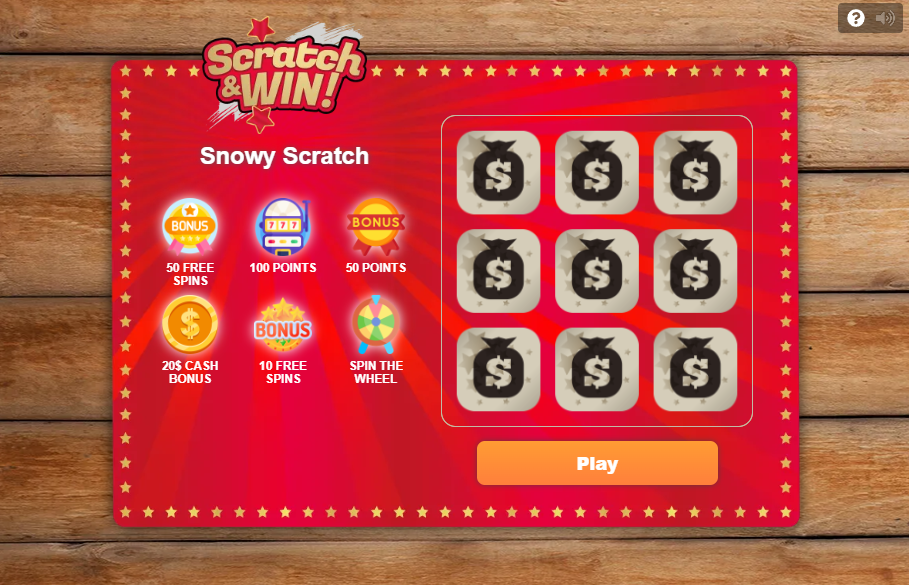
<figure><img src="https://77049817-files.gitbook.io/~/files/v0/b/gitbook-x-prod.appspot.com/o/spaces%2FfS5hl0PiysHtKAKMsQTe%2Fuploads%2Fgit-blob-9f2874b331b36a256d8578ac365c0886ff545562%2FScratch%20Card%20-%20Win.png?alt=media" alt="" width="375"><figcaption><p>Scratch Card - Win skin</p></figcaption></figure>

{% file src="/files/DFrq7u9VWHr5VqE0arxu" %}

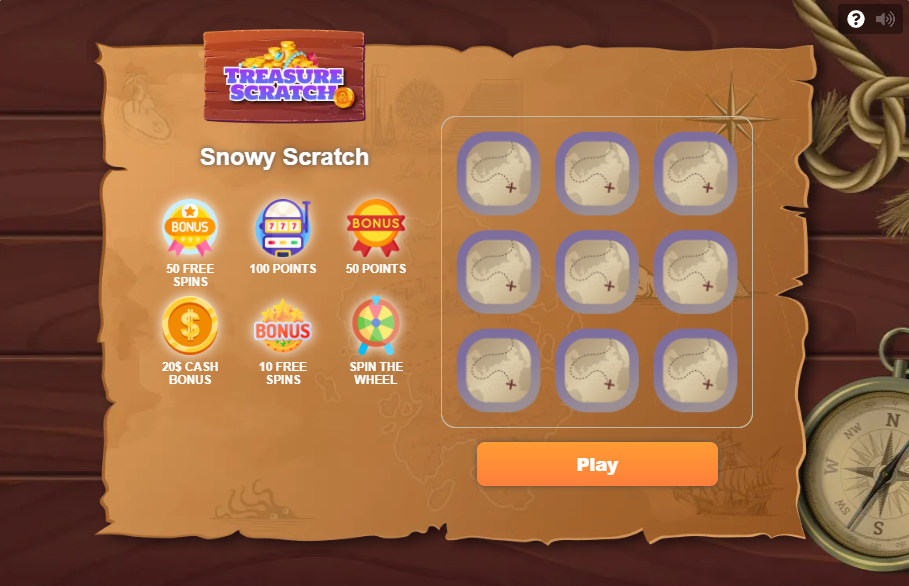
<figure><img src="https://77049817-files.gitbook.io/~/files/v0/b/gitbook-x-prod.appspot.com/o/spaces%2FfS5hl0PiysHtKAKMsQTe%2Fuploads%2Fgit-blob-8d77a9215443c596e13fb07858c6cf1df4118503%2FScratch%20Card%20-%20Treasure.png?alt=media" alt="" width="375"><figcaption><p>Scratch Card - Treasure skin</p></figcaption></figure>

{% file src="/files/ucBWxltMDD3OA1J6ZXs0" %}

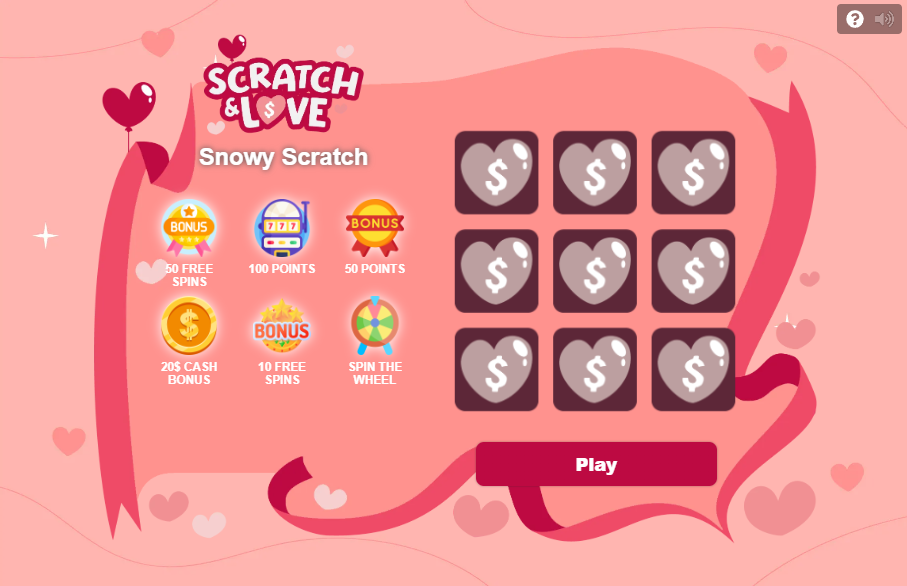
<figure><img src="https://77049817-files.gitbook.io/~/files/v0/b/gitbook-x-prod.appspot.com/o/spaces%2FfS5hl0PiysHtKAKMsQTe%2Fuploads%2Fgit-blob-feffd5ac74c6c6147c4153d4d8618308a0802cd4%2FScratch%20Card%20-%20Valentines%20Day.png?alt=media" alt="" width="375"><figcaption><p>Scratch Card - Valentine's Day skin</p></figcaption></figure>

{% file src="/files/fIuaZXQjNyJOrp4axoGu" %}

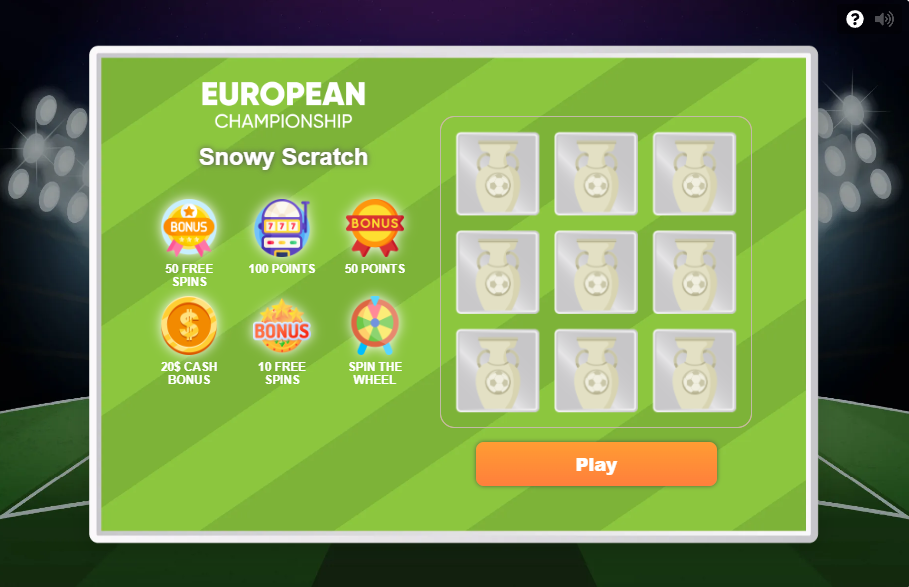
<figure><img src="https://77049817-files.gitbook.io/~/files/v0/b/gitbook-x-prod.appspot.com/o/spaces%2FfS5hl0PiysHtKAKMsQTe%2Fuploads%2Fgit-blob-8c8f0e848e7301b43669d1ff15e7a35c3f709d7c%2FScratch%20Card%20-%20Euro%202025.png?alt=media" alt="" width="375"><figcaption><p>Scratch Card - Euro 2024 (soccer) skin</p></figcaption></figure>

{% file src="/files/jn3NjtdjbKGrcL6bjtCD" %}

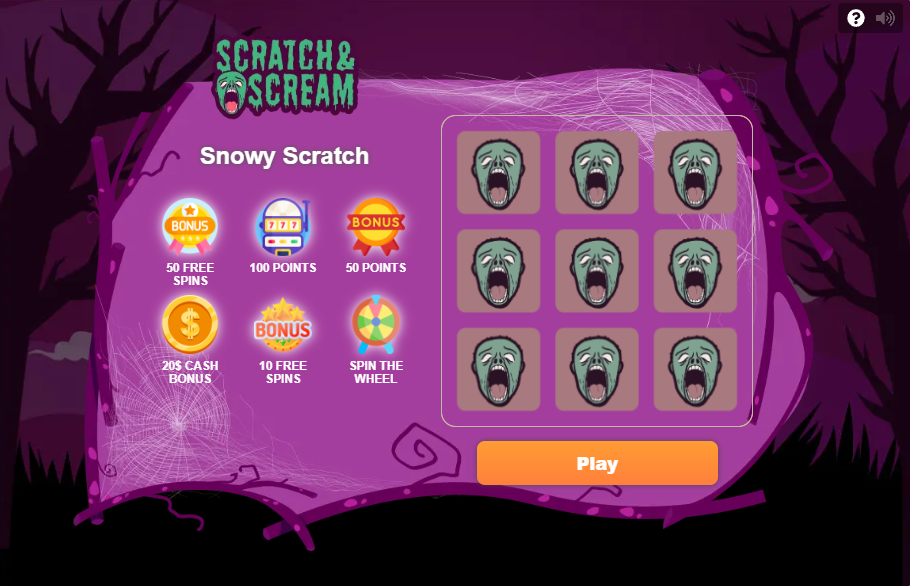
<figure><img src="https://77049817-files.gitbook.io/~/files/v0/b/gitbook-x-prod.appspot.com/o/spaces%2FfS5hl0PiysHtKAKMsQTe%2Fuploads%2Fgit-blob-152deb08c0e60d5a7ff3f5872dc87676a992b196%2FScratch%20Card%20-%20Halloween.png?alt=media" alt="" width="375"><figcaption><p>Scratch Card - Halloween skin</p></figcaption></figure>

{% file src="/files/PAs8BQV8u9R07eMcnBT5" %}

<figure><img src="https://77049817-files.gitbook.io/~/files/v0/b/gitbook-x-prod.appspot.com/o/spaces%2FfS5hl0PiysHtKAKMsQTe%2Fuploads%2Fgit-blob-57f8c35c6fda8a33c3e6d47a793b7427890077e5%2FScratch%20Card%20-%20Snowy%20Scratch%20(Christmas).png?alt=media" alt="" width="375"><figcaption><p>Scratch Card - Snowy Scratch (Christmas) skin</p></figcaption></figure>

{% file src="/files/T157xeMYzFamirG5n7Ft" %}

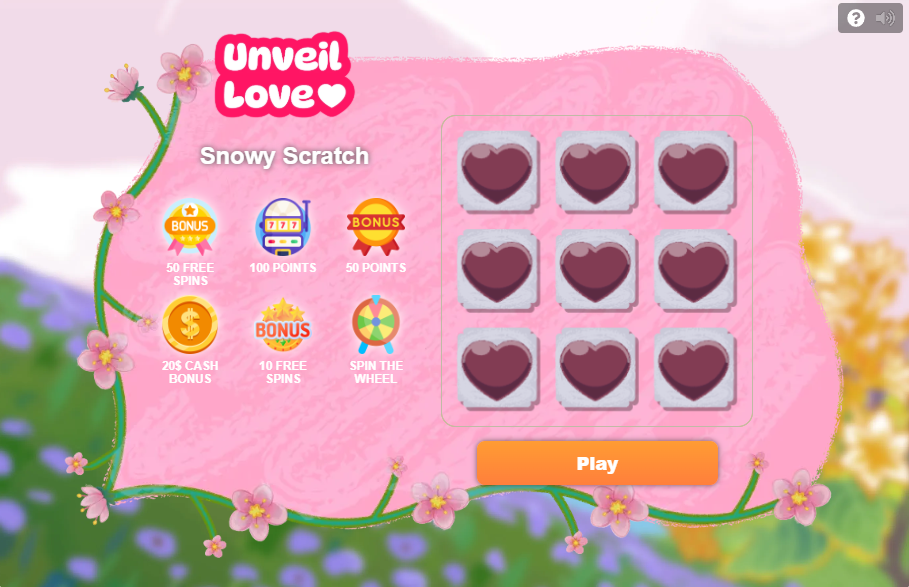
<figure><img src="https://77049817-files.gitbook.io/~/files/v0/b/gitbook-x-prod.appspot.com/o/spaces%2FfS5hl0PiysHtKAKMsQTe%2Fuploads%2Fgit-blob-e6d47ac0acd25dd889b52dbe2bde88c8f5899017%2FScratch%20Card%20-%20Unveil%20Love%202025.png?alt=media" alt="" width="375"><figcaption><p>Scratch Card - Unveil Love 2025 skin</p></figcaption></figure>

{% file src="/files/yWOhfTwEtxIj1Ewm1lue" %}

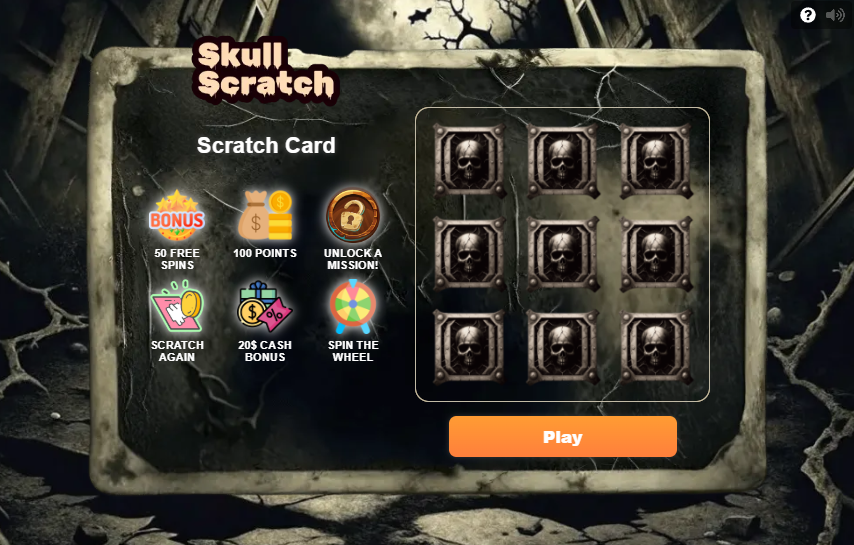
<figure><img src="https://77049817-files.gitbook.io/~/files/v0/b/gitbook-x-prod.appspot.com/o/spaces%2FfS5hl0PiysHtKAKMsQTe%2Fuploads%2Fgit-blob-6b7d6a746f74762dbf4c4acdce61787091e72700%2FScreenshot_28.png?alt=media" alt="" width="375"><figcaption><p>Scratch Card - Skull Scratch 2025</p></figcaption></figure>

### Creating and Applying Skins in the Back Office

1. Navigate to **Gamification → Mini games' skins** and click **Create**.
2. Set the **Game Type** to **Scratch Card** and enter an internal **Skin name**.
3. Upload your extracted image folder into the **Skin images** field. The Back Office automatically validates all file names and highlights missing or extra assets.
4. Optionally customize typography and colors in the **Custom CSS** editor with live preview.
5. Save the skin.
6. Open your Scratch Card game template under **Gamification → Mini games** and select your new skin from the **Skin** dropdown.

### FAQ

**Can I override specific images on a Scratch Card without creating a new skin?**

Yes. In **Gamification → Mini games**, when editing a Scratch Card template under advanced settings, you can override the desktop background, card logo, scratch cover, and cursor icon directly for that specific template.

**Why does the image uploader show errors when uploading a downloaded package?**

Reference packages downloaded from this page are `.zip` archives. You must extract the archive on your computer and upload the unpacked folder or individual image files into the Back Office uploader.


---

# Agent Instructions
This documentation is published with GitBook. GitBook is the documentation platform designed so that both humans and AI agents can read, navigate, and reason over technical content effectively. Learn more at gitbook.com.

## Querying This Documentation
If you need additional information that is not directly available in this page, you can query the documentation by asking a question.

Perform an HTTP GET request on the following URL with the `ask` and `goal` query parameters:

```
GET https://help.smartico.ai/welcome/products/mini-games/custom-skins-for-mini-games/scratch-card-skins.md?ask=<question>&goal=<user_goal>
```

`ask` is the immediate question: it should be specific, self-contained, and written in natural language.
`goal` is what the user is ultimately trying to achieve, the reason they need the answer. Sharing it helps GitBook give you a better, more relevant answer. A goal is most helpful when it describes the outcome the user wants rather than restating the question. For example, with `ask=how do I create an API token`, a goal like `automate deployments from our CI pipeline` lets GitBook tailor the answer to that use case.

The response will contain a direct answer to the question and relevant excerpts and sources from the documentation.

Use this mechanism when the answer is not explicitly present in the current page, you need clarification or additional context, or you want to retrieve related documentation sections.