> For the complete documentation index, see [llms.txt](https://help.smartico.ai/welcome/llms.txt). Markdown versions of documentation pages are available by appending `.md` to page URLs; this page is available as [Markdown](https://help.smartico.ai/welcome/products/gamification-basics/missions-lootbox.md).
# Mission Lootbox 1.0
Mission Lootbox is a mini-game that offers daily rewards to players. The process is straightforward: players unveil a card each day to claim their daily reward, which could vary each day. Missing a day renders the card inactive, and players cannot reopen it. The cards are missions that are configured in a specific way. The rewards are configurable from the BO and can be points, bonuses, mini-game attempts, missions, etc. To build a Daily Lootbox, you need to:
1. Create a new Daily Lootbox Custom Section
2. Choose the Theme
3. Create the missions for this Custom Section
For an automated mini-game with daily prize calendars and streak rewards that does not require setting up individual missions, check out our guide on Lootbox 2.0.
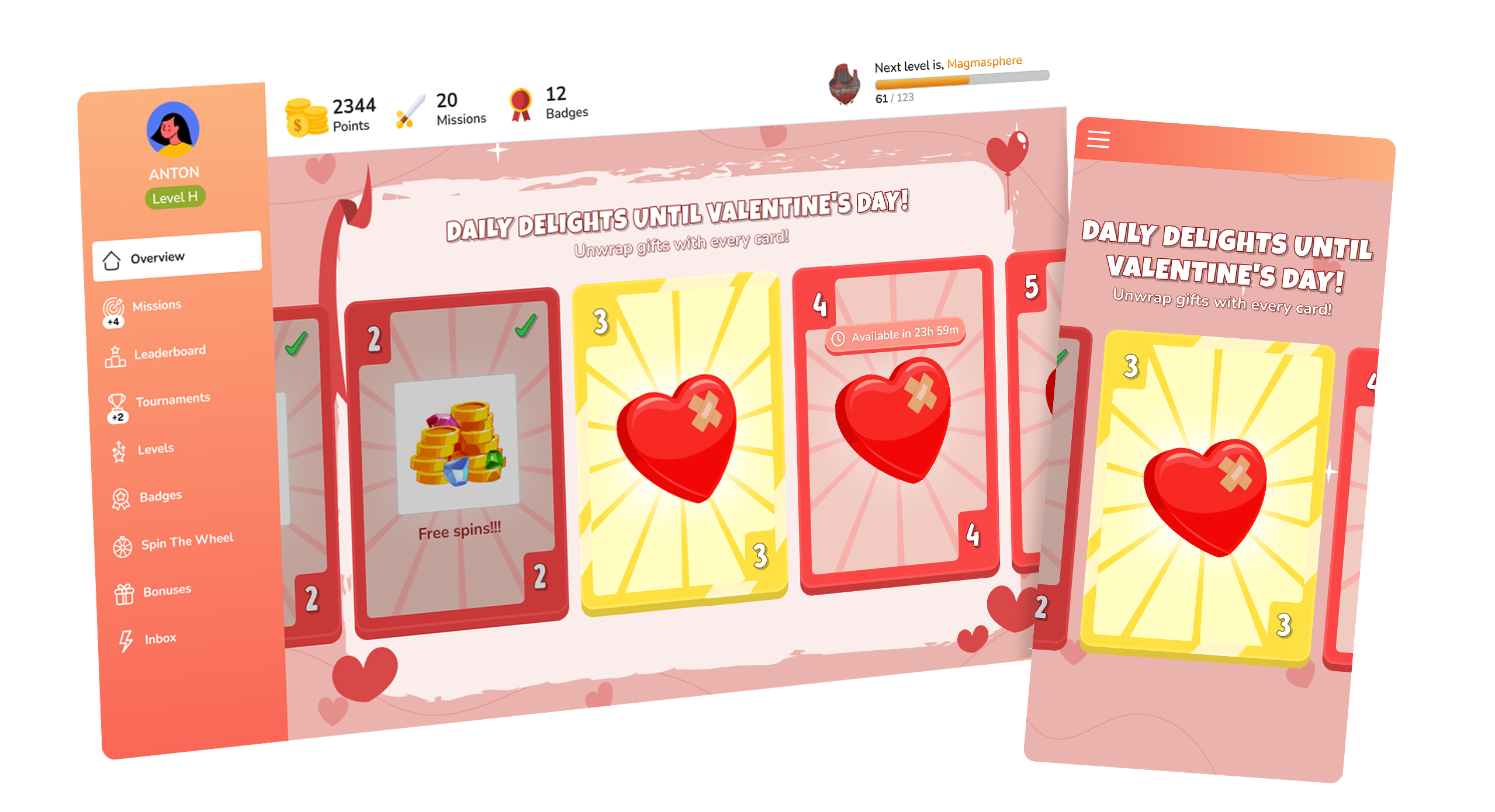
St. Valentine's Day Lootbox
### Creating Custom Section
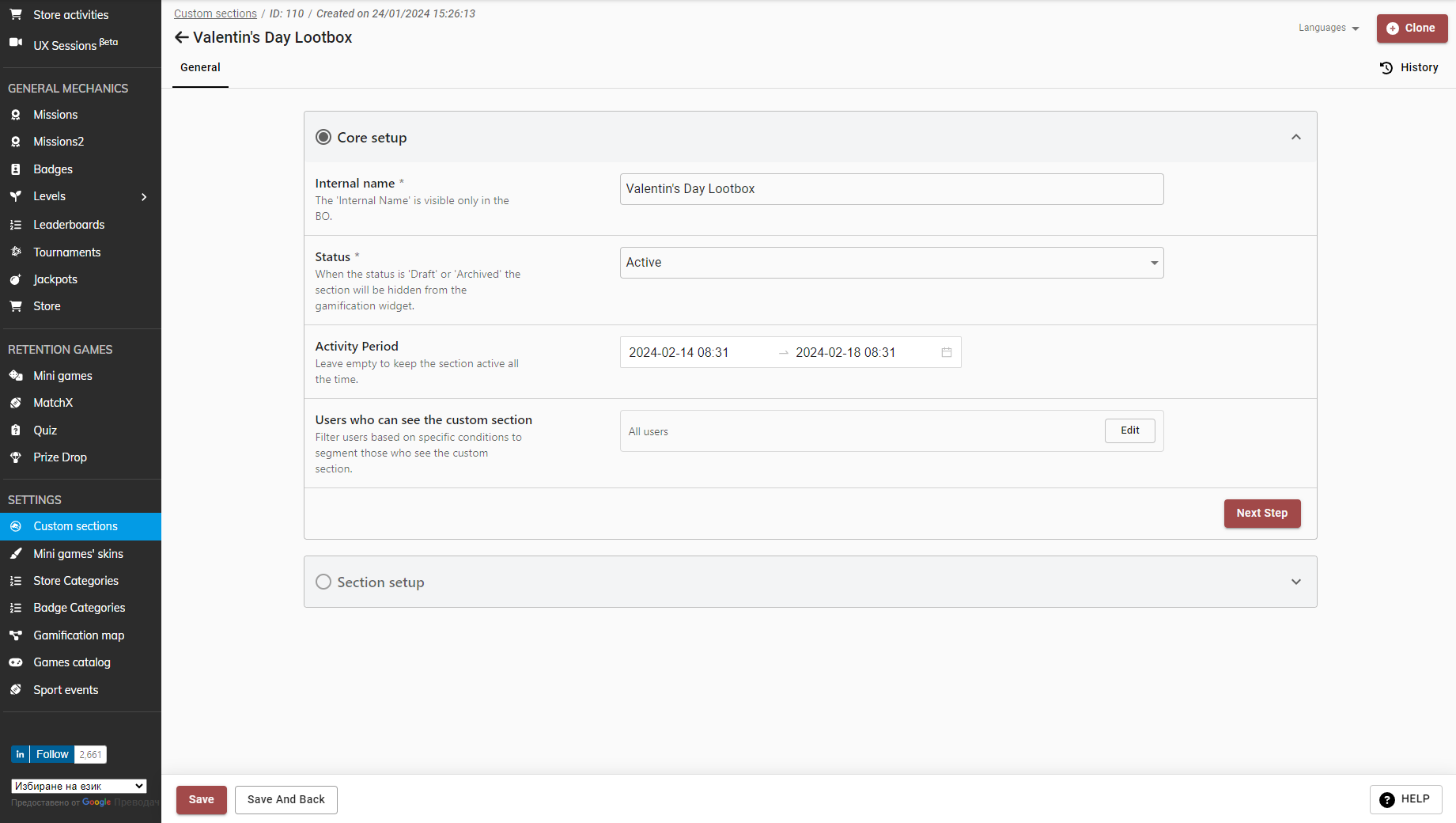
To set up a custom Lootbox section, follow these steps:
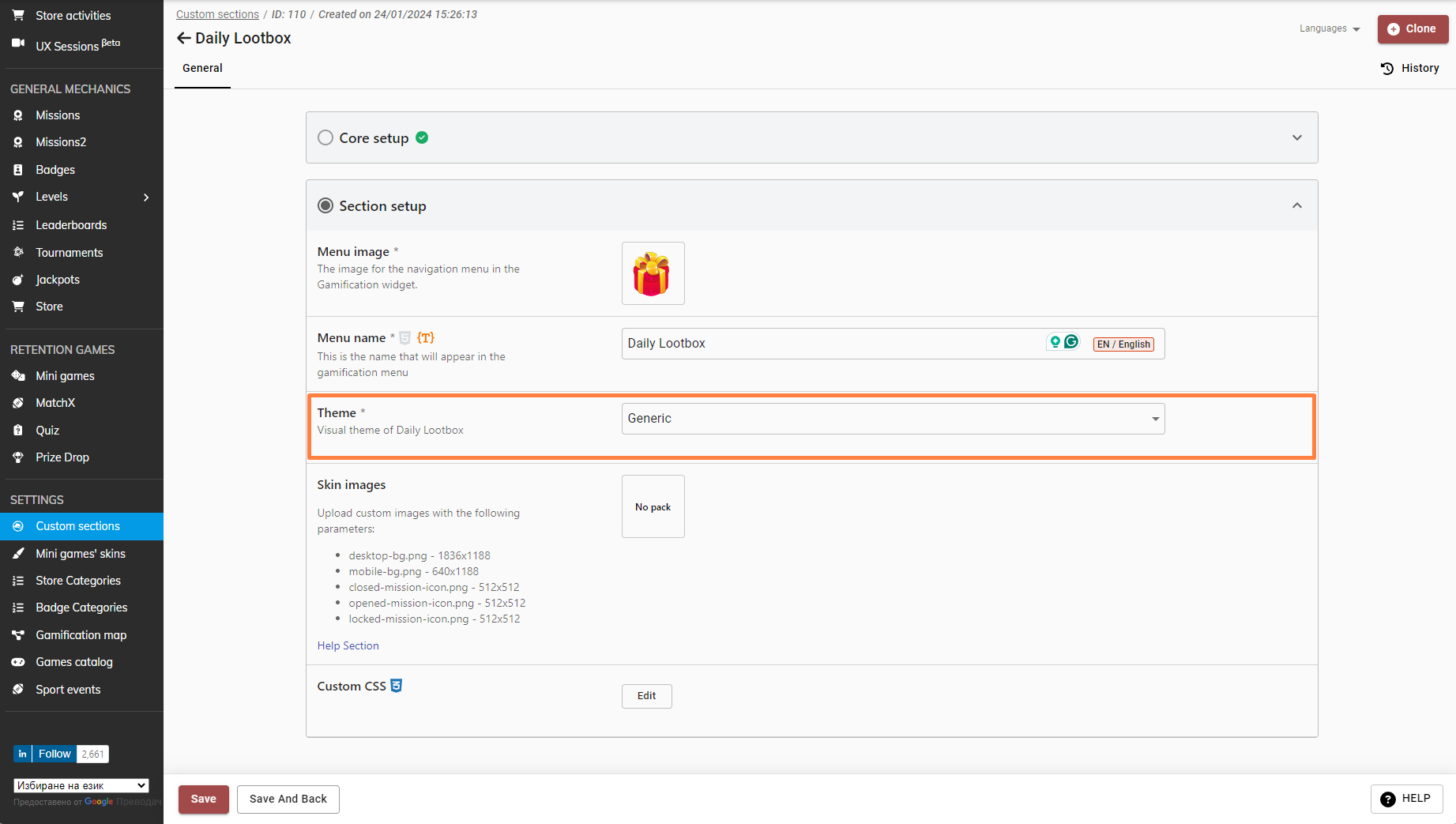
* Choose the 'Daily Lootbox' type when creating a custom section
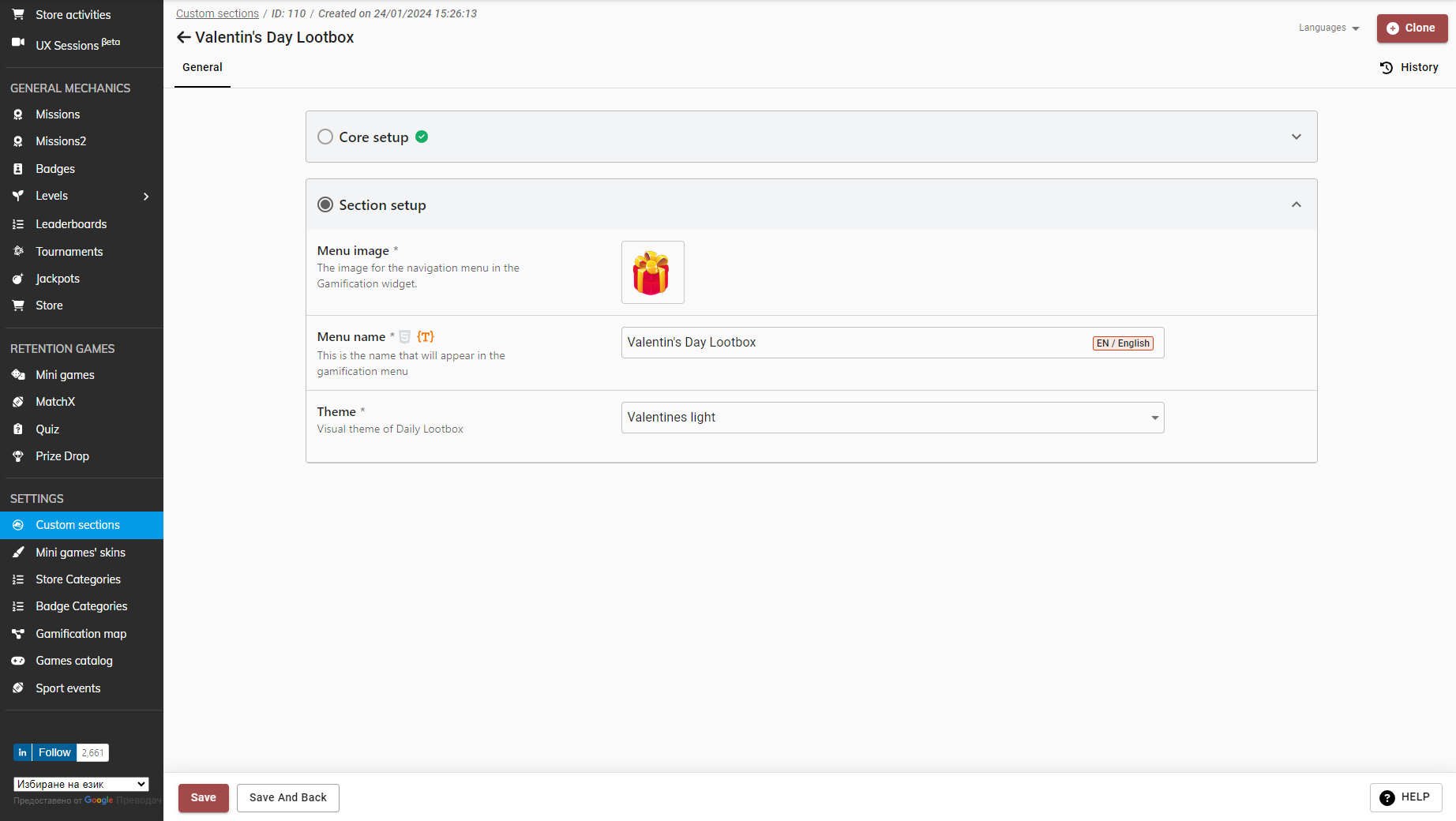
* Select the desired theme - Valentine's Light or Dark, Generic, Soccer
* Define the 'Activity Period' to determine when the section will be active and visible to players in the Gamification Widget
* Add the Menu Name - the name of the section that will be displayed in the Gamification Widget's left Menu
* Once the custom section is created, proceed to create the missions to populate it
### Managing Missions in the Custom Section
In addition to linking missions from the Mission creation form, you can manage them directly inside the Custom Section edit screen under the Missions tab. Here you can review all linked missions, click 'Add Missions' to pick existing scheduled missions from a list, or use 'Bulk delete' to remove multiple missions at once.
### Creating the Lootbox Missions
The Lootbox cards represent missions that should be created in the Missions section in Smartico BO. Here is a list with all the specifics that need to be taken into account when creating a mission for your Lootbox:
* The mission should be in type: **Generally** **Available**
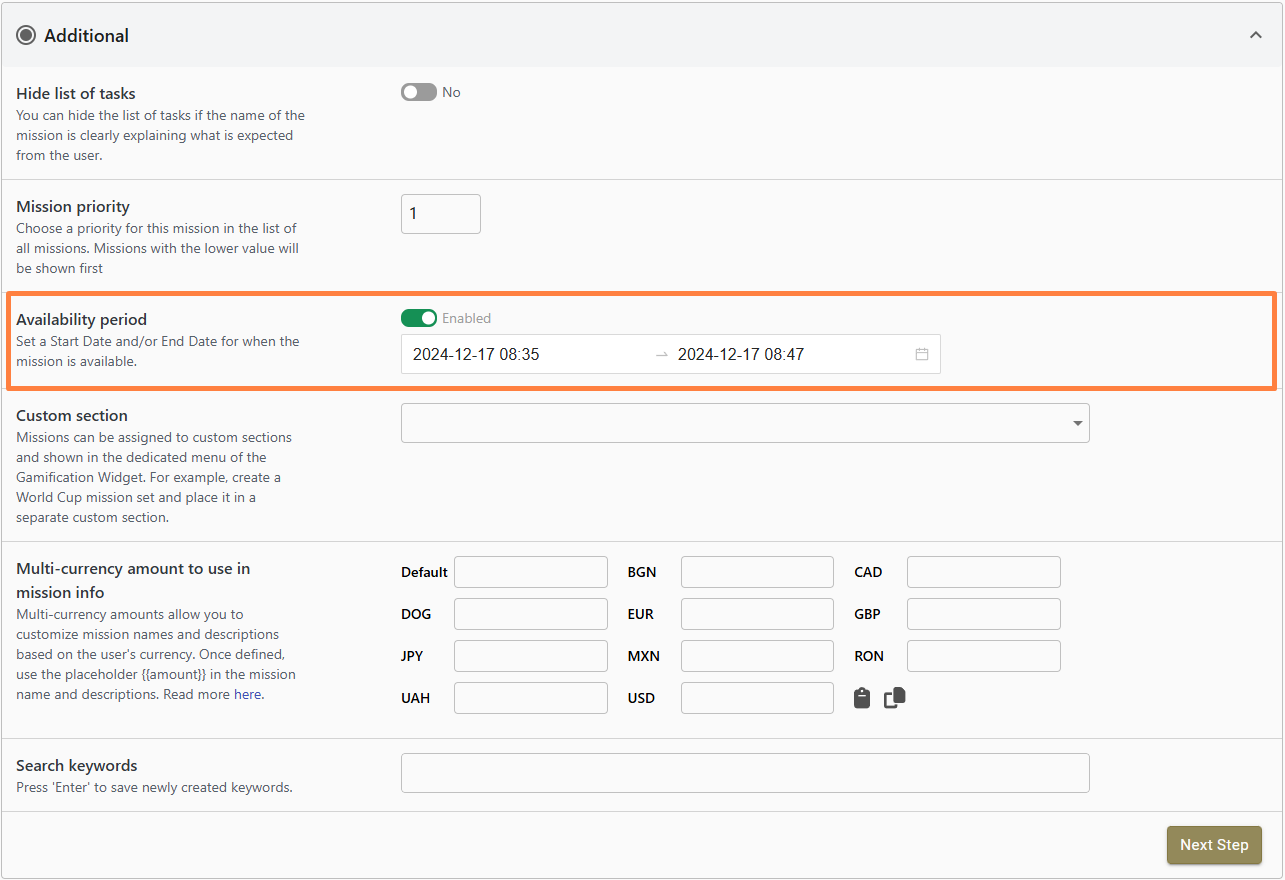
* The **‘Availability period’** option should be enabled. You can set the exact period when this mission will be available (Start and End date)
* Mission Duration should be set for 1 day (recommended)
* Icon should be added
* The reward should be added
* A custom Section should be added
* Show mission only in Custom Section: Yes (recommended)
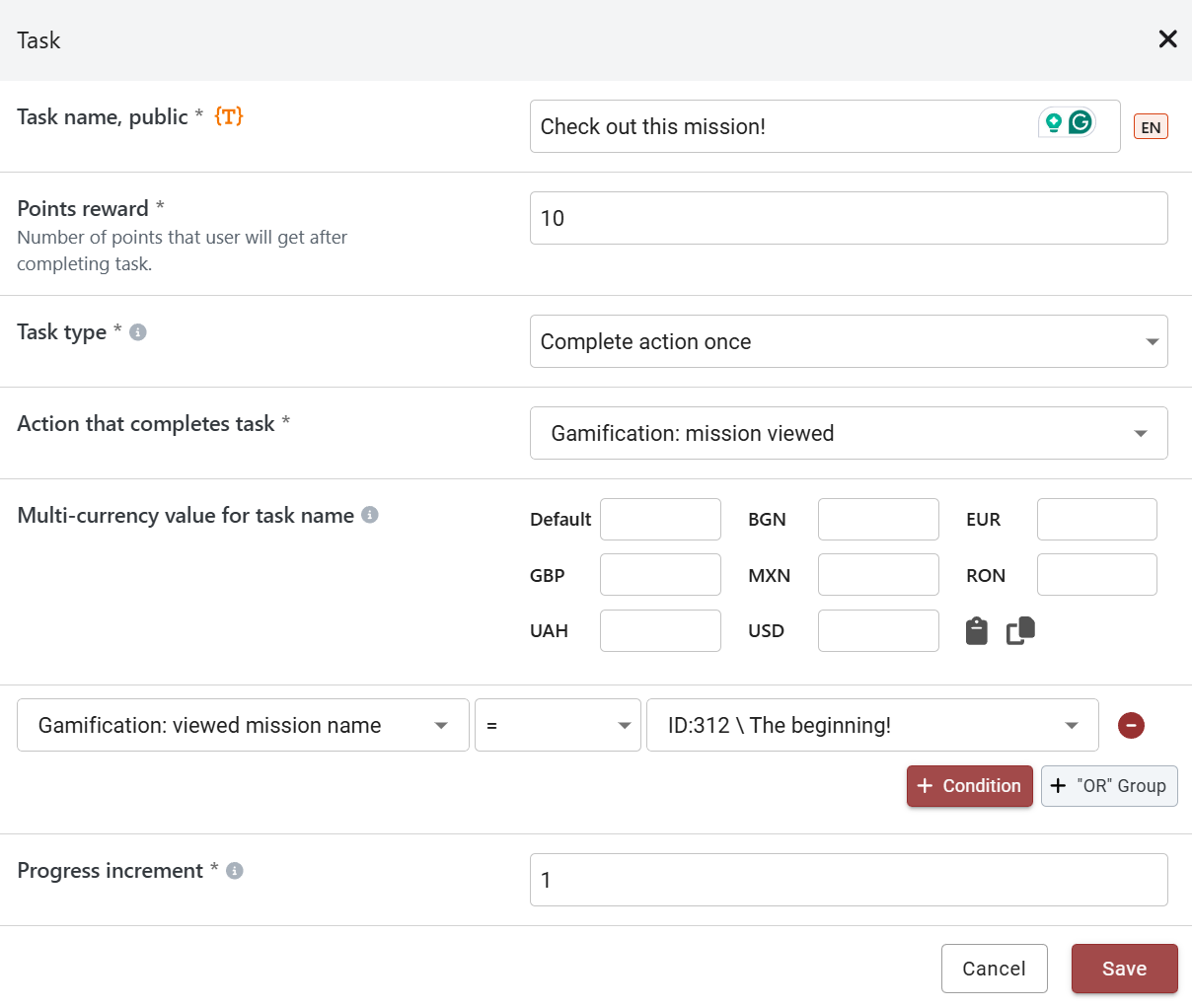
* The task to complete should be:\
\- task type: **‘Complete action once’,**\
\- action that completes the task: **‘Gamification: mission viewed’**
{% hint style="info" %}
After choosing the action that completes the task (**Gamification: mission viewed**), you should **SAVE** the mission first and then add the condition (**Gamification: viewed mission name = *****\[current mission name])*** and **SAVE** the mission again!
{% endhint %}
\
\- add Condition: **'Gamification: viewed mission name = *****\[current mission name]'***
* All other options that are not mandatory can be skipped
{% hint style="info" %}
Keep in mind, that if '**Manual reward claiming'** is enabled for the mission, the 'Claim Reward' button will not appear on the Lootbox card. However, if the mission is also visible in the Missions section (with 'Show mission only in custom section' disabled), the 'Claim Reward' button will be available on the mission card in that section.
{% endhint %}
### Missions Lootbox Specifics
Keep in mind that on the front end, the only components that will be displayed are:
* the title of the lootbox (which is a translation phrase)
* the description of the lootbox (which is a translation phrase)
* the icons of the missions
* the rewards for the missions
* countdown timer - shows when the next mission will be available
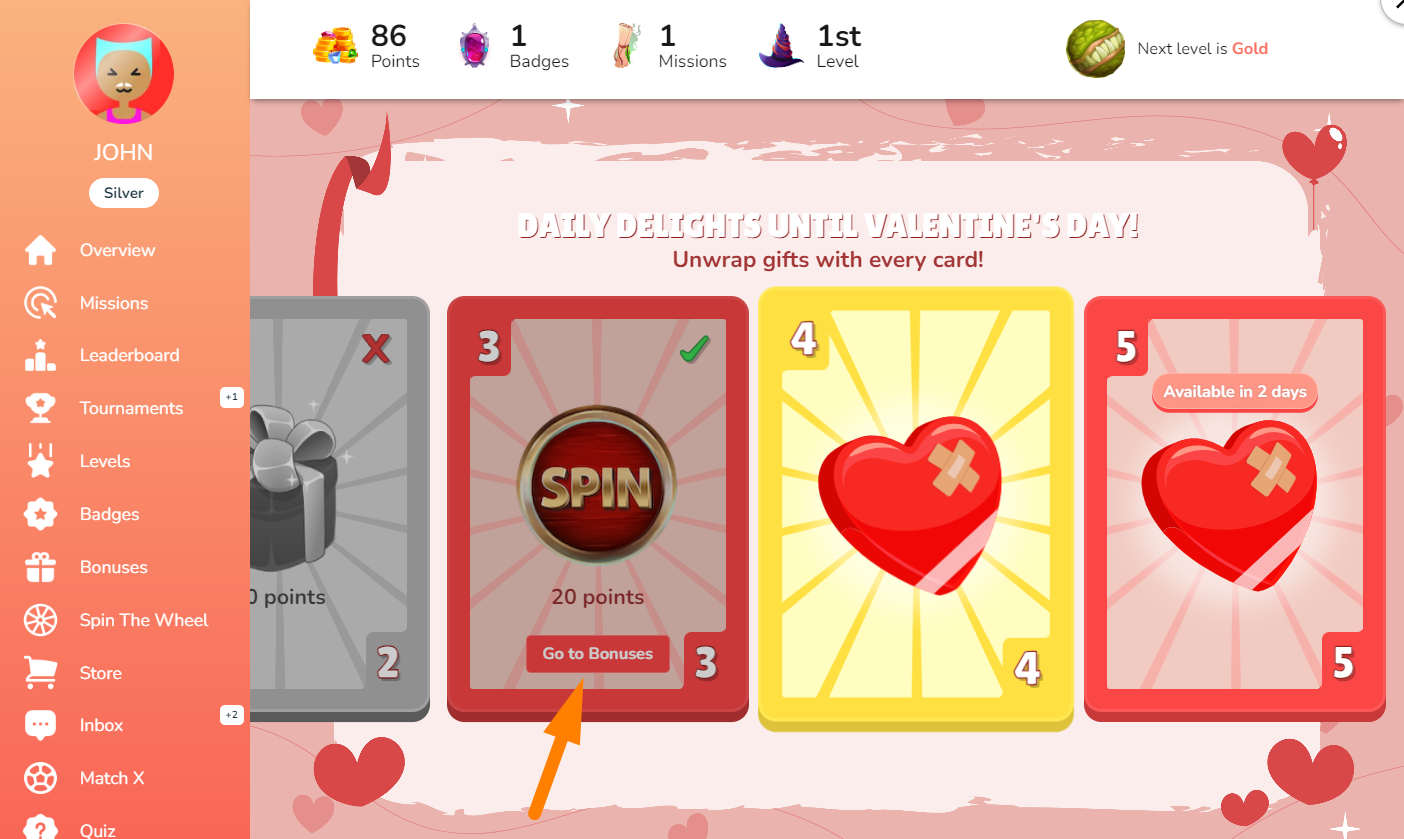
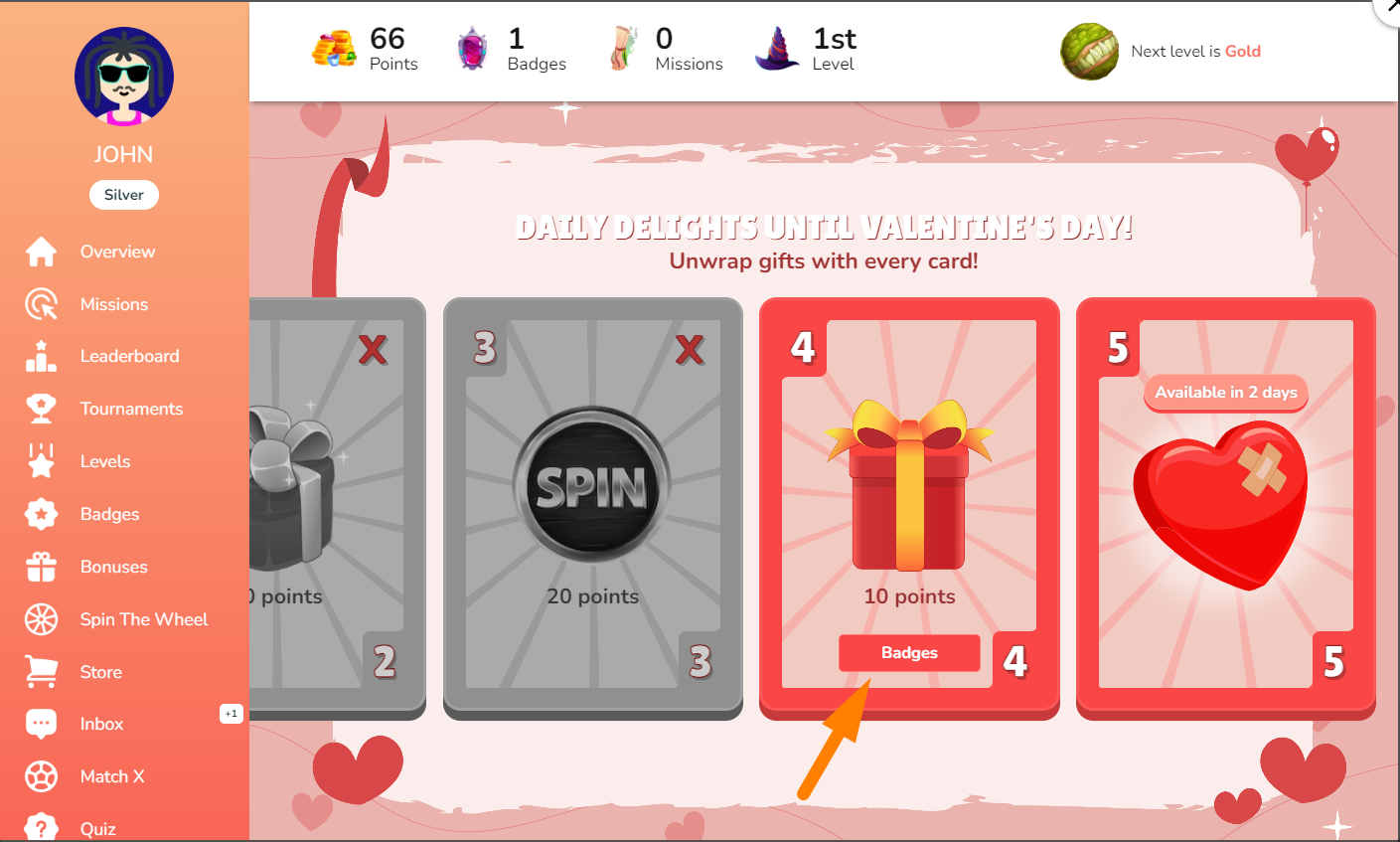
* CTA button:\
\- will be visible only if the 'CTA button action' and 'CTA button text' are populated in the mission template within the BO\
\- will be visible only for opened cards (current and past)\
\- will not be visible for missed cards
### Customizing Title and Description Translations
The title and description displayed in the Lootbox header and footer are dynamic translation phrases. To customize these texts in different languages, navigate to Settings > Translations in the BackOffice and search for the layout translation keys (such as Generic Layout Title, Generic Layout Description, Valentine's Days Layout Title, or Soccer Layout Title).
CTA button in past card
CTA button in current card
{% hint style="info" %}
When creating and adding the available period of the mission you should keep in mind that they will be ordered by date in the Custom Section.
{% endhint %}
### Missions Lootbox - Generic
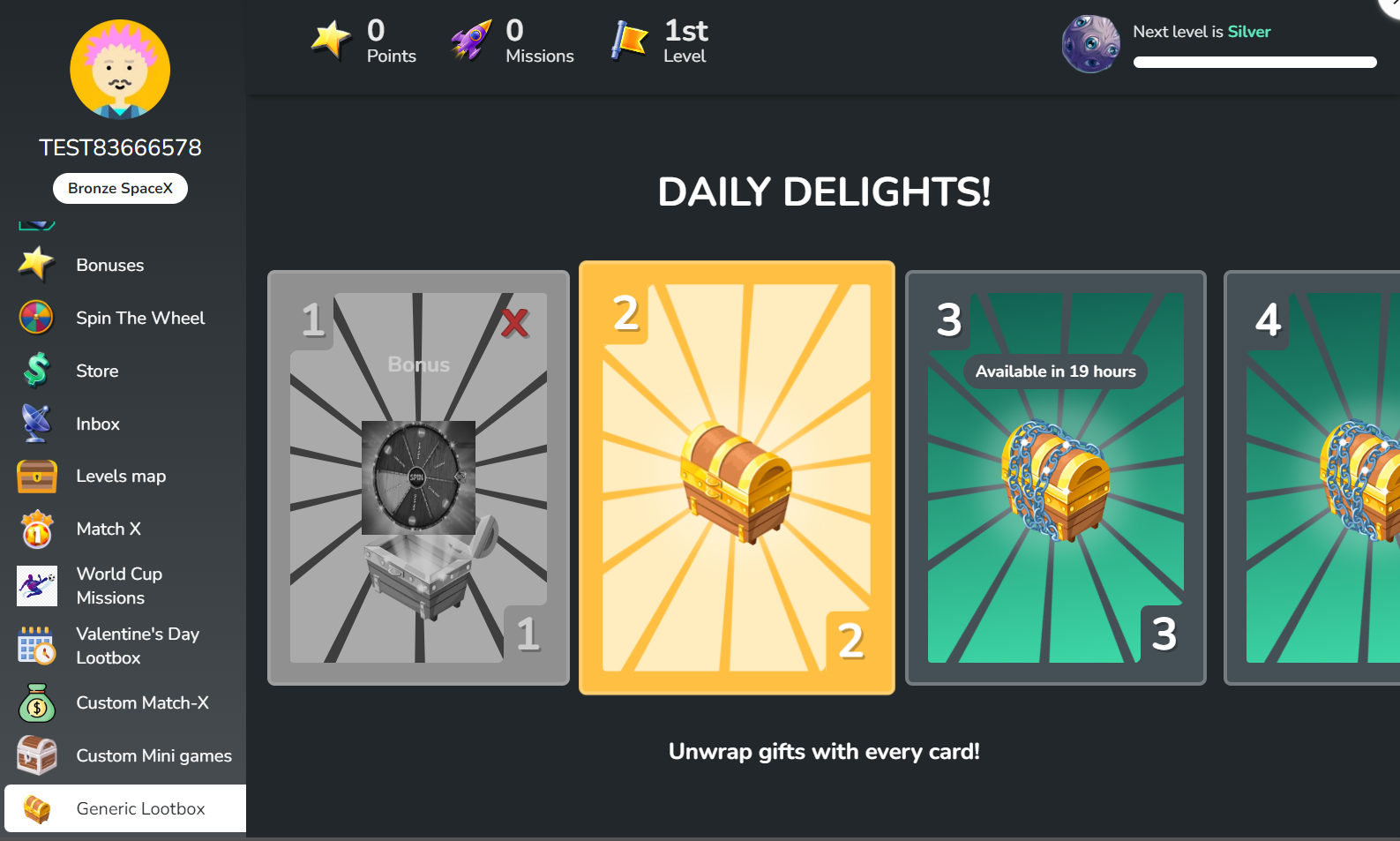
The Generic skin for the Missions Lootbox allows you to customize it according to your unique preferences. The mechanics of creating the lootbox are the same as the St. Valentine’s Day one, the only difference is that you need to choose the Generic theme from the drop-down when creating the Custom Section.
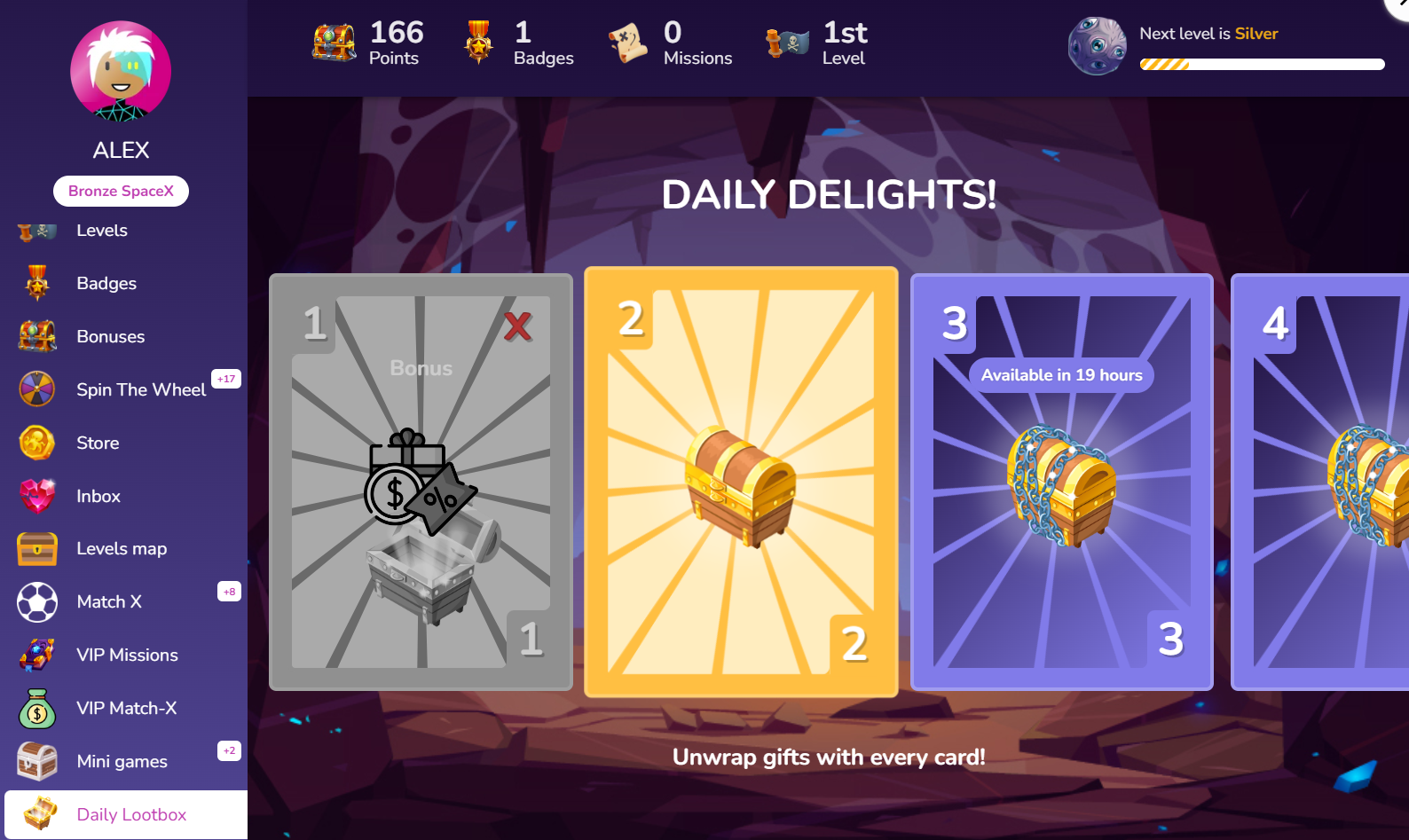
With the Generic Lootbox, you have the flexibility to upload your own images directly from the BO. Additionally, you can customize the colors of the cards. Below is a list of the customizable images:
* Custom section background image for desktop
* Custom section background image for mobile
* Image for closed box
* Image for locked box
* Image for opened box
{% hint style="info" %}
You can customize the colors of the cards directly from the BackOffice by entering your styles in the Custom CSS field when configuring the Generic theme.
{% endhint %}
Generic Lootbox in the Gamification Widget
Generic Lootbox with Custom Background
If you don’t upload images for the 3 states of the boxes (closed, opened, locked), the default ones will be displayed, and if you don’t upload images for the Custom Section Background, the default color of the skin will be displayed. Below you can find a reference package with the images:
{% file src="/files/bP0kJEXxpDWiLpgmvZNG" %}
Here are the specifics of the images that can be uploaded from the BO:
* desktop-bg.png - 1836x1188
* mobile-bg.png - 640x1188
* closed-mission-icon.png - 512x512
* opened-mission-icon.png - 512x512
* locked-mission-icon.png - 512x512
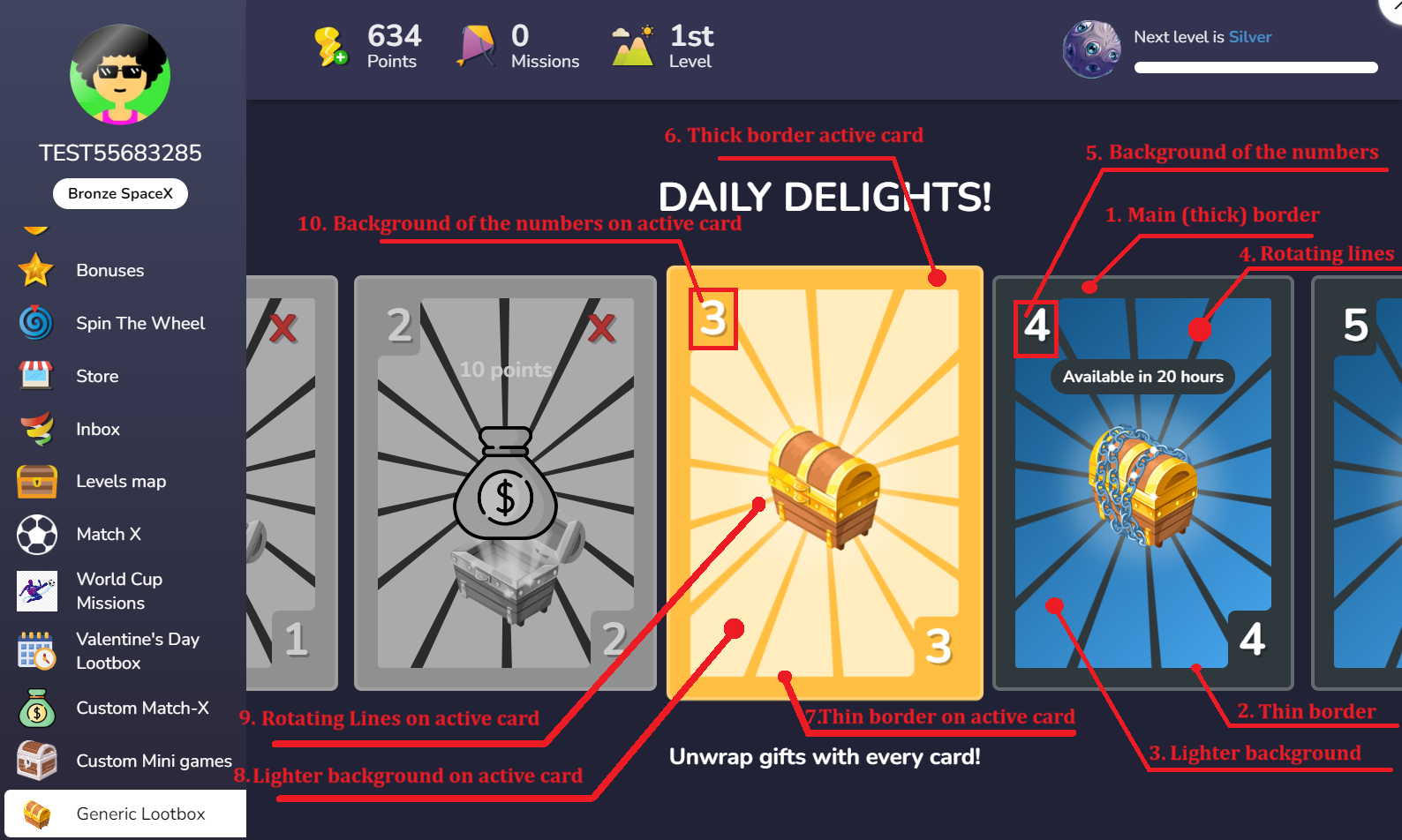
You can further customize certain elements by applying your own CSS. Below are some helpful styles to get you started:
```css
/* 1. The color of the cards' main (thick) border */
.generic-layout .cards-container .mission-card {
background-color: #101010;
}
/* 2. The color of the cards' thin border that fills the space between the corner and
the main border */
.generic-layout .cards-container .mission-card .gap-filler {
border: 4px solid #101010;
}
/* 3. The color of the lighter background behind the rotating lines of the cards */
.generic-layout .cards-container .mission-card .mission-card-inner {
background: #352B12;
}
/* 4. The color of the rotating lines of the cards */
.generic-layout .cards-container .mission-card .mission-card-inner .generic-rotating-bg {
background: #101010;
}
/* 5. The color of the background of the numbers in the corners of the cards */
.generic-layout .cards-container .mission-card .mission-card-inner .mission-card-corner {
background: #101010;
}
/* 6. The color of the ACTIVE card main (thick) border */
.generic-layout .cards-container .mission-card.active {
background-color: #AB8219;
}
/* 7. The color of the ACTIVE card thin border that fills the space between the corner and
the main border */
.generic-layout .cards-container .mission-card.active .gap-filler {
border: 4px solid #AB8219;
}
/* 8. The color of the lighter background behind the rotating lines of the ACTIVE card */
.generic-layout .cards-container .mission-card.active .mission-card-inner {
background: #B8963E;
}
/* 9. The color of the rotating lines of the ACTIVE card */
.generic-layout .cards-container .mission-card .mission-card-inner .generic-rotating-bg.active {
background: #AB8219;
}
/* 10. The color of the background of the numbers in the corners of the ACTIVE card */
.generic-layout .cards-container .mission-card.active .mission-card-inner .mission-card-corner {
background: #AB8219;
}
/* 11. The color of the CTA button */
.generic-layout .cards-container .mission-card .mission-card-inner .card-center .cta-lootbox {
background-color: #001F43 !important;
color: white !important;
}
/* 12. The color of the Title text */
.generic-layout .generic-layout-title {color: white !important;
}
/*13. The color of the Reward text */
.generic-layout .cards-container .mission-card .mission-card-inner .card-center .card-reward {color: white !important;
}
/*14. The color of the description text on the bottom */
.generic-layout .layout-description {color: white !important;
}
```
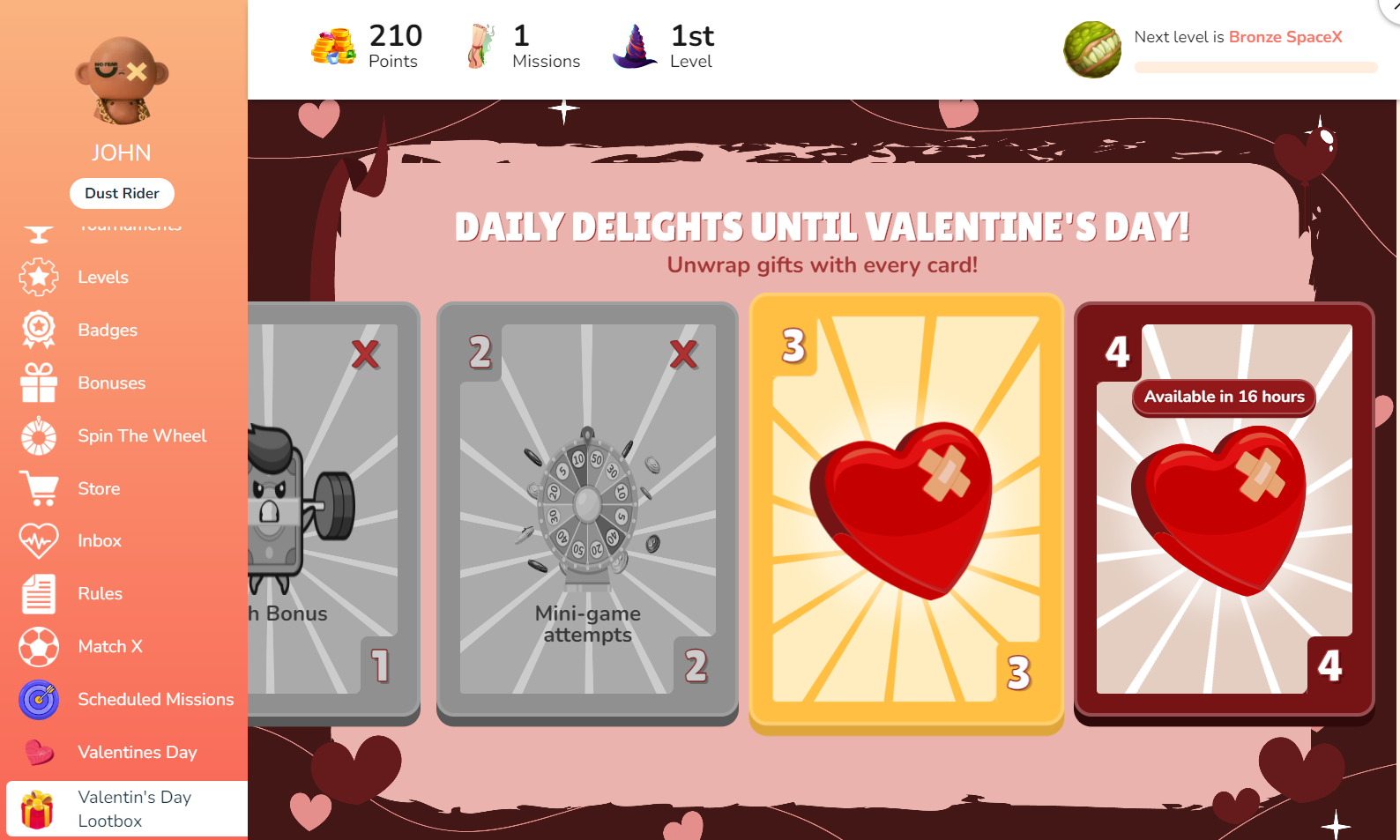
### Soccer skin for the Daily Lootbox
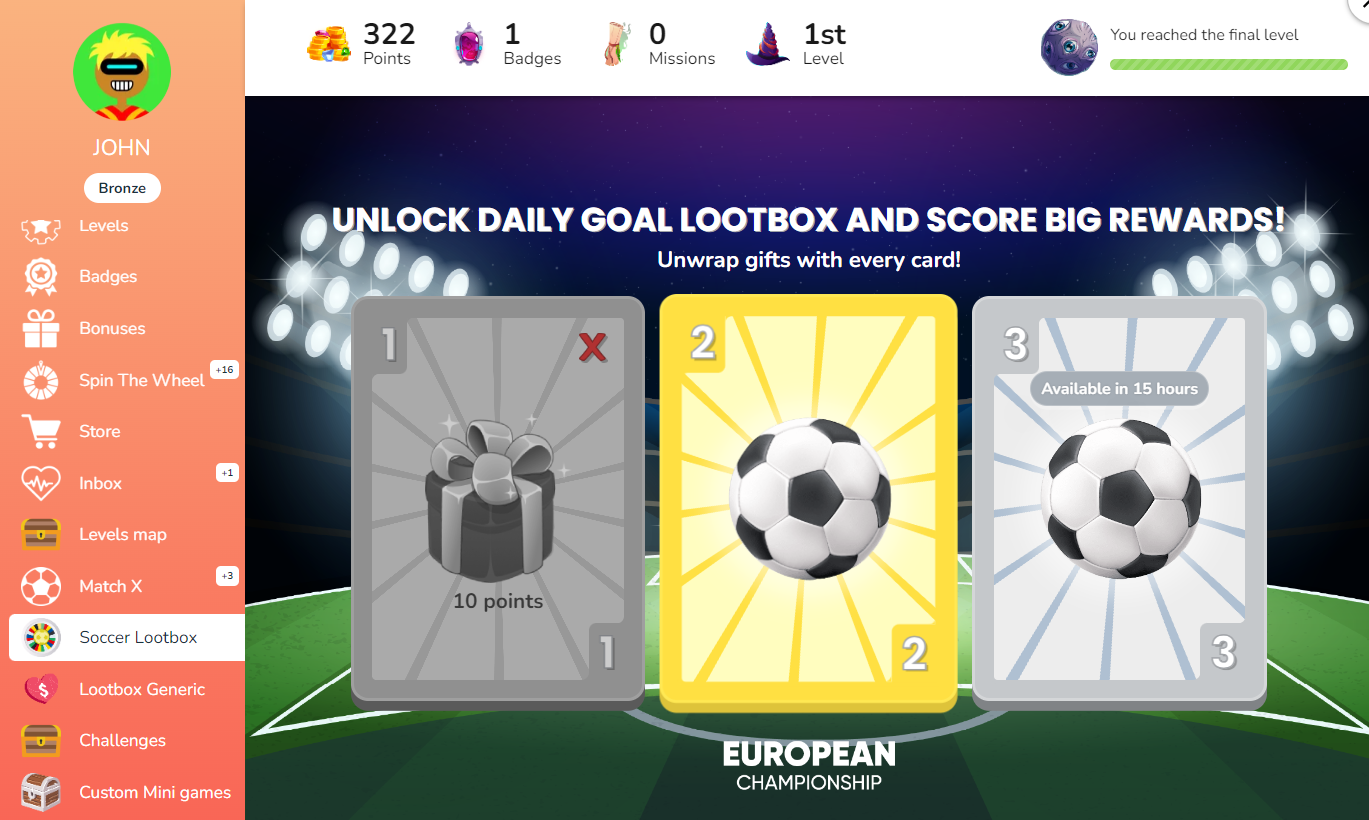
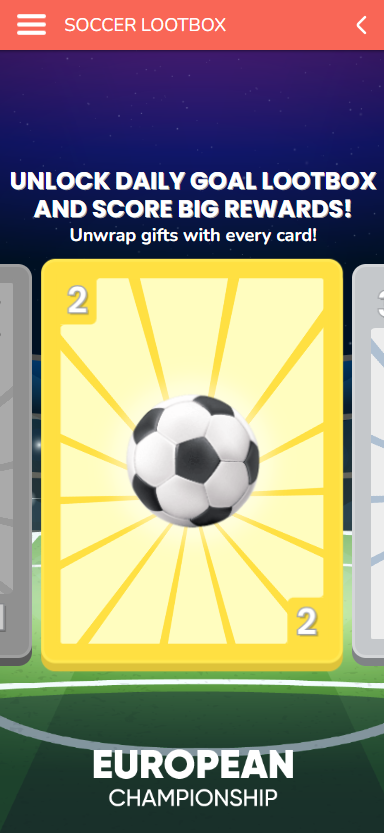
You can now create a Daily Lootbox with a soccer theme that is based on the European Football Championship. The new theme is available in the Daily Lootbox template inside the Custom Sections in the BO. Applicable for both desktop and mobile devices.
\
---
# Agent Instructions
This documentation is published with GitBook. GitBook is the documentation platform designed so that both humans and AI agents can read, navigate, and reason over technical content effectively. Learn more at gitbook.com.
## Querying This Documentation
If you need additional information that is not directly available in this page, you can query the documentation by asking a question.
Perform an HTTP GET request on the following URL with the `ask` and `goal` query parameters:
```
GET https://help.smartico.ai/welcome/products/gamification-basics/missions-lootbox.md?ask=&goal=
```
`ask` is the immediate question: it should be specific, self-contained, and written in natural language.
`goal` is what the user is ultimately trying to achieve, the reason they need the answer. Sharing it helps GitBook give you a better, more relevant answer. A goal is most helpful when it describes the outcome the user wants rather than restating the question. For example, with `ask=how do I create an API token`, a goal like `automate deployments from our CI pipeline` lets GitBook tailor the answer to that use case.
The response will contain a direct answer to the question and relevant excerpts and sources from the documentation.
Use this mechanism when the answer is not explicitly present in the current page, you need clarification or additional context, or you want to retrieve related documentation sections.