> For the complete documentation index, see [llms.txt](https://help.smartico.ai/welcome/llms.txt). Markdown versions of documentation pages are available by appending `.md` to page URLs; this page is available as [Markdown](https://help.smartico.ai/welcome/products/crm-automation/communication-channels/sending-personal-messages-from-back-office.md).
# Sending personal messages from Back Office
Send one-off messages to an individual player from their user profile.
You can send a targeted, one-off message directly from a player's **User Profile**. This suits VIP managers, CRM operators, and support agents.
Personal messages use a Real-time Campaign. The campaign receives your message details and sends them through the selected channel.
{% hint style="info" %}
Use the [Sending Messages via Smartico REST API](/welcome/products/crm-automation/communication-channels/sending-messages-via-smartico-rest-api.md) when an external service sends the message. Use this guide when an operator sends it from Back Office.
{% endhint %}
### How it works
1. You select **Send Message** in a player's profile.
2. Smartico emits the `Core: send personal message` event.
3. An active Real-time Campaign matches your selected channel.
4. The campaign injects your submitted fields into its message template.
5. The communication activity delivers the message.
A message is not sent automatically. An active campaign must listen for the event and channel.
### 1. Set up the message template
Create a communication resource for your required channel. Use the event tags below in its fields.
| Tag | Use in template |
| --------------------------------- | ------------------------------------- |
| `{{event.subject}}` | Message title or subject line |
| `{{event.message}}` | Main message or subtitle |
| `{{event.button_text}}` | Primary button label |
| `{{event.action}}` | Primary button URL or deep link |
| `{{event.button_text_secondary}}` | Secondary button label for Rich Inbox |
| `{{event.action_secondary}}` | Secondary button URL or deep link |
| `{{event.html}}` | Rich Inbox HTML body |
| `{{event.icon}}` | Rich Inbox icon |
{% hint style="warning" %}
Use dot notation, such as `{{event.subject}}`. Hyphenated tags, such as `{{event-subject}}`, render as plain text.
{% endhint %}
For Inbox links, use `dp:inbox` as the button action. This opens the Inbox widget.
### 2. Configure the Real-time Campaign
1. Go to **Marketing → Journey** and create a new real-time campaign.
2. Set **Event/Trigger** to `Core: send personal message`.
3. Add a **Core: personal message channel** condition. Match your channel: `popup`, `inbox`, `inbox-rich` (Rich Inbox), `push`, or `mail`. For an Instant message, match its channel type: `sms`, `telegram`, `whatsapp`, `viber`, or `rcs`.
4. Set **Entry mode** to **Every time conditions are met, run few at the same time**.
5. Set **Max. campaign duration** to **1** **Minutes**.
6. Add your communication activity, such as **Popup** or **Inbox**. Select the template you created.
7. Set the campaign to **Active**.
Create a separate campaign for each channel. Each campaign needs the matching channel condition and activity.
### 3. Send a message from a player profile
1. Go to **CRM → Users search** and open the player.
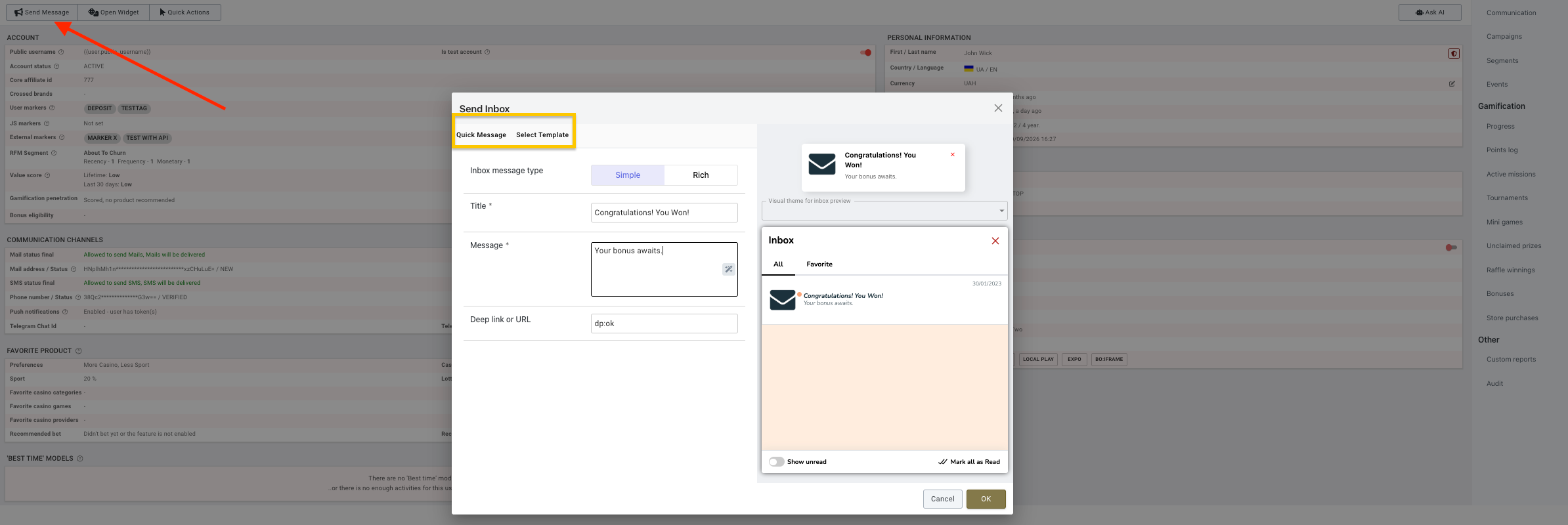
2. Point to **Send Message** and select the channel: **Instant message**, **Mail**, **Popup**, **Push Message**, or **Inbox**.
3. Choose **Quick Message** or **Select Template**.
4. Complete the message fields and send the message.
#### Quick Message
Enter one-off text in the modal. Smartico passes the entered title, message, and button values to the matching `{{event.*}}` tags.
#### Select Template
Choose an existing Back Office template. For SMS, Email, Push, and Inbox, the modal fills the fields. You can edit them before sending.
### FAQ
#### Q: Nothing happens after selecting **Send**. What should I check?
**A:** Check that an active Real-time Campaign uses `Core: send personal message`. Its channel condition must match your selected channel.
#### Q: Why does the player see `{{event.subject}}` as text?
**A:** Use dot notation in the template. Also confirm that the template belongs to the personal-message campaign.
#### Q: Why does an Inbox button not open notifications?
**A:** Set the button action to `dp:inbox`.
#### Q: Why is **Send Message** disabled for a player who opted out?
**A:** By default, Back Office does not let you send a personal message on a channel the player opted out of. To allow it, ask your Success manager to turn on the **Allow personal messages to opted-out players** setting in **Label settings**. The message still goes through the personal-message campaign: for mail and SMS, also set **Opt-out status impact** in its communication activity to ignore the opt-out flags. Push messages are not sent to players who opted out of push.
---
# Agent Instructions
This documentation is published with GitBook. GitBook is the documentation platform designed so that both humans and AI agents can read, navigate, and reason over technical content effectively. Learn more at gitbook.com.
## Querying This Documentation
If you need additional information that is not directly available in this page, you can query the documentation by asking a question.
Perform an HTTP GET request on the following URL with the `ask` and `goal` query parameters:
```
GET https://help.smartico.ai/welcome/products/crm-automation/communication-channels/sending-personal-messages-from-back-office.md?ask=&goal=
```
`ask` is the immediate question: it should be specific, self-contained, and written in natural language.
`goal` is what the user is ultimately trying to achieve, the reason they need the answer. Sharing it helps GitBook give you a better, more relevant answer. A goal is most helpful when it describes the outcome the user wants rather than restating the question. For example, with `ask=how do I create an API token`, a goal like `automate deployments from our CI pipeline` lets GitBook tailor the answer to that use case.
The response will contain a direct answer to the question and relevant excerpts and sources from the documentation.
Use this mechanism when the answer is not explicitly present in the current page, you need clarification or additional context, or you want to retrieve related documentation sections.