> For the complete documentation index, see [llms.txt](https://help.smartico.ai/welcome/llms.txt). Markdown versions of documentation pages are available by appending `.md` to page URLs; this page is available as [Markdown](https://help.smartico.ai/welcome/products/crm-automation/activities-of-flows/activity-update-property-mark-user-and-js-markers.md).
# Activity: Update property, Mark user and JS markers
These activities change what is stored on the player's profile:
* **Update property** sets the value of one player property.
* **Mark user** and **UnMark user** add or remove markers. Markers are labels you put on a player and use later in segments and campaigns.
* **Set JS markers** and **Remove JS markers** add or remove JS markers. JS markers are markers that your website or app can read.
All five activities are in the **User profile** group of the flow builder palette.
| Activity | Flow builder | Automation rules | Missions and badges |
| --------------------- | ------------ | --------------------- | --------------------- |
| **Update property** | Yes | — | — |
| **Mark user** | Yes | Yes (**Mark User**) | Yes (**Mark User**) |
| **UnMark user** | Yes | Yes (**Unmark User**) | Yes (**Unmark User**) |
| **Set JS markers** | Yes | Yes | Yes |
| **Remove JS markers** | Yes | Yes | Yes |
The names in brackets are the names used in the lists of [automation rules](/welcome/products/crm-automation/automation-rules.md) and of [missions](/welcome/products/gamification-basics/missions.md) and [badges](/welcome/products/gamification-basics/badges.md).
## Settings
### Update property
* **Property** (required) — the property to change. The list shows only the properties of your label that can be changed by hand. You can search in it.
* **Value** — the new value. The field depends on the type of the property:
| Property type | Value field |
| ---------------------------- | -------------------------------------------------------------------------------------------------------------------------------------------------------------------------------------------------------------------------------- |
| Yes / No | A switch |
| Text, or a value from a list | A text field. You can use tags, such as `{{state.my_property}}` |
| Number | A text field (required). Enter a whole number from -2147483648 to 2147483647, or one tag such as `{{state.my_property}}`. A tag that does not give a number is skipped when the step runs, and the property keeps its old value. |
| Date | A date picker (required). The value is the start of the chosen day |
| Amount in several currencies | One amount per currency |
| List of values | A text field (required). The value is **added** to the values the player already has; it does not replace them |
For other property types the form shows no **Value** field.
* **Note** and **Funnel ID** — the same common fields as in every activity.
### Mark user and UnMark user
* **Mark user with** (in **Mark user**) or **Remove following markers from user** (in **UnMark user**), required — one or more markers. Pick a marker that your label already uses, or type a new one.
* You can use tags in a marker, for example `{{event.…}}` or `{{state.…}}`, to take the marker from the event or from the player's profile. Campaign tags (`{{campaign.…}}`) work only in the flow builder.
* **Note** and **Funnel ID** (flow builder only).
### Set JS markers and Remove JS markers
* **Mark user with** (in **Set JS markers**) or **Remove marks from user** (in **Remove JS markers**), required — one or more JS markers. Pick one that your label already uses, or type a new one.
* Tags are not replaced in JS markers: the text is saved exactly as you type it.
* **Note** and **Funnel ID** (flow builder only).
Mark user: 1 — the markers to add
## Outgoing connections
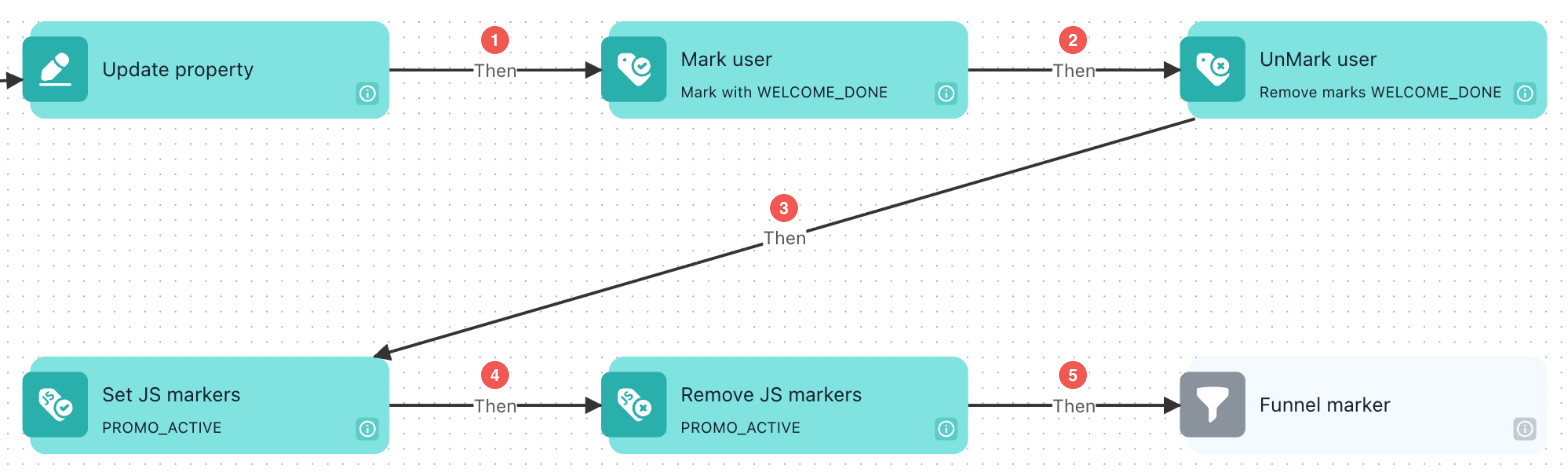
Each of these steps has one outgoing connection, **Then**. The picture shows them in a chain:
Outgoing connections of Update property, Mark user, UnMark user and the JS markers in a flow. The numbers match the table below.
| # | Connection | When the player goes this way |
| - | ---------------------------------- | ------------------------------------------- |
| 1 | **Then (after Update property)** | After the new value is saved. |
| 2 | **Then (after Mark user)** | Right away, before the markers are added. |
| 3 | **Then (after UnMark user)** | Right away, before the markers are removed. |
| 4 | **Then (after Set JS markers)** | Right away, before the JS markers change. |
| 5 | **Then (after Remove JS markers)** | Right away, before the JS markers change. |
## How it works
* **Markers are saved in capital letters.** A marker `vip` is stored as `VIP`, and spaces around it are removed. **UnMark user** finds markers in the same way, so the case you type does not matter.
* **Where you see markers.** Markers are stored in the property **Core: user markers**. JS markers are stored in **Core: JS markers**. Use these properties in [segments](/welcome/products/crm-automation/segmentation/user-state-segments.md) and in [Check user profile](/welcome/products/crm-automation/activities-of-flows/activity-check-user-profile.md). The help text of the field calls the first property "Core: markers"; in the property list it is **Core: user markers**.
* **Markers stay private.** **Core: user markers** is not sent to your website or app.
* **How JS markers reach your front end.** When the JS markers of a player change, Smartico sends the new list to the player's open session. The Smartico script then calls your `props_change` callback with `core_public_tags`: an array of the markers in capital letters. When the player logs in, the script also calls `props_change` with the current list. Your front end can change JS markers too, with `_smartico.updatePublicTags`. Read more in [Extended integration](/welcome/technical-guides/front-end-integration/extended-integration/events-and-actions.md#js-markers-public-tags).
```javascript
_smartico.on('props_change', function (props) {
if (props.core_public_tags !== undefined) {
// an array of markers in capital letters, e.g. ["VIP", "SPORT_FAN"]
console.log(props.core_public_tags);
}
});
```
* **Update property and tags.** Smartico fills in the tags first, then turns the result into the type of the property: a number, a date, Yes / No or text.
## Example
You want to show a sports banner on your site only to players who bet on sports this week.
1. Create a real-time campaign that starts on a sports bet.
2. Add **Set JS markers** with the JS marker `SPORT_WEEK`.
3. In your front end, show the banner when `props.core_public_tags` contains `SPORT_WEEK`.
4. In a scheduled campaign that runs every Monday, add **Remove JS markers** with `SPORT_WEEK`, so the banner is hidden again until the next sports bet.
## FAQ
**Q: What is the difference between markers and JS markers?**
A: Both are labels on the player. Markers (**Core: user markers**) are for segments and campaigns, and your front end never sees them. JS markers (**Core: JS markers**) are also sent to your website or app.
**Q: I typed `vip`, but the segment shows `VIP`. Is that a problem?**
A: No. All markers are saved in capital letters, and UnMark user finds them without looking at the case.
**Q: Can I check a marker in the step right after Mark user?**
A: The **Then** branch does not wait until the marker is saved. If the next step checks the marker, add a short **Delay** between the two steps.
**Q: Why is a property missing from the Property list of Update property?**
A: The list shows only the properties that Smartico allows to change by hand. Other properties cannot be set with this activity.
## Related
* [Activities of Flows](/welcome/products/crm-automation/activities-of-flows.md)
* [Activity: Check User Profile](/welcome/products/crm-automation/activities-of-flows/activity-check-user-profile.md)
* [User State Segments](/welcome/products/crm-automation/segmentation/user-state-segments.md)
* [Extended integration: JS markers](/welcome/technical-guides/front-end-integration/extended-integration/events-and-actions.md#js-markers-public-tags)
* [Activity: Save State](/welcome/products/crm-automation/activities-of-flows/activity-save-state.md)
---
# Agent Instructions
This documentation is published with GitBook. GitBook is the documentation platform designed so that both humans and AI agents can read, navigate, and reason over technical content effectively. Learn more at gitbook.com.
## Querying This Documentation
If you need additional information that is not directly available in this page, you can query the documentation by asking a question.
Perform an HTTP GET request on the following URL with the `ask` and `goal` query parameters:
```
GET https://help.smartico.ai/welcome/products/crm-automation/activities-of-flows/activity-update-property-mark-user-and-js-markers.md?ask=&goal=
```
`ask` is the immediate question: it should be specific, self-contained, and written in natural language.
`goal` is what the user is ultimately trying to achieve, the reason they need the answer. Sharing it helps GitBook give you a better, more relevant answer. A goal is most helpful when it describes the outcome the user wants rather than restating the question. For example, with `ask=how do I create an API token`, a goal like `automate deployments from our CI pipeline` lets GitBook tailor the answer to that use case.
The response will contain a direct answer to the question and relevant excerpts and sources from the documentation.
Use this mechanism when the answer is not explicitly present in the current page, you need clarification or additional context, or you want to retrieve related documentation sections.