> For the complete documentation index, see [llms.txt](https://help.smartico.ai/welcome/llms.txt). Markdown versions of documentation pages are available by appending `.md` to page URLs; this page is available as [Markdown](https://help.smartico.ai/welcome/products/crm-automation/activities-of-flows/activity-delay-and-delay-till.md).

# Activity: Delay and Delay till

The **Delay** and **Delay till** activities make the player wait before the next step of the flow.

* **Delay** waits for a set time, for example 2 hours after the player reaches the step.
* **Delay till** waits until a set moment: an exact date, chosen days of the week, chosen days of the month, or a list of dates.

Use them to send a message at a better time, to give a player time to act before a reminder, or to start the next step on a fixed date. Both activities are in the **Flow control** group of the flow builder, in Journeys and in Scheduled Campaigns.

## Settings

### Delay

| Field         | What it does                                                                                                                                                                              |
| ------------- | ----------------------------------------------------------------------------------------------------------------------------------------------------------------------------------------- |
| **Delay**     | How long the player waits. Enter a number and choose **Seconds**, **Minutes**, **Hours** or **Days**. The default is 5 minutes. The minimum is 5 seconds and the maximum is 30 days.      |
| **Note**      | Optional text for your team. It is shown when you point at the activity in the flow.                                                                                                      |
| **Funnel ID** | Optional name of a funnel step. When it is set, the step appears in the **Funnel markers** table of the [Campaigns Dashboard](/welcome/products/bi-and-reporting/campaigns-dashboard.md). |

On the canvas the activity shows the wait time, for example **Delay for 2 hours**.

### Delay till

| Field                                                                                     | What it does                                                                                                |
| ----------------------------------------------------------------------------------------- | ----------------------------------------------------------------------------------------------------------- |
| **Wait till**                                                                             | What to wait for. The default is **Exact date (UTC)**. The options are listed below.                        |
| **Date**                                                                                  | For **Exact date**: the date and time to wait for.                                                          |
| **Schedule**                                                                              | For the other options: the days and the time to wait for (see below).                                       |
| **Users that enter into this activity after a specified date shouldn't progress further** | Shown only for **Exact date** and **Specific days**. Off by default. See "After the date has passed" below. |
| **Note**                                                                                  | Optional text for your team.                                                                                |
| **Funnel ID**                                                                             | Optional name of a funnel step for the **Funnel markers** table in BI.                                      |

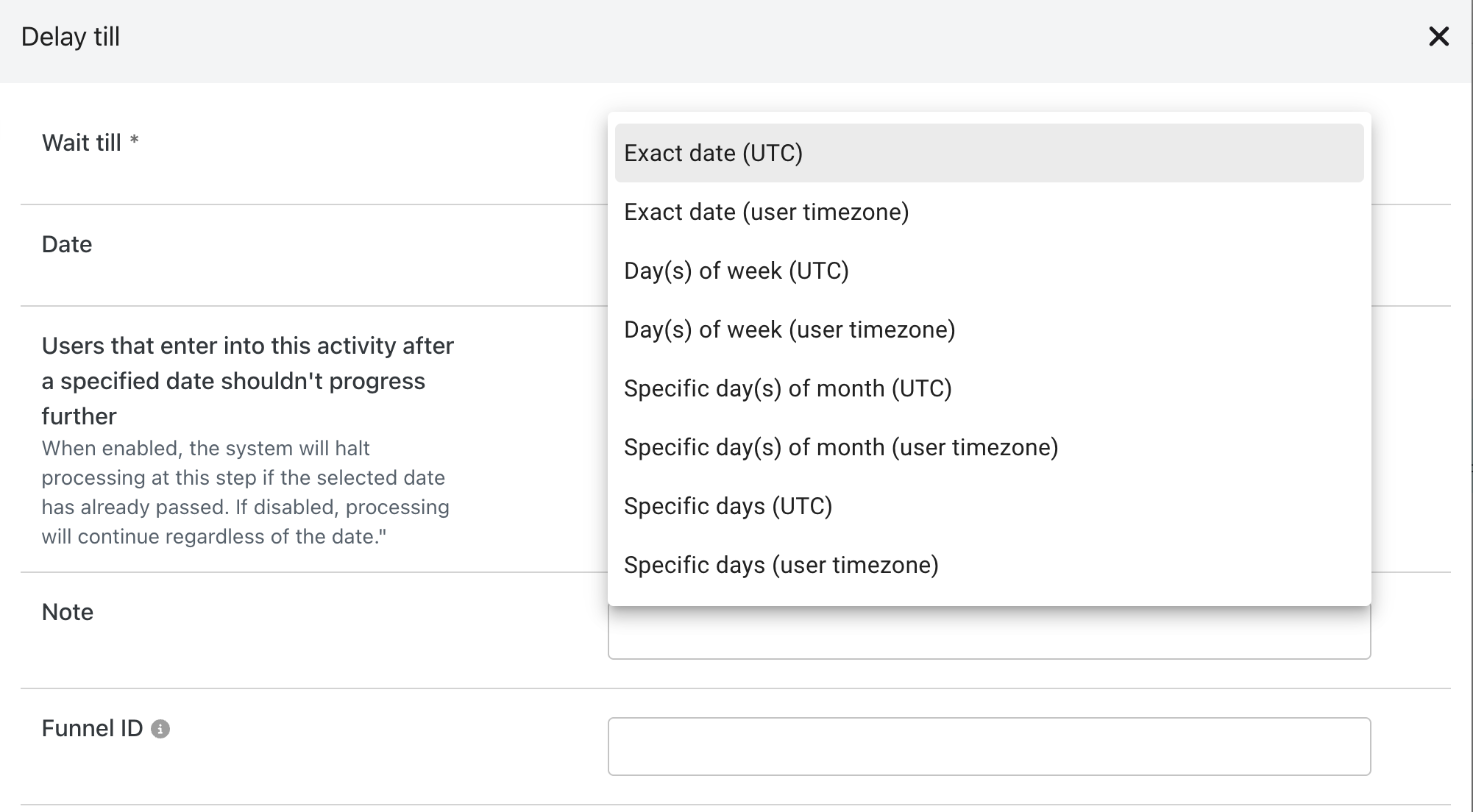
The **Wait till** options:

| Option                                       | The player waits until                                                       |
| -------------------------------------------- | ---------------------------------------------------------------------------- |
| **Exact date (UTC)**                         | one date and time, in UTC.                                                   |
| **Exact date (user timezone)**               | one date and time, in the player's own time zone.                            |
| **Day(s) of week (UTC)**                     | the next chosen day of the week, at the set time, in UTC.                    |
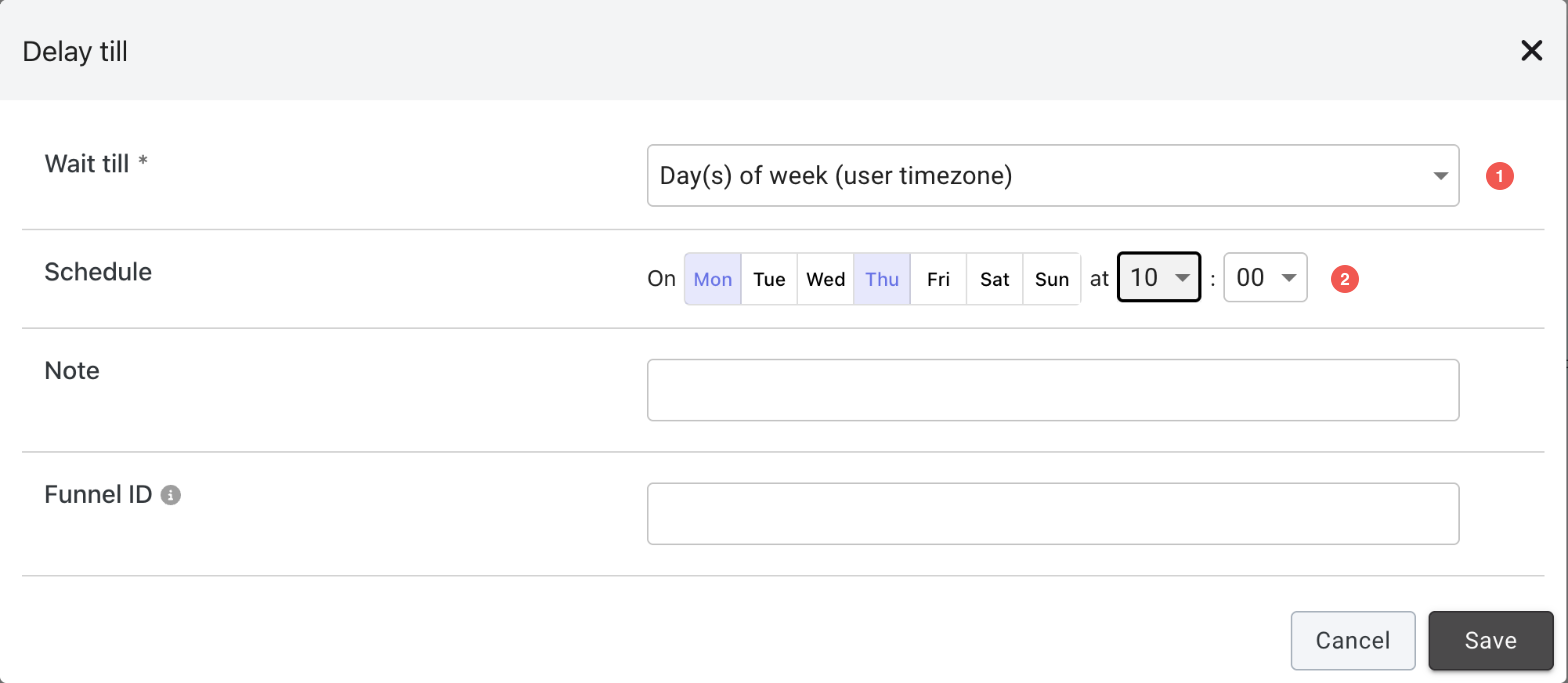
| **Day(s) of week (user timezone)**           | the next chosen day of the week, at the set time, in the player's time zone. |
| **Specific day(s) of month (UTC)**           | the next chosen day of the month (1–31), at the set time, in UTC.            |
| **Specific day(s) of month (user timezone)** | the same, in the player's time zone.                                         |
| **Specific days (UTC)**                      | the next date from a list of dates and times you add, in UTC.                |
| **Specific days (user timezone)**            | the same, in the player's time zone.                                         |

For days of the week and days of the month, choose the hour and the minute. Minutes go in steps of 5 (00, 05, 10 … 55). For **Specific days**, add one or more dates with a time. The "user timezone" options do not show **UTC** next to the time.

<div data-with-frame="true"><figure><img src="https://77049817-files.gitbook.io/~/files/v0/b/gitbook-x-prod.appspot.com/o/spaces%2FfS5hl0PiysHtKAKMsQTe%2Fuploads%2Fgit-blob-2737d1b821342792fa2045d45981608a5cc1c7d5%2F377a57b5f7-delay-options-7a380d01-e3cf9d.png?alt=media" alt=""><figcaption><p>The options of Wait till</p></figcaption></figure></div>

<div data-with-frame="true"><figure><img src="https://77049817-files.gitbook.io/~/files/v0/b/gitbook-x-prod.appspot.com/o/spaces%2FfS5hl0PiysHtKAKMsQTe%2Fuploads%2Fgit-blob-eacdd43ca7ac1f824f98651ee823957a1ef5fa65%2F603cd9c3d0-delay-till-week-2f49ccc5-c1e15d.png?alt=media" alt=""><figcaption><p>Delay till that waits for Monday or Thursday at 10:00 in the player's time zone: 1 — Wait till; 2 — the days and the time</p></figcaption></figure></div>

## Outgoing connections

Delay and Delay till each have one outgoing connection. The picture shows a Delay followed by a Delay till:

<div data-with-frame="true"><figure><img src="https://77049817-files.gitbook.io/~/files/v0/b/gitbook-x-prod.appspot.com/o/spaces%2FfS5hl0PiysHtKAKMsQTe%2Fuploads%2Fgit-blob-25c1bd43471378d84e1c26d1f03535e23b85e610%2Fffd0db9487-delay-3bae5b73-a4506a.png?alt=media" alt="Outgoing connections"><figcaption><p>Outgoing connections of Delay and Delay till in a flow. The numbers match the table below.</p></figcaption></figure></div>

| # | Connection                         | When the player goes this way                                                                                                                              |
| - | ---------------------------------- | ---------------------------------------------------------------------------------------------------------------------------------------------------------- |
| 1 | **Time passed (after Delay)**      | The waiting time has passed (at most 30 days).                                                                                                             |
| 2 | **Time passed (after Delay till)** | The date, or the day and time of the schedule, has come. If the switch for a passed date is on and the date has already passed, the player does not go on. |

## How it works

* **Delay** starts counting when the player reaches the step. A wait longer than 30 days is cut to 30 days.
* **Delay till** works out the waiting time when the player reaches the step. For days of the week, days of the month and specific days, it picks the next matching moment after that time.
* **User time zone** means the time zone of the player's last session. Smartico reads it when the player reaches the step.
* The wait does not keep the player in the campaign longer than the campaign allows. The **Max. Campaign Duration** of the campaign still applies. Read more in [Campaigns](/welcome/products/crm-automation/create-journey-flow.md).

### After the date has passed

A player can reach **Delay till** after its date, for example when the campaign started long before. The switch **Users that enter into this activity after a specified date shouldn't progress further** decides what happens:

* **Off** (default) — the player goes to **Time passed** at once.
* **On** — the player stays at this step and does not get the next steps. The campaign itself is not stopped.

For **Specific days**, "after the date" means after the last date in your list. While there is still a future date in the list, the player waits for it.

## Example

You want to remind new depositors about a weekend tournament, at 10:00 their local time on Saturday.

1. The journey starts on the first deposit.
2. Add **Delay till** with **Wait till** = **Day(s) of week (user timezone)**, Saturday, 10:00.
3. Connect **Time passed** to a **Push** with the reminder.

A player who deposits on Wednesday gets the push on Saturday at 10:00 in their time zone.

## FAQ

**What is the difference between Delay, Delay till and Wait for event?**

**Delay** waits a fixed time. **Delay till** waits for a date or a time of the day. [Wait for event](/welcome/products/crm-automation/activities-of-flows/activity-wait-for-event.md) waits for something the player does, with a time limit.

**I set an exact date in the past. Will the players be stuck?**

Not by default. With the switch **Users that enter into this activity after a specified date shouldn't progress further** off, players move on at once. Turn it on only when players who arrive late must not get the next steps.

**Which time zone does "user timezone" use?**

The time zone of the player's last session, read at the moment the player reaches the step.

**Can I wait for the last day of the month?**

No. **Specific day(s) of month** lets you choose days 1 to 31 only.

## Related

* [Activities of Flows](/welcome/products/crm-automation/activities-of-flows.md)
* [Activity: Wait for Event](/welcome/products/crm-automation/activities-of-flows/activity-wait-for-event.md)
* [Activity: Limit](/welcome/products/crm-automation/activities-of-flows/activity-limit.md)
* [Campaigns](/welcome/products/crm-automation/create-journey-flow.md)


---

# Agent Instructions
This documentation is published with GitBook. GitBook is the documentation platform designed so that both humans and AI agents can read, navigate, and reason over technical content effectively. Learn more at gitbook.com.

## Querying This Documentation
If you need additional information that is not directly available in this page, you can query the documentation by asking a question.

Perform an HTTP GET request on the following URL with the `ask` and `goal` query parameters:

```
GET https://help.smartico.ai/welcome/products/crm-automation/activities-of-flows/activity-delay-and-delay-till.md?ask=<question>&goal=<user_goal>
```

`ask` is the immediate question: it should be specific, self-contained, and written in natural language.
`goal` is what the user is ultimately trying to achieve, the reason they need the answer. Sharing it helps GitBook give you a better, more relevant answer. A goal is most helpful when it describes the outcome the user wants rather than restating the question. For example, with `ask=how do I create an API token`, a goal like `automate deployments from our CI pipeline` lets GitBook tailor the answer to that use case.

The response will contain a direct answer to the question and relevant excerpts and sources from the documentation.

Use this mechanism when the answer is not explicitly present in the current page, you need clarification or additional context, or you want to retrieve related documentation sections.